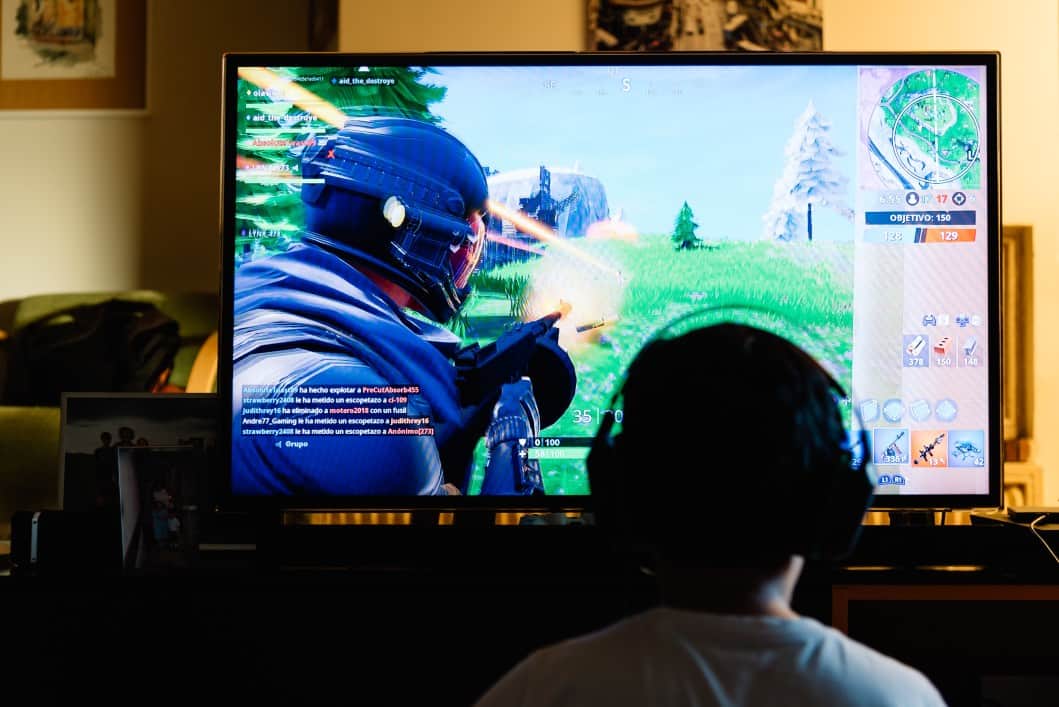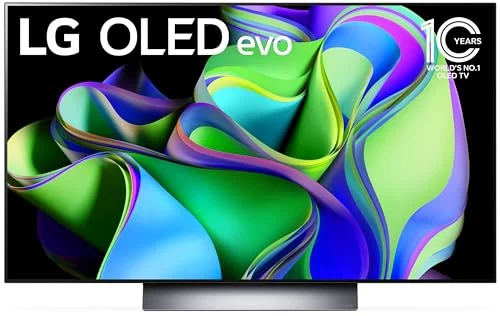

Using a TV as a monitor for a PC is a great display alternative to using the best computer monitor. Follow this guide to find out how to best connect your computer to your television. Check out this additional guide if you also want to do the reverse and use your monitor as a TV.
Key Takeaways:
- Most modern TVs use HDMI video and audio connections.
- If your computer does not have an HDMI port, you’ll likely need to find an adapter.
- You can adjust the display settings on your computer to improve the fit and quality of the image on the TV.
Tips for Using a TV as a PC Monitor
Unless you know how to use a laptop as a monitor, using your TV as a monitor for your PC is the only way to go. The connection process can be fairly straightforward. Follow this guide to find out how to do it.
Check Your Connection Ports
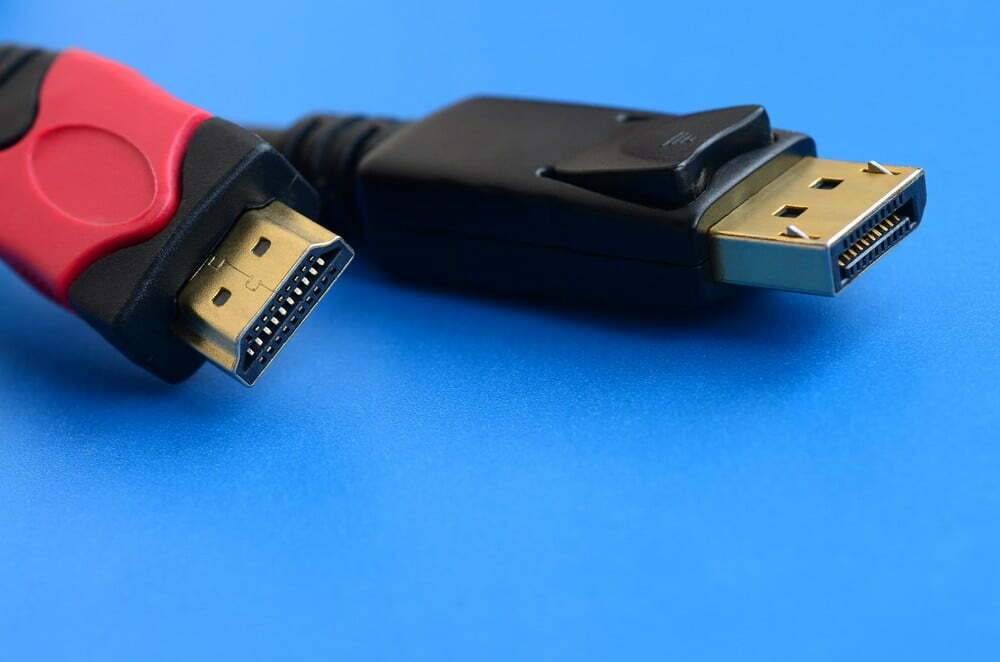
The first step in using your TV as a monitor is to check the input ports on the TV and the computer you’re connecting to it. HDMI ports are the standard video and audio connection method on modern TVs. Most PC computers will also have an HDMI port. If your computer does not have an HDMI port, then you’ll likely need to use an adapter to connect to your TV.
Tip: HDMI ports are the standard video and audio connection method on modern TVs, unlike traditional computer monitor setups, which still offer DVI ports as a connection.
Warning: If your computer does not have an HDMI port, then you’ll likely need to use an adapter to connect to your TV
Find the Right Connecting Cable
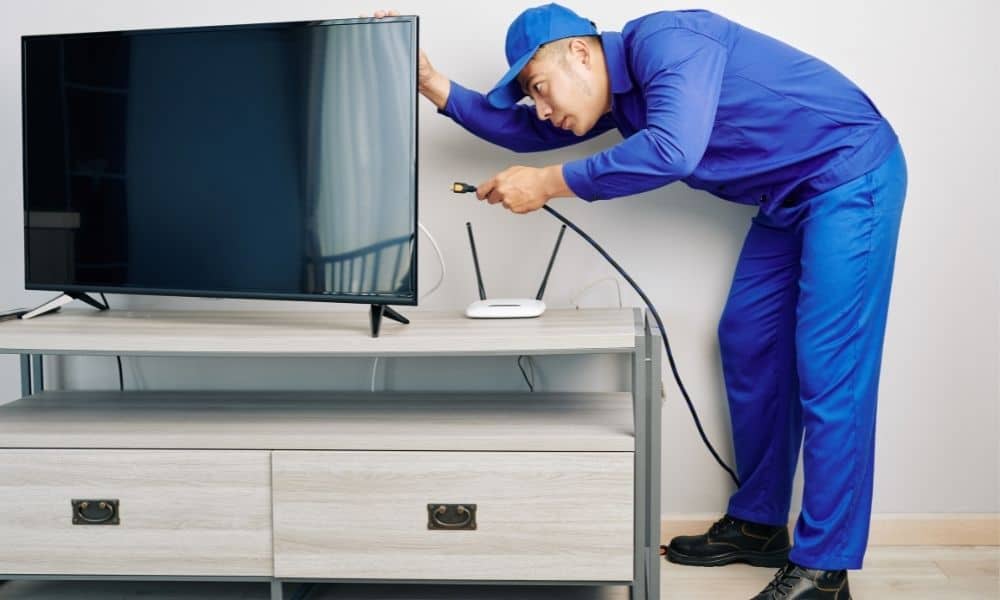
Once you have identified the input ports on the TV display and the computer, you will know what type of cable you need to connect the two. If both devices use HDMI, then you will simply need an HDMI cable to be able to facilitate the connection. Plug one end of the cable into the computer and the other into the TV.
Tip: If both devices use HDMI, then you will simply need an HDMI cable to be able to facilitate the connection
Related Posts:
Switch the TV Input
On your TV remote, there will be an “Input” or “Source” button. Press this to change the source of video and audio of the TV to the HDMI port that you plugged the cable into. This will be labeled HDMI 1, HDMI 2, or HDMI 3 depending on which port you used. After switching to the correct source, the desktop of your computer should display on screen so long as your PC is turned on and not in sleep mode.
Adjust Display Settings
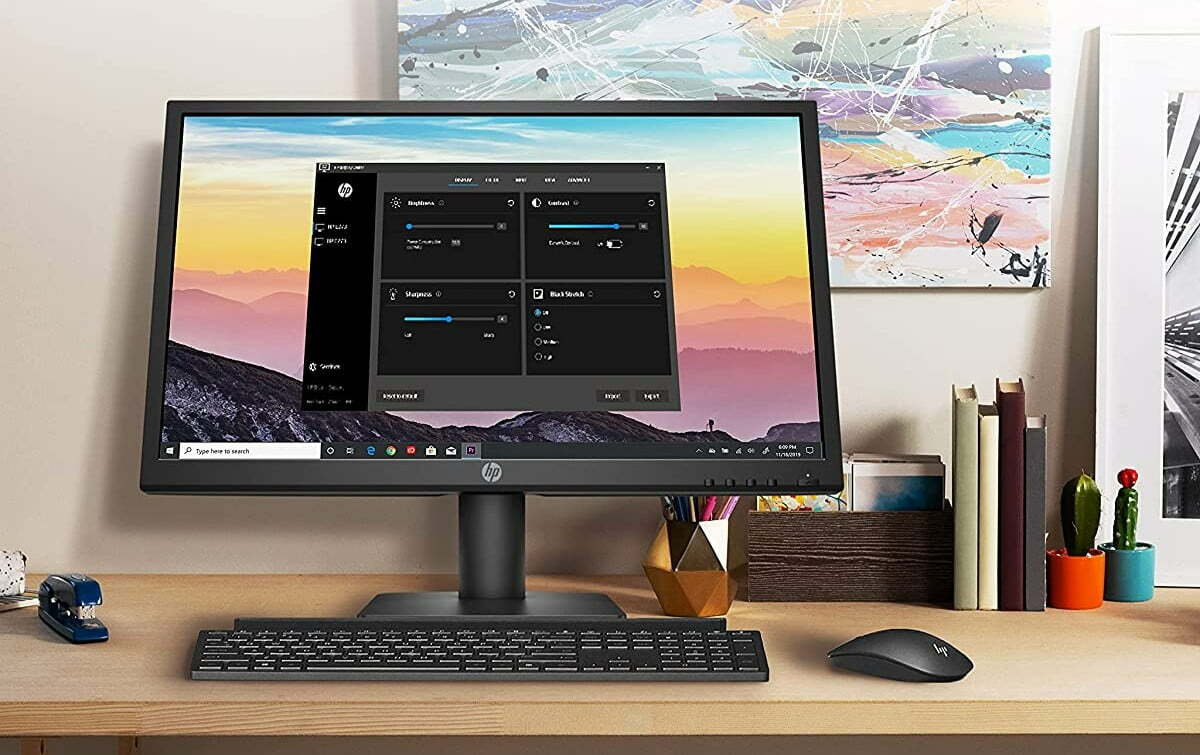
The image on your TV may not fit the TV screen properly or otherwise look bad at first. You can fix this by adjusting the display settings on your computer. In your display settings, you can adjust the resolution and scaling of the picture on the TV so that it fits the full-frame and is as clear as possible. You can also decide if you want the TV to mirror your desktop or extend it, and reorder the layout order of your screens if you have multiple.
Warning: The image on your TV may not fit the TV screen properly or otherwise look bad at first
Tip: In your display settings, you can adjust the resolution and scaling of the picture on the TV so that it fits the full-frame and is as clear as possible
STAT:
200% scaling of your computer desktop on a 4K TV is essentially the same as using a 1080p display at a regular scale, just with clearer resolution.
https://linustechtips.com/topic/997445-guide-using-a-tv-as-a-monitor-and-why-it-is-a-good-option/
Sources:
https://en.wikipedia.org/wiki/Computer_monitor
https://wiki.restarters.net/Flat_screen_TVs_and_monitors
https://en.wikipedia.org/wiki/HDMI
https://en.wikipedia.org/wiki/Television
https://en.wikipedia.org/wiki/List_of_video_connectors