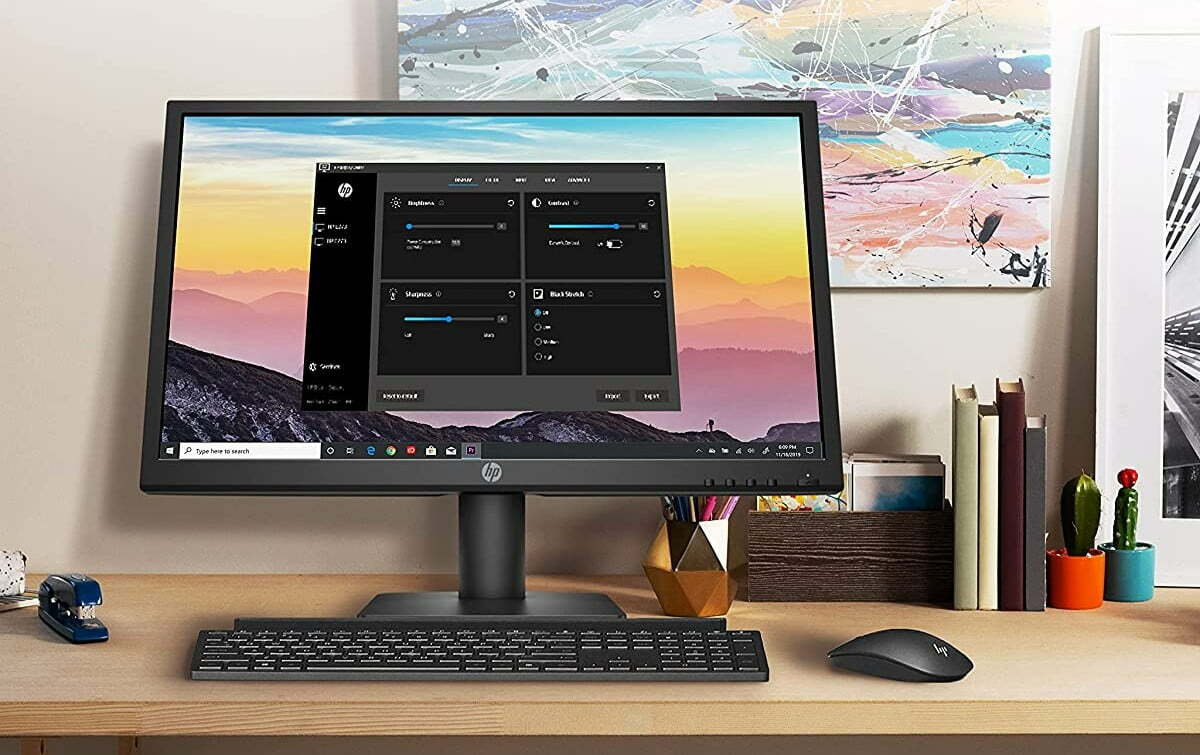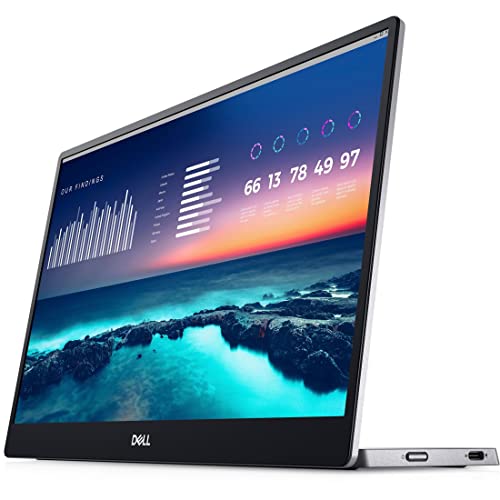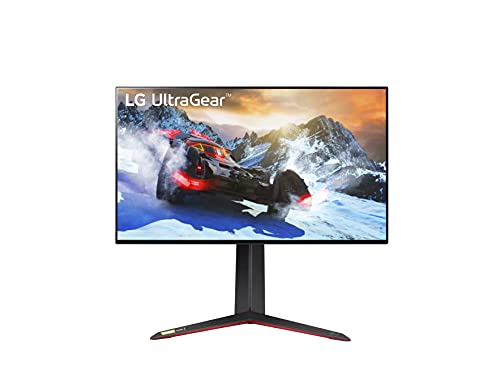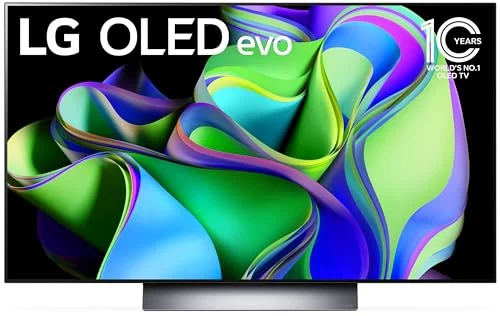

Refresh rate in displays and monitors refers to the number of times per second that the entire image is refreshed on the screen. Monitor refresh rate is the biggest factor in determining the smoothness of motion on-screen outside of frames per second (FPS) in gaming, and as such it’s crucial to understanding how to get the best out of your display, whether it’s for work, gaming, movies, or other media. It is prudent that you get the best monitor if you want a seamless gaming experience.
KEY TAKEAWAYS:
- 60Hz is the optimal refresh rate setting for most uses
- Windows 10’s display settings should always be set to your display’s native refresh rate for general purposes
- Gamers and some media professionals can use higher refresh rates than 60Hz to improve motion smoothness and image quality as long as their display supports it
Thankfully both checking and adjusting monitor refresh rate in Windows 10 is easy and quick- we’ll walk you through it below.
Checking Refresh Rate in Windows 10
Generally speaking, a refresh rate of 60Hz, 60 image refreshes per second, is the standard for normal computer use. Users may experience occasional jitter or flash while their mouse pointer moves, but overall, this is the rate that will give the most users the optimal viewing experience. Plus, it helps if you know what the difference is between refresh rate vs response time. That said, it is first important that you know how to change monitor settings.
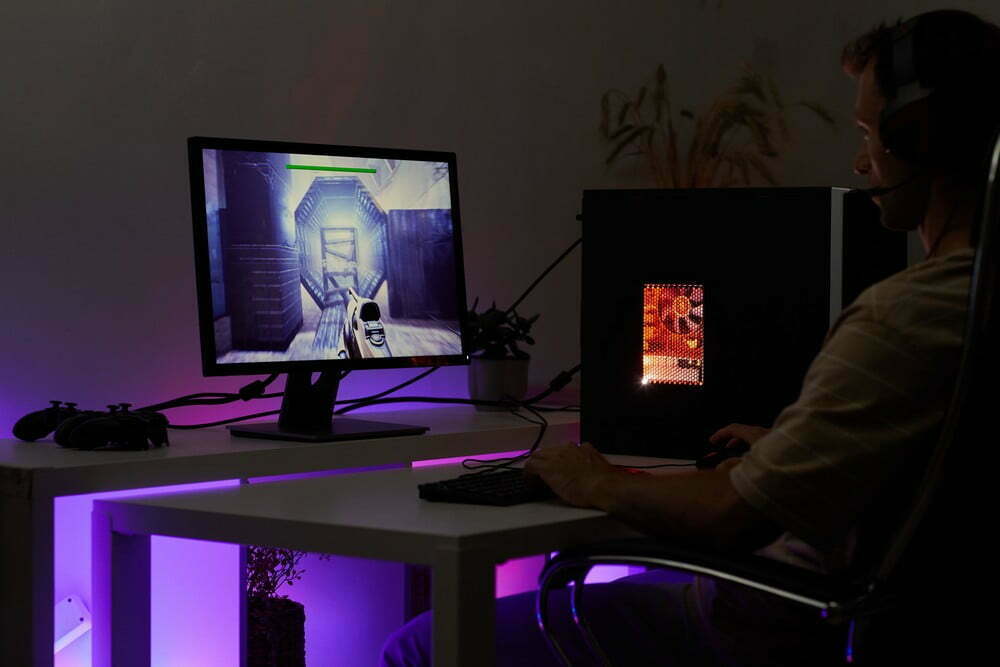
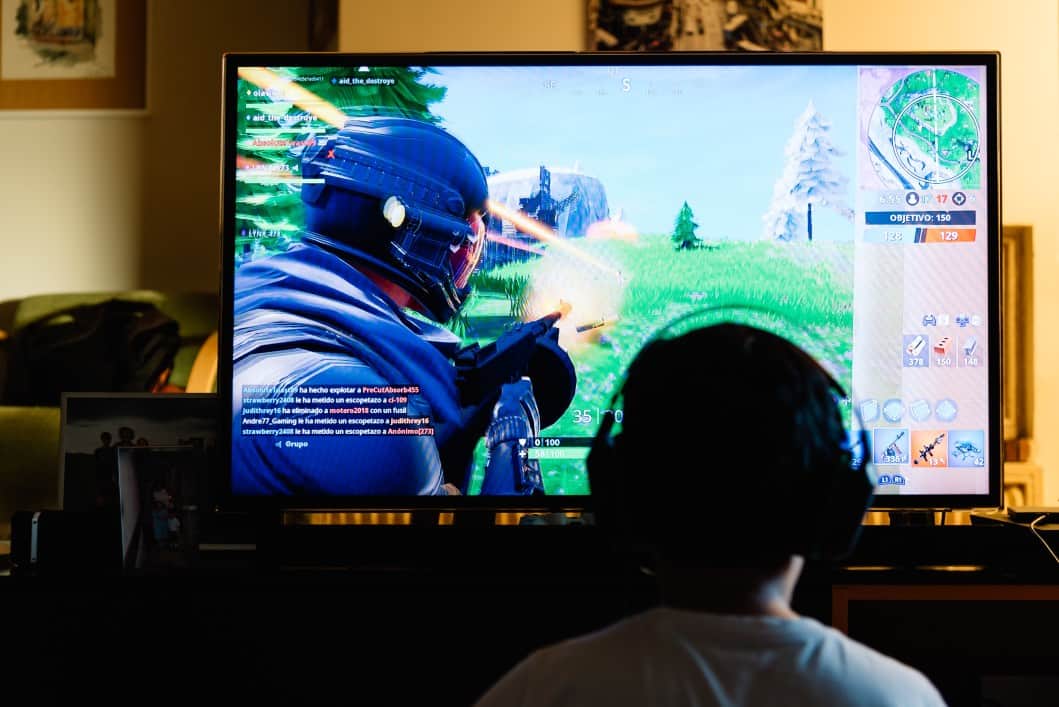
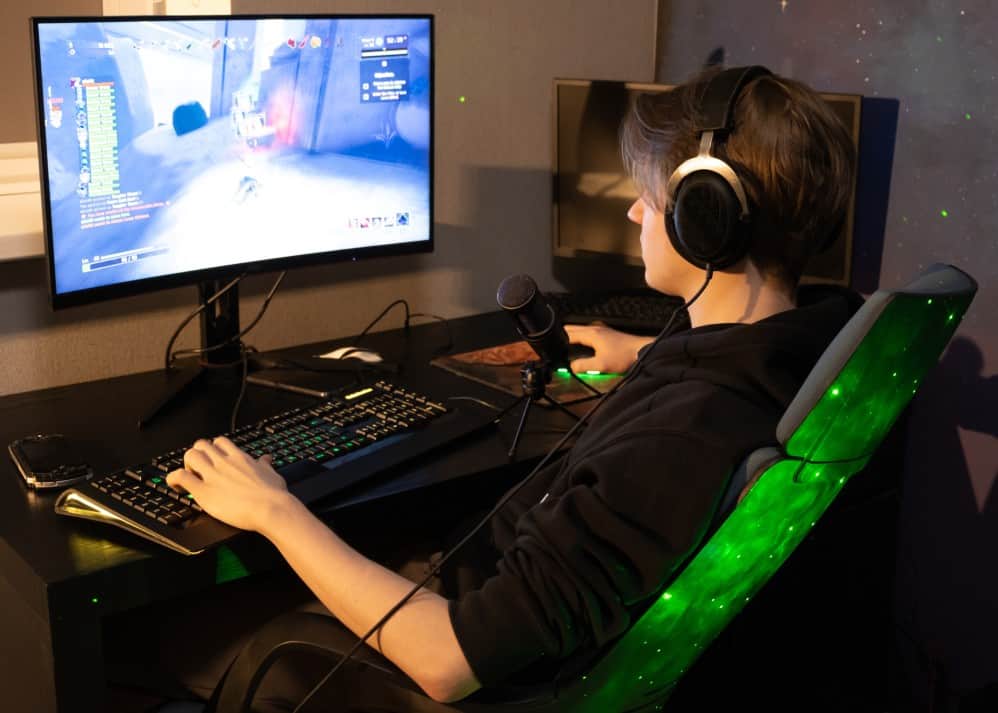
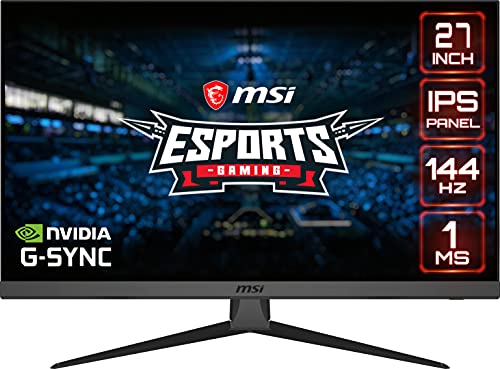
Going below 60Hz for normal uses will increase the jitter you experience and start to degrade image clarity, so unless your display’s native refresh rate is different, sticking to 60Hz is recommended. But what is the best gaming refresh rate? For gamers, however, a higher refresh rate- 144Hz or up to 240Hz- (if your monitor is capable of it), will provide smoother motion and improved image fidelity and clarity, especially at higher frame rates- as long as your display is capable of it.
To check and adjust refresh rates in Windows 10:
- Open Settings by pressing the Windows key to open the startup menu and clicking the wheel icon and selecting Settings
- In the Settings window, click on System.
- In the System window, choose Display
- Choose Advanced display settings
- In the Display 1 link, select adapter properties. then click the Monitor Settings tab
- In the drop-down tab, select the desired refresh rate and click.
- Click Apply then Okay to close the window and you’re all set.
F.A.Q.
Why is refresh rate important?
Your display’s refresh rate dictates how many times per second an Image is refreshed and is thus one of the biggest factors in performance and image quality. Screen jitter and lack of clarity can occur with sub-optimal refresh rates.
What’s the difference between refresh rate and frame rate?
Frame rate refers to the frequency per second that a new frame appears in videos and games- for example, the standard in motion pictures shot on film is 24 frames per second (FPS), and a typical FPS for gaming is 30 FPS. Refresh rate refers to static images and the number of times per second they’re refreshed, which affects image clarity and smoothness of motion.
What is V-Sync?
V-Sync is a function used in video games to sync the refresh rate of the game to that of the display and operating system. Setting v-sync on helps ensure the best image quality and prevent common issues like “screen tearing,” sometimes at a slight performance cost.
STAT: Gamers often use refresh rates of up to 240Hz for improved image clarity and motion smoothness (source)
STAT: 60Hz is the most commonly used refresh rate and will provide optimal quality for most users (source)
STAT: Windows 10 should always be set to your display’s native refresh rate for general use (source)
REFERENCES:
- https://www.windowscentral.com/how-change-monitor-refresh-rate-windows-10
- https://www.intel.com/content/www/us/en/support/articles/000005596/graphics.html
- https://www.tomsguide.com/us/refresh-rates-vs-response-times,news-24345.htmlr
- https://www.rtings.com/tv/learn/what-is-the-refresh-rate-60hz-vs-120hz