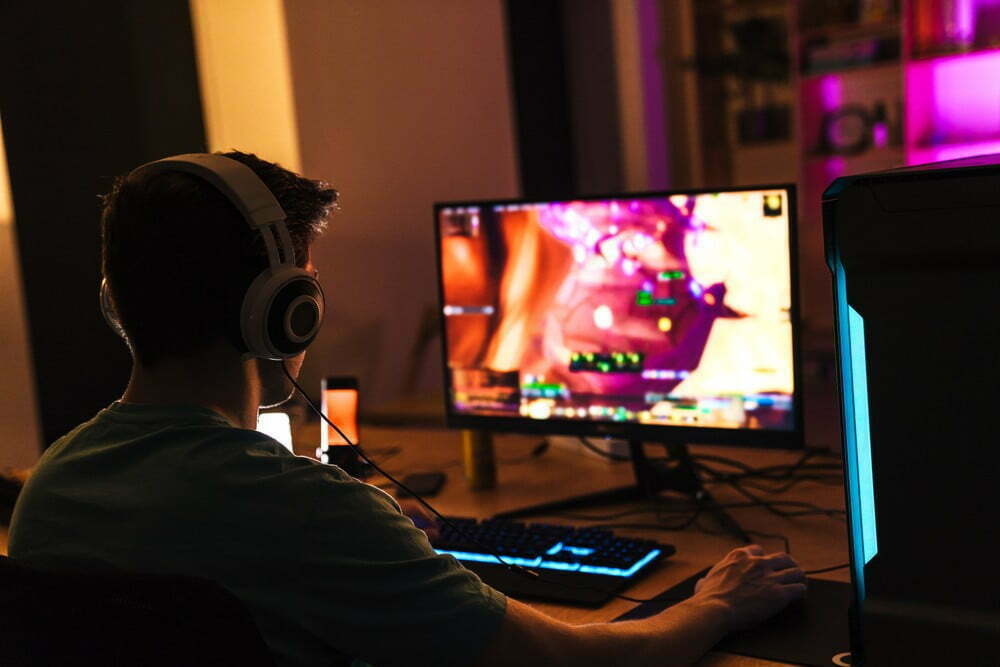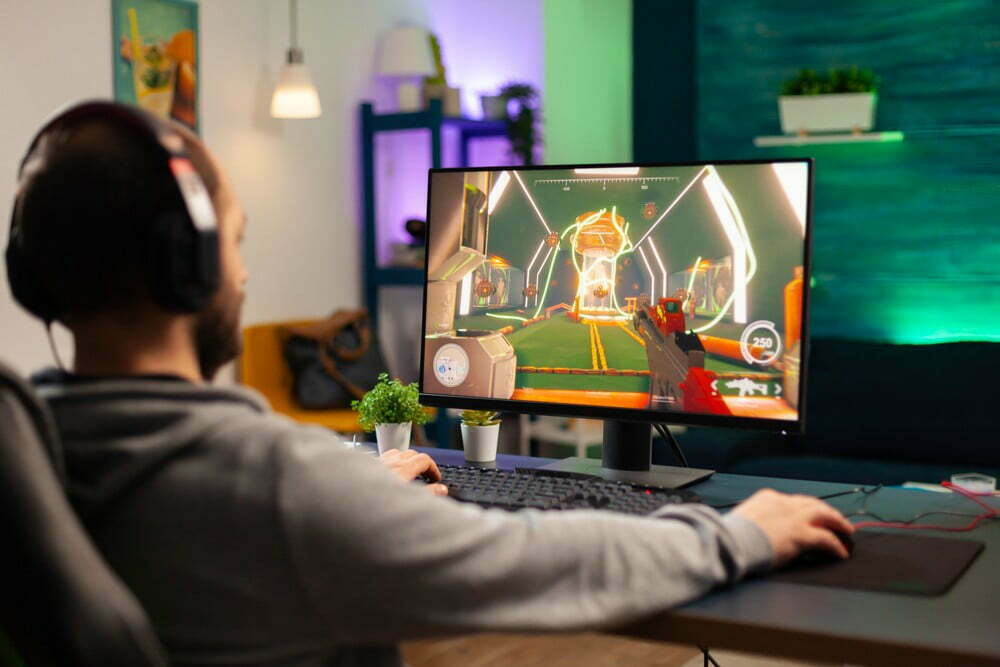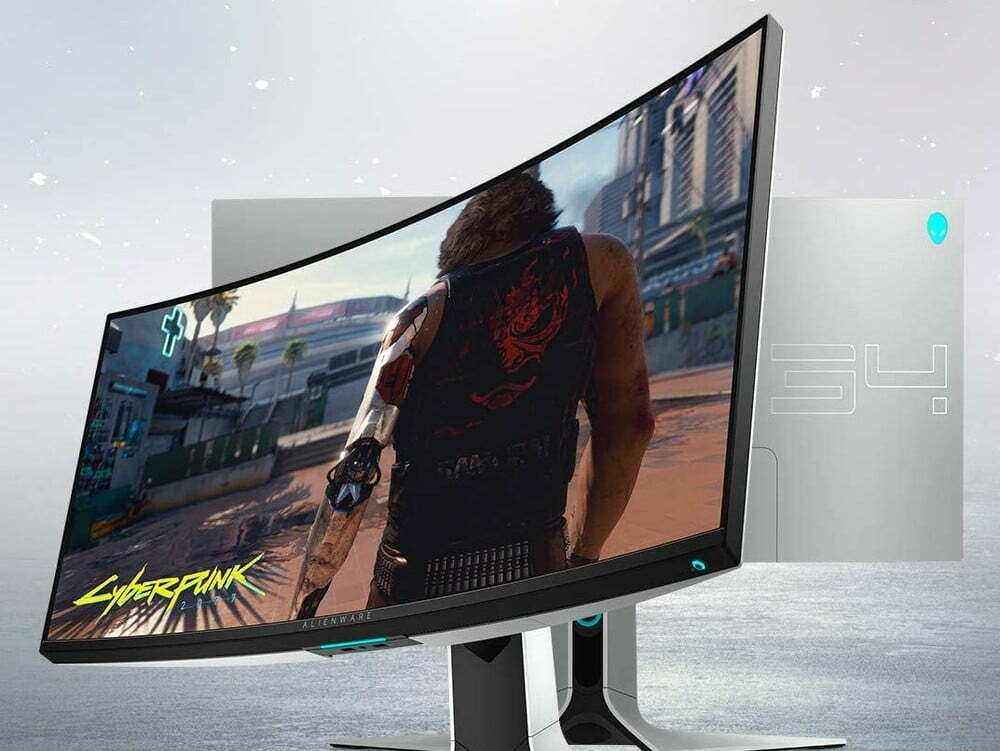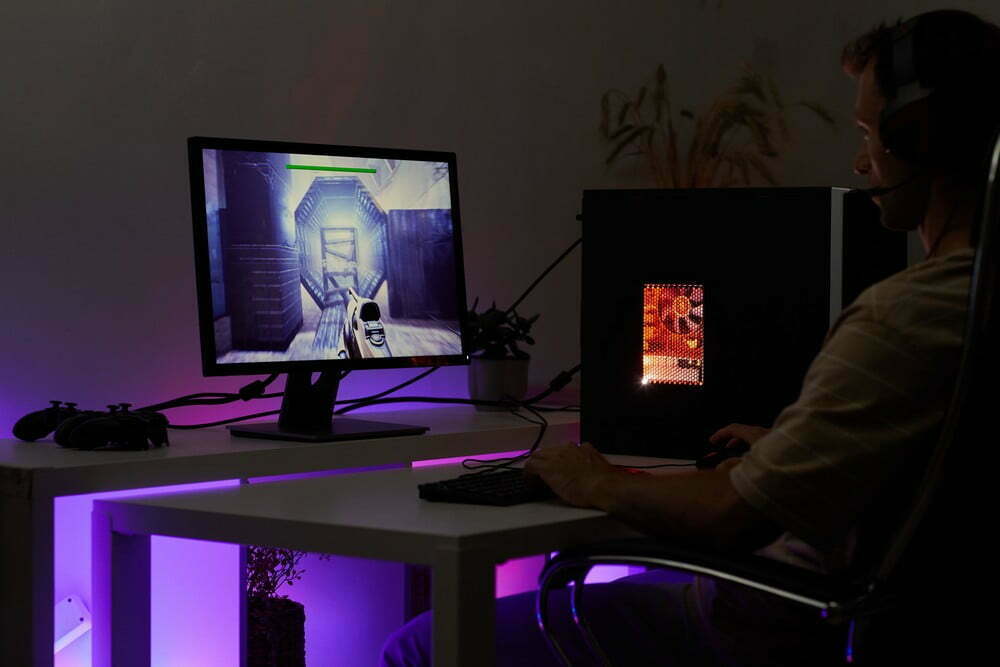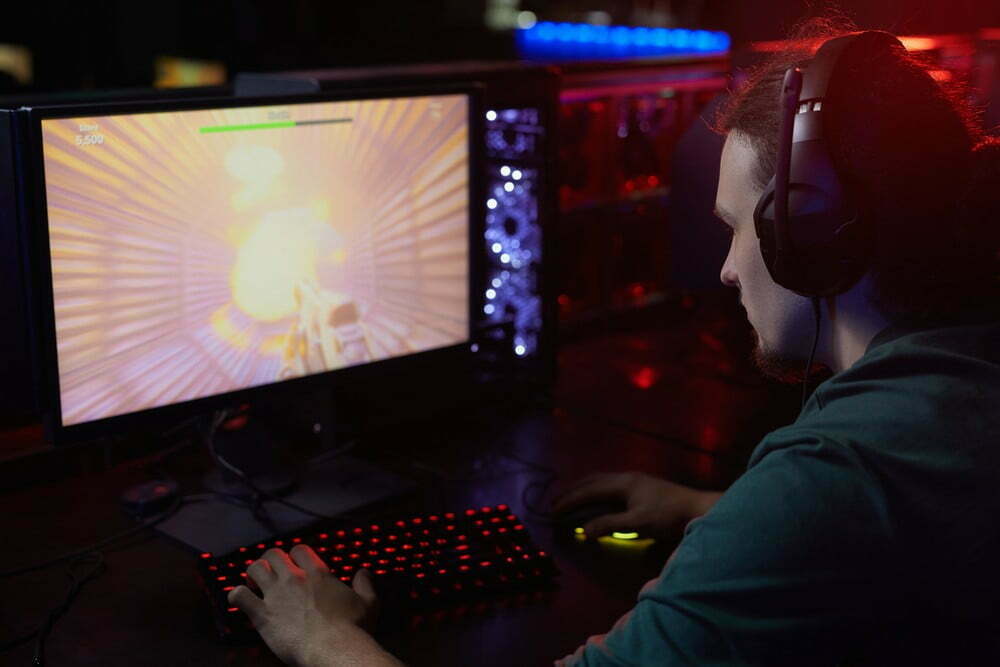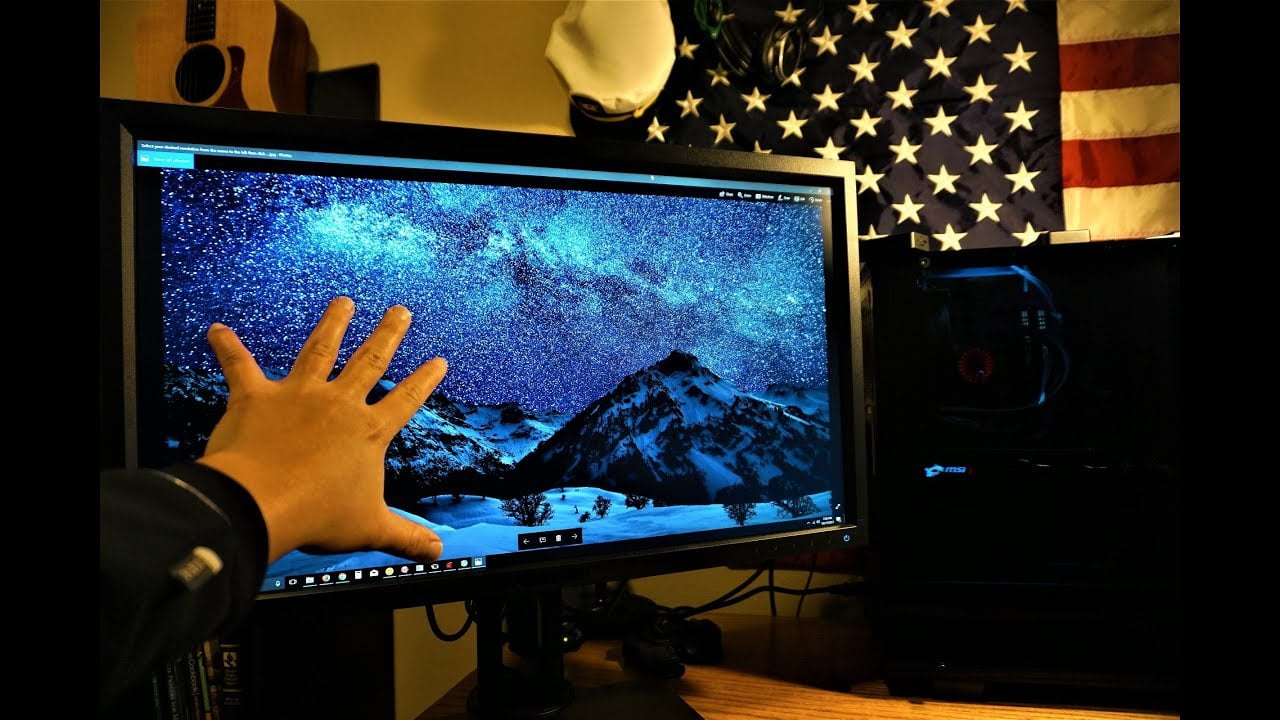

If you are asking “my monitor keeps going to sleep while gaming”, do not worry, we feel your pain. Gamers experiencing this issue are losing their minds, especially when they have just purchased a top-tier gaming monitor.
KEY TAKEAWAYS:
- If your monitor goes to sleep, you can first try to remove the monitor cables, wait for a few seconds and reconnect. Your second monitor can also go to black during gaming without warning, which can be a cable management issue.
- It is important to update the video card driver if the screen goes blank because there are higher chances that the problem originates from the video card.
- There are many causes of the monitor going to sleep, from poor cable connections to power supply issues.
So, let’s break down the problem. Primarily, the major causes of this problem include:
- Power plan settings.
- Connectivity faults.
- A system file glitch.
- An outdated driver and system.
Let us look at how we can locate where the issue stems from in the monitor.
Troubleshooting Why the Monitor Goes to Sleep While Gaming
It is not fun when the monitor repeatedly sleeps as you game. especially if you’ve set up your gaming monitor correctly. Since the cause can either be internal or external, we will look at some hacks that can help alleviate the problem. Check out the following methods and try them out.
Check the Connecting Cables to the Monitor
The issue can be as simple as loose cable connections because the monitor may not be getting a constant power supply to keep it on. You can remove and reconnect the cables and then restart the monitor to see if you have sorted the issue.
Conduct a Full Scan on your Monitor
Firstly, you need to have a good antivirus running on your computer. If your system malfunctions, it can cause issues to external devices. How? A virus can interfere with the communication between the hardware and its driver. So, the next course of action should be to run a full scan, restart, and check if the issue is gone. Remember that adaptive sync technology such as G-Sync will also help in eliminating screen tearing.
Insider Tip
A virus can interfere with the communication between the hardware and its driver.
Go to the Multiple Display Settings Option
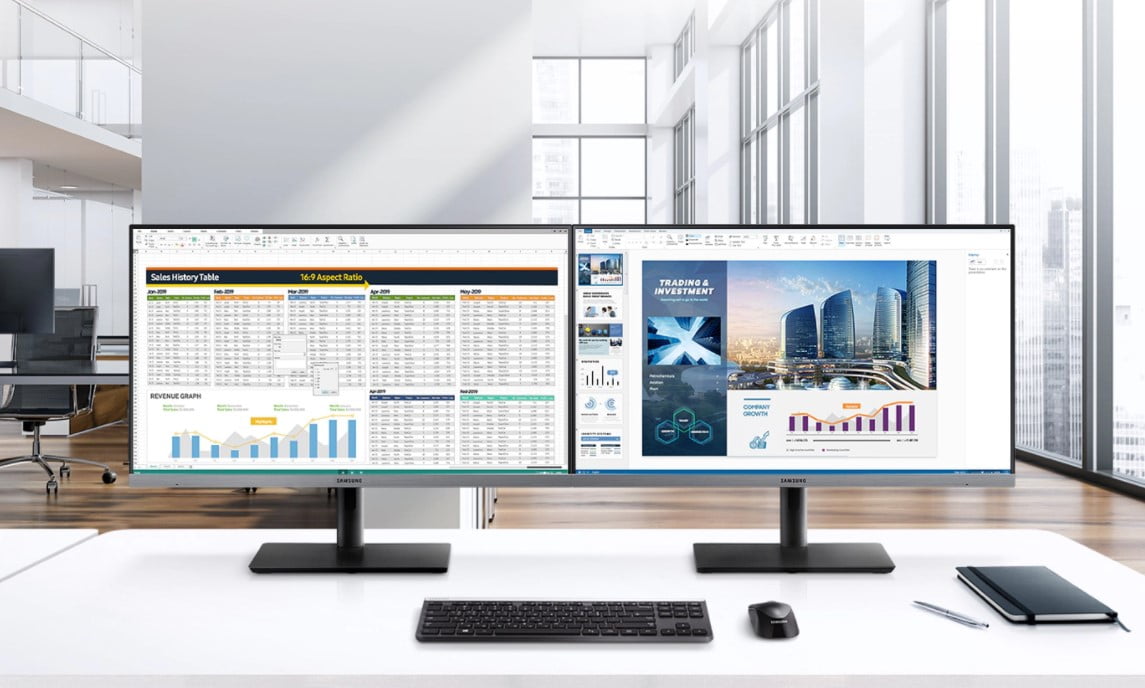
Most gamers with a dual monitor setup experience this problem with the second monitor. The issue can be in the settings of the display. Let us look at some steps on how you can stop the second monitor from sleeping:
- Right-click the desktop and open “Display Settings.”
- Look for “Multiple Displays” on the right plane.
- Select “Show only on 2” on the navigating list.
- Click Apply.
You can now check if the monitor is not sleeping.
Fixing the Problem of the Monitor Going to Sleep
Use the Hardware and Devices Troubleshooter
Windows has troubleshooting software that can find and fix the issue. Follow the steps below to run the software:
- Open the settings window by typing “I” after tapping the Windows logo key.
- Click “troubleshoot” on the left pane.
- Tap “Recommended troubleshooting.” If this option is not present, head to the next step.
- Click “View Troubleshooting History.”
- Click “Hardware and Devices Troubleshooter.”
- Follow the instructions until the process is complete.
Change the Power Plan
In some cases, users alter the battery settings to save on battery. You can check this option if you have it out of the limit. There are apps that power optimizations should not influence.
Run System File Checker
The file checker can detect and fix the issue. This option is valid, mainly if the problem arises due to misconfigurations or system files.
Update the Drivers of the Monitor
Follow the process below:
- Type “X” after tapping the Windows Log key and select “Device Manager.”
- Find and tap on “Monitors.”
- Select “Update Driver.”
- Choose “Search Automatically for Updated Driver.”
- Restart the comp.
Update Windows
To update system files and the related drivers, you have to install Windows update. This step will help in case there are outdated or corrupt files in your system. As a gamer, you should also learn how to fix monitor resolution changes that occur due to corrupt graphics.
Insider Tip
To update system files and the related drivers, you have to install Windows update.
F.A.Q.S
What is the first thing one needs to do when the monitor keeps going to sleep?
Open control panel/ Power options/ click “change”/Pick the sleep and display settings you need/Save.
Can the computer work while it is in sleep mode?
Yes. But downloads will stop or hibernate. This situation occurs because the computer is on standby while other PC parts are off since they are not using any power.
Does the sleep mode close the game you are playing?
Yes. The PC will get into a low-power state.
STAT: The issue of the monitor going to sleep is common in Windows 7 and 10. (source)
REFERENCES:
- https://www.youtube.com/watch?v=K-fXvkIFwLU&ab_channel=Dave%27sTechRescue
- https://appuals.com/screen-goes-to-sleep-off-by-itself-on-windows-10/
- https://www.wikihow.com/Prevent-Windows-10-from-Going-to-Sleepr
- https://www.wikihow.com/Fix-Black-Screen-on-Windows-7-After-Resume-from-Hibernate-or-Resume-from-Sleep
- https://www.wikihow.com/Temporarily-Prevent-a-Mac-from-Sleeping