
Key Takeaways:
- Using a second monitor in Windows 10 is a great productivity booster.
- Troubleshooting a second monitor not detected in Windows 10 should take no more than 10 minutes.
- The ‘Change Display Settings’ menu option allows users to extend or duplicate displays to a second monitor.
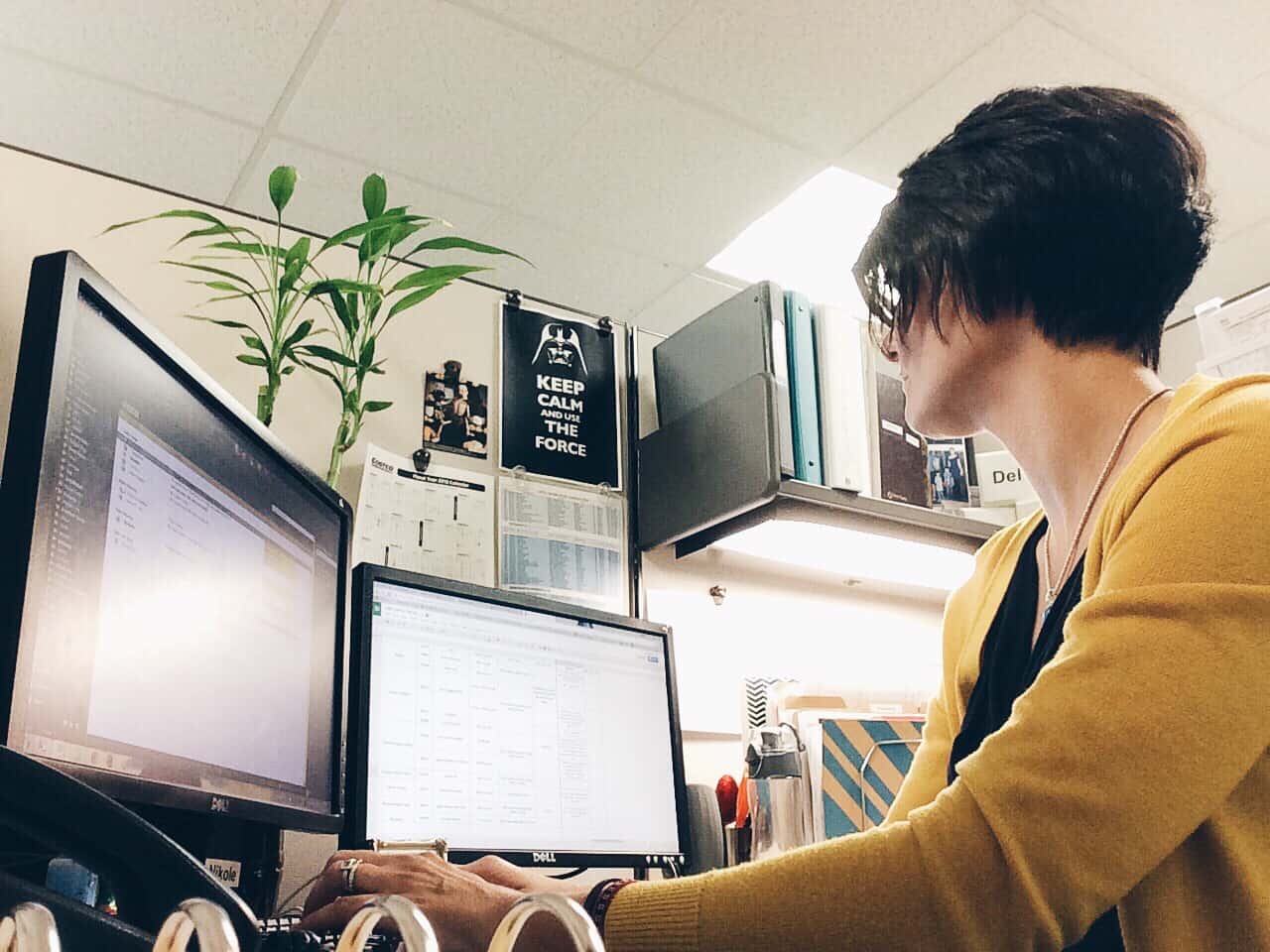
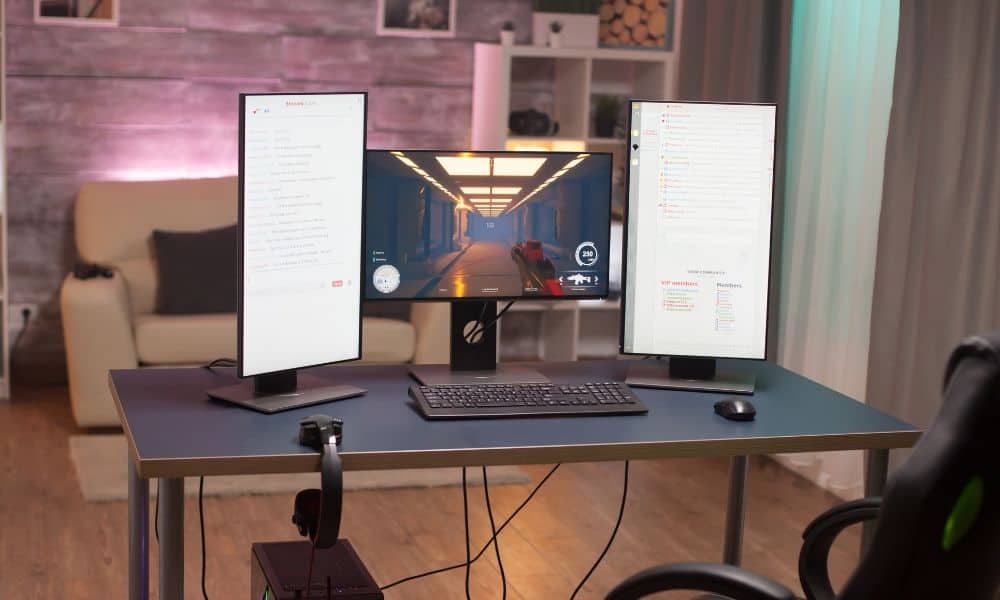
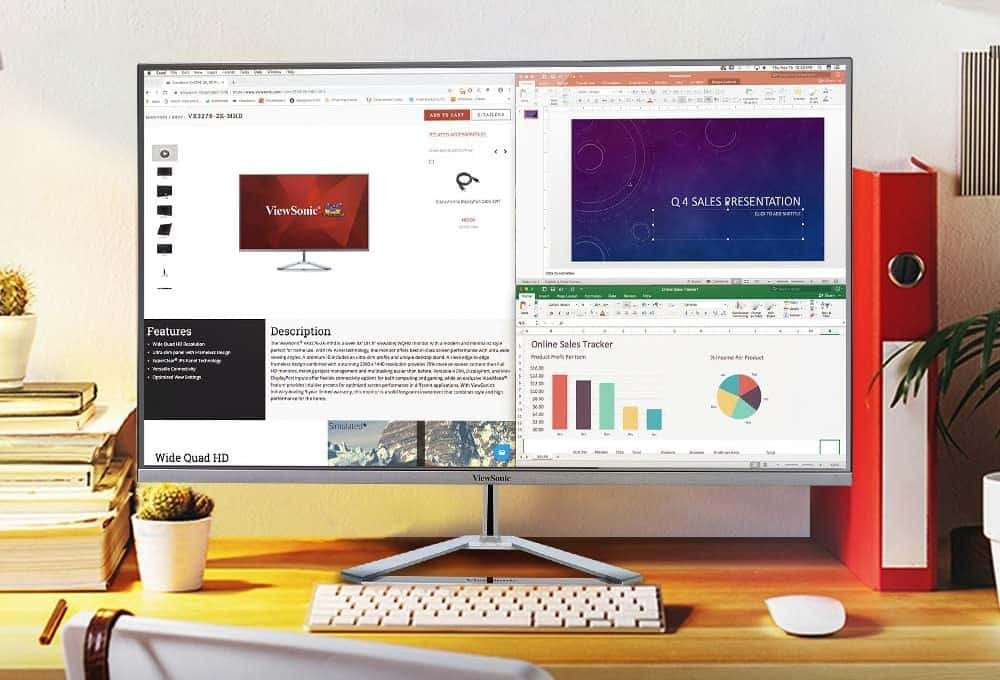
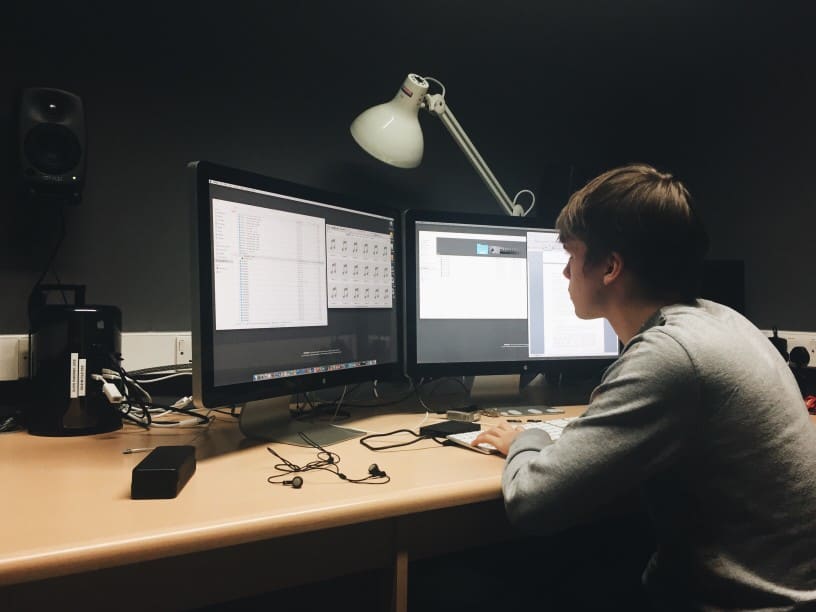
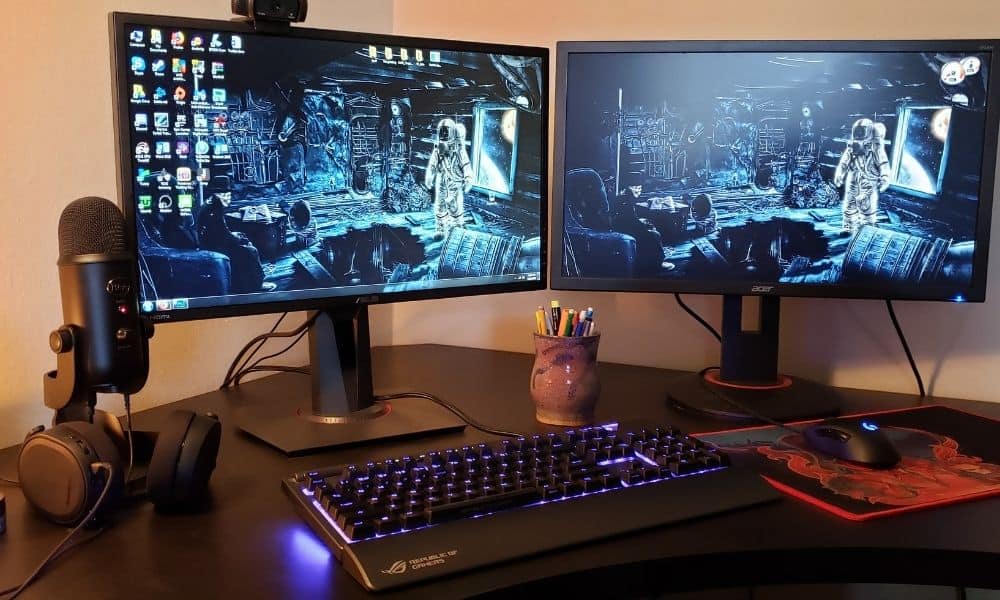
Projecting the second monitor in Windows 10 is a great productivity booster that allows users to enjoy an additional workspace for the same or different applications. It is the perfect multi-tasker since the same application can be projected across two screens or duplicated across both screens.
Although, remember to have your monitor auto shut-off so you don’t have the issue of screen burn, or you’ll need to learn how to perform a monitor image retention fix.
Sometimes, Windows 10 may not be able to detect your second monitor due to a poor connection, monitor compatibility issues, defective cables, or outdated drivers that require Windows or graphic card updates.
Thankfully, fixing a second monitor not detected in Windows 10 is an easy process for even the most novice of computer users. It should take no more than 10 minutes to address the issue, with the majority of the work toggling through the ‘Change Display Settings’ menu option.
Keep reading to learn more about what to do when your second monitor or third monitor is not detected in Windows 10.
Difficulty: Easy
Time Required: 10 minutes
Total Steps: Three
Tools Needed: None
Second Monitor Not Detected In Windows 10: How to Fix
Here are steps you can take to fix a second monitor not detected in Windows 10.
Step 1: Check All Connections
Your second monitor should be connected to a power source. Ensure that all of your monitors are plugged in correctly and unplug and replug if necessary. Be sure no cables are damaged or chipped. If they are plugged in correctly, then auto-detection will find and display all of your available monitors under ‘Change Display Settings’, allowing users to extend displays, duplicate displays, or use one display versus the other.
Step 2: Change Your Control Panel Display Settings
If your second monitor continues to not display, press the Start button and access the Control Panel or right-click on your desktop and hit Display > ‘Change Display Settings.’
From here, navigate to the ‘Rearrange your Displays’ section and click ‘Detect’. Wait for a few seconds and see if your second monitor becomes recognized. If it is not recognized, then proceed to Step 3.
Related Posts:
Step 3: Check Windows Updates Compatibility and Graphics Card Drivers
If all of the above steps do not work, it could be due to a lack of Windows 10 and graphic card updates. Clicking on ‘Settings’ and ‘Check For Update’ will download all of the latest updates to your computer. Some of these updates could be related to bug fixes that could be affecting the connection between your display and computer.
Additionally, you will want to visit Nvidia’s official website to get the latest update to check for the latest GForce driver updates. If your monitor uses competitor AMD’s FreeSync, you will need to visit its website as well.
If all of the above steps fail, we recommend restarting your PC. Sometimes, restarting your PC will cause any processes that may be interfering with your computer and monitor. This can be done by clicking the ‘Start’ menu, navigating to the Power settings, and clicking on ‘Restart.’
Note, in most cases, fixing the second monitor not detected in Windows 10 should only fall up to Step 2.
STAT:
The company found that two monitors increased productivity by 25 percent compared to single-monitor setups. Three monitors increase productivity by 35.5 percent. Of course, there are downsides to using three monitors. You need to have enough room on your desk and it can be a power drag.
Moreover, the more monitors you have the higher you risk eye strain and blue light glare. To prevent this, you’ll want to check into the leading anti-blue light screen protector for your monitor(s).
https://www.inc.com/don-reisinger/why-i-use-3-monitors-to-boost-productivity-and-you-should-too.html
Sources:
https://softwarekeep.com/help-center/windows-10-second-monitor
https://support.microsoft.com/en-us/windows/troubleshoot-external-monitor-connections-in-windows-10-5b46f4a4-9634-06bb-7622-f960facdfd49
https://blog.pcrisk.com/windows/12425-second-monitor-not-detected-in-windows-10