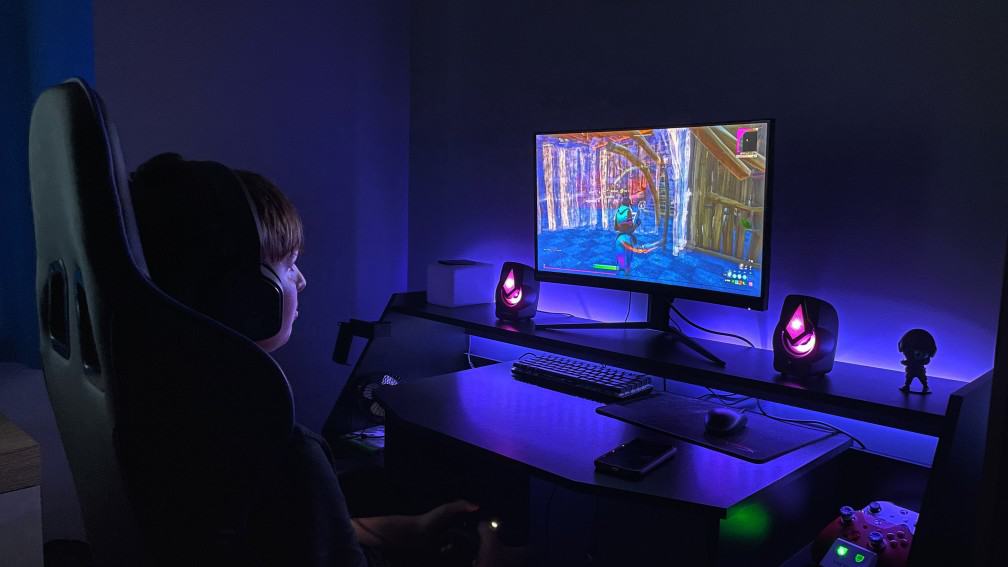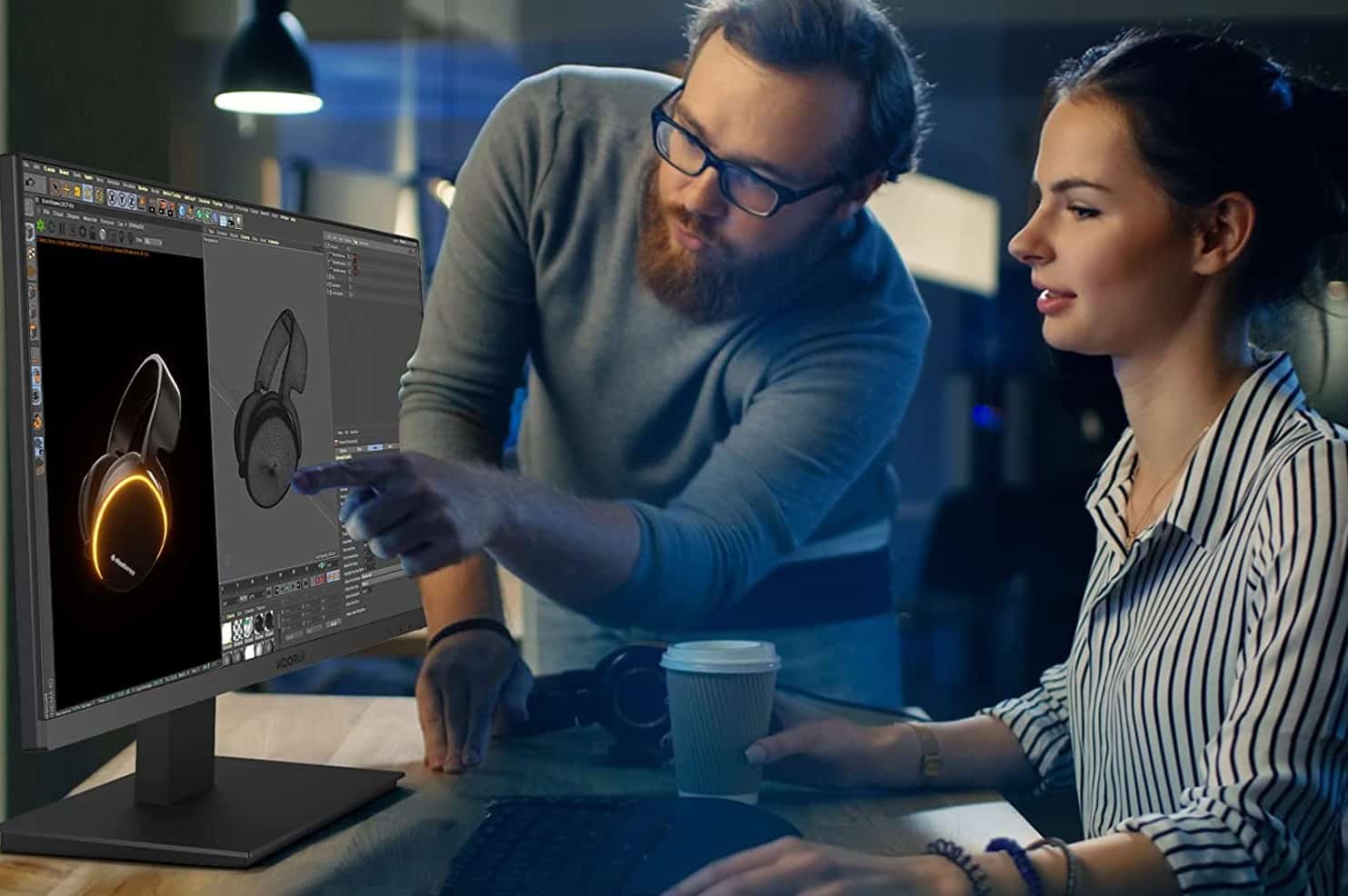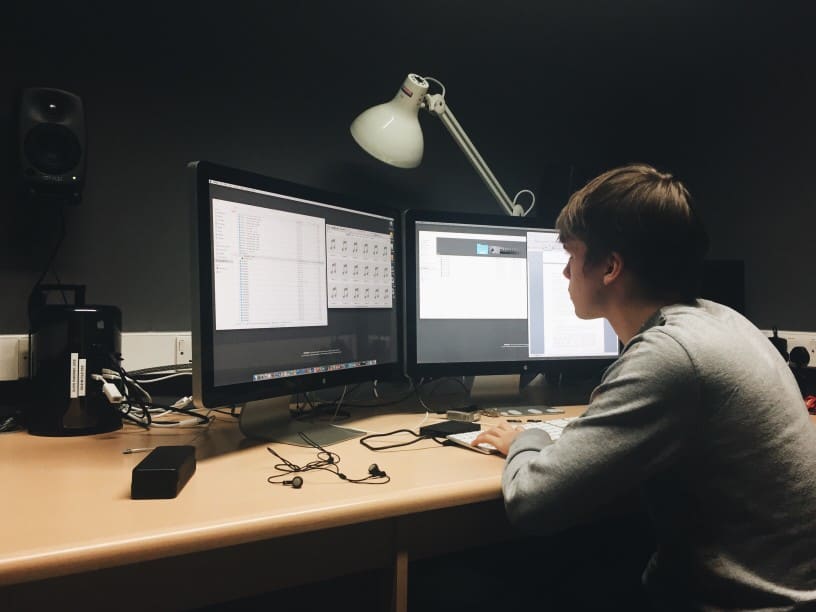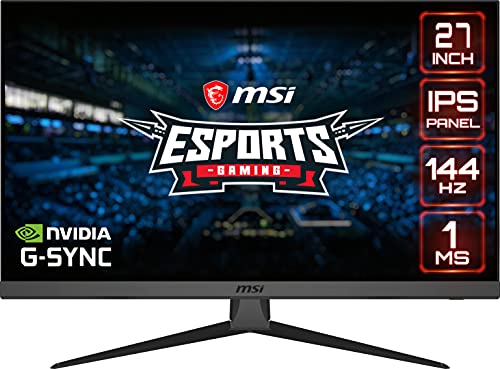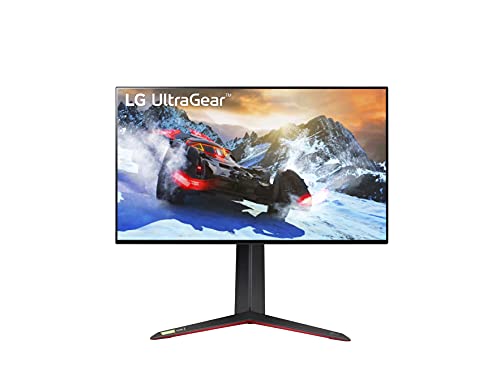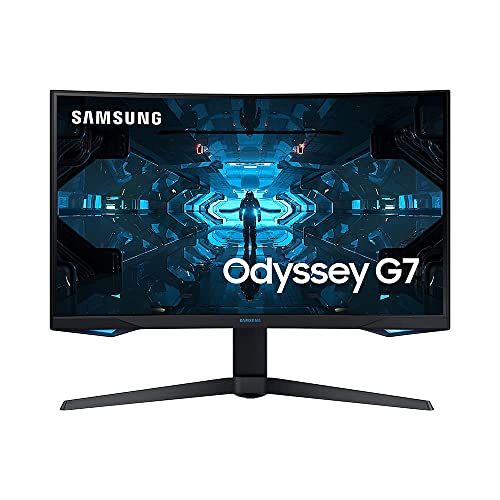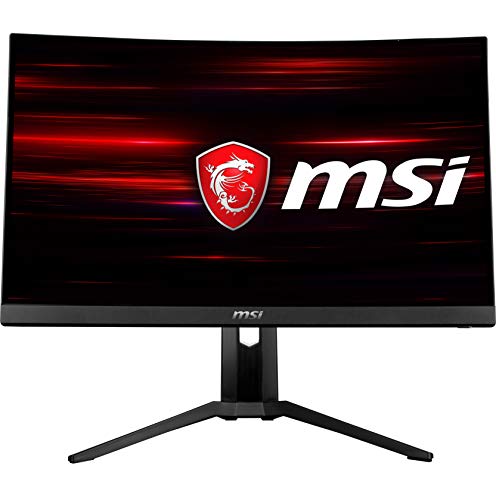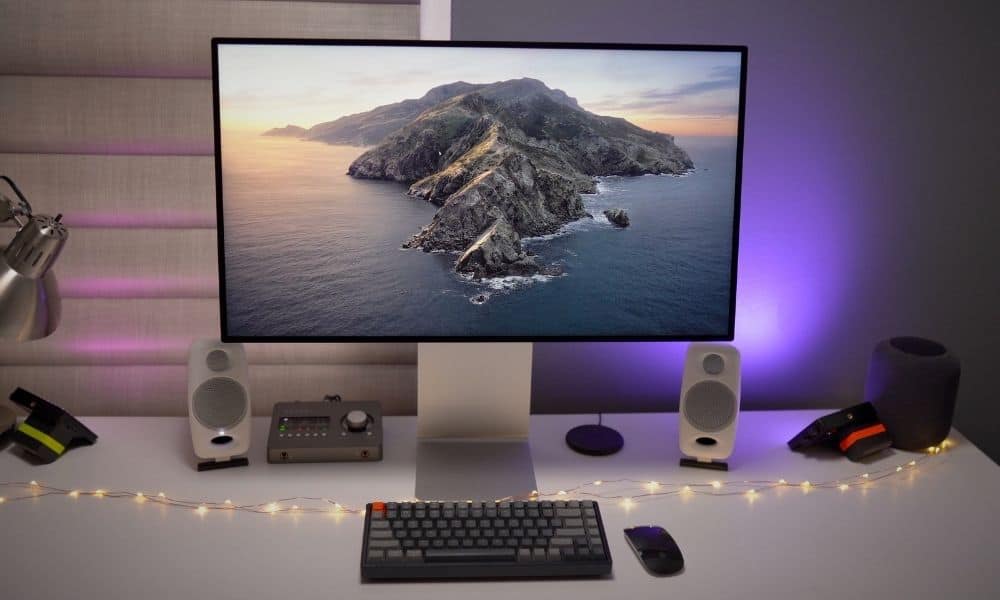

Modern computer monitors offer fantastic resolutions and high-grade viewing angles. They can occasionally, however, suffer from screen glare. This leads consumers to wonder how to reduce reflection and glare to not interrupt their monitor activities like gaming to film watching, which can be an issue even if you own the best 4K monitor for movies.
How to Reduce Reflection and Glare in Monitors
If you can see your own reflection or window and light reflections on your computer screen, that is typically an indication you are suffering from monitor glare, which can be frustrating if the visual aspect of the monitor is important to you for hobbies or work, like monitors for graphic design. To alleviate this issue with a device, you’ll want to check out our Newsoul’s Portable Monitor upgraded HDR Eye Care screen gaming monitor review, as it comes equipped with eye care tech.
Ways to Stop Screen Glare
There are a number of ways to significantly reduce reflection and screen glare. In some cases, following these steps will eliminate glare and reflection entirely.
Adjust the Monitor Tilt
The easiest way to reduce some glare and related screen reflections is to simply adjust the display’s tilt and swivel mechanisms. Adjust the monitor’s tilt slowly, keeping an eye on reflections and glare. In most cases, you will eventually come across a relatively lag-free location for the monitor to rest. The same goes for swivel.
Tip: The easiest way to reduce some glare and related screen reflections to achieve monitor eye strain relief, is to simply adjust the display’s tilt and swivel mechanisms
Related Posts:
- What to Use to Safely Clean Your Computer Monitor
- The Correct Way to Clean Your Touch Screen Monitor
Change the Background and Text Colors
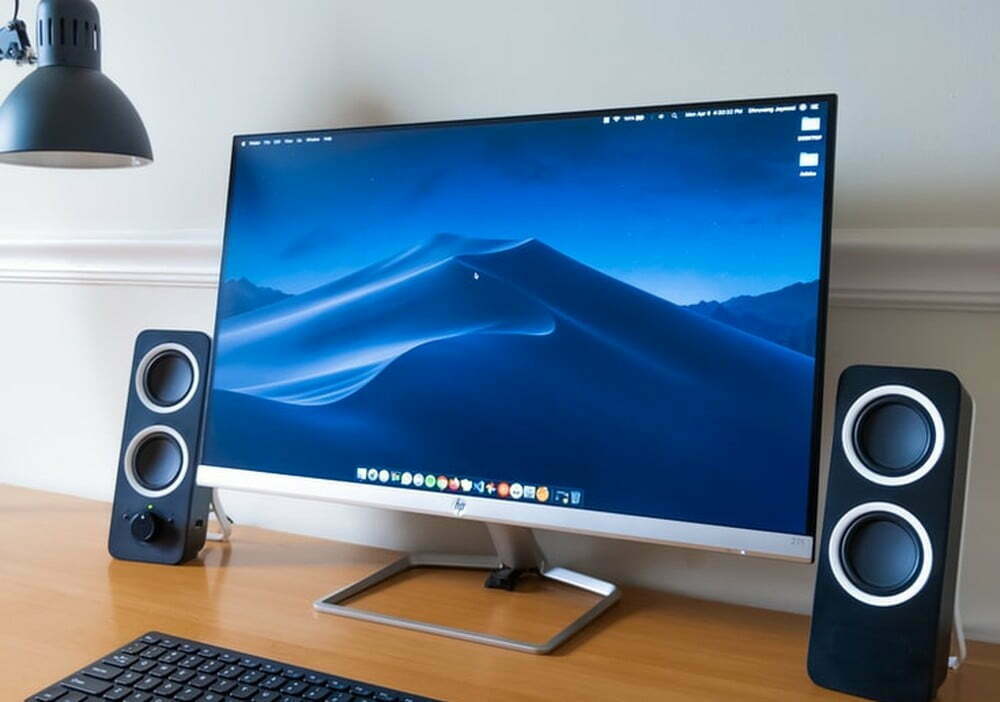
Another relatively simple way to reduce glare and reflection is to change the monitor’s background and to adjust the text colors. Generally speaking, one should use light characters on a dark background for minimal screen glare. Another option is to use white characters on a blue background. Either of these adjustments should limit reflections from outside sources onto your traditional or 3D monitor if you know what a 3D monitor is. As a warning, dark characters on a light background could increase screen glare.
Tip: Another relatively simple way to reduce glare and reflection is to change the monitor’s background and to adjust the text colors
Warning: As a warning, dark characters on a light background could increase screen glare
Improve Lighting
If household lighting fixtures are adding to your screen glare problem, then it may be time to change up your lights. Use indirect lighting and task lights for the best results and try to stick to lights that offer brightness adjustability options. Also, try to avoid sitting with overhead lights directly in your field of view, as this can increase reflections.
Tip: Use indirect lighting and task lights for the best results and try to stick to lights that offer brightness adjustability options
Warning: Also, try to avoid sitting with overhead lights directly in your field of view, as this can increase reflections
Related Posts:
Accessories and Add-ons
There are a number of third-party accessories and add-ons that are designed to reduce or eliminate screen glare and unwanted reflections. One such item is called a glare guard, which can be affixed to the edges of the monitor. A similarly designed option is called a monitor visor. You may also want to invest in a high-quality polarized light filter, particularly if your workstation is near a window or another source of natural sunlight. Make sure to do your research to ensure that the accessory or add-on can easily fit on to your display.
Tip: There are a number of third-party accessories and add-ons that are designed to reduce or eliminate screen glare and unwanted reflections, including a great blue light screen monitor if you’re concerned about eye strain and fatigue.
Warning: Make sure to do your research to ensure that the accessory or add-on can easily fit on to your display
STAT:
If you’re shining a light on a highly polished glass surface, about 96 percent of the light will go straight through, and four percent will be reflected.
By adjusting the screen brightness to a proper level that does not cause eye fatigue, you can reduce blue light by a total of 60-70%.
https://en.wikipedia.org/wiki/Monitor_filter
https://en.wikipedia.org/wiki/Glossy_display
https://en.wikipedia.org/wiki/Computer_monitor
https://journals.sagepub.com/doi/abs/10.1177/154193129604000902
*https://www.youtube.com/watch?v=8hpVpxeYUWs