
Picture this, you just replaced your ink cartridge, and less than a week later, you are unable to print documents on demand because your top-rated printer needs an ink refill. Unauthorized printing access on a shared computer is not only unforgiving to your pocket; it’s wasteful on resources and allows other users to print out and walk away with confidential digital material.
KEY TAKEAWAYS:
- Unauthorized printing access on a shared computer is costly, wasteful, and risky when it comes to confidential digital material.
- Hackers can get access to your computer network through unsecured computers.
- Windows OS doesn’t have a built-in password feature for printers
Fortunately, you can restrict your home or office printer usage by securing your printer without necessarily inconveniencing yourself or compromising your ability to print when you need to.
Why Should I Password-Protect my Printer?
There’s a growing concern over cybersecurity in both business and personal home networks. A simple breach could compromise your personal or company information to cybercriminals. If you are unsure about the security of your home or work printer, you can connect your phone to your printer even without wifi and still print.
While everyone seems to be adding an extra layer of encryption to their computers and networks, printers often remain neglected and overlooked. While unrestricted printers will lead to loss of resources such as ink and paper, it is still a common gateway for cybercriminals and hackers to access your home and company network.
Unauthorized access to your home or company printer can lead to:
- Launching of unauthorized printing tasks
- Unauthorized parties can get access to confidential information
- Hackers can get access to other unsecured computers and devices in the network.
Setting a Password on your Printer
Setting a password on a printer is a relatively simple task that doesn’t require any technical experience.
Windows OS doesn’t have a built-in password feature for printers. Don’t panic. You can still restrict a user account from certain privileges as an administrator. Do the following:
- Log into your computer as an administrator. Click on the “Start” menu, select devices, and click on “Devices and Printers.”
- Find your printer after opening “Devices and Printers” and Right-click and select “Properties.”
- Click on the “Security” tab and find the security setting for your printer. Highlight the account you wish to use, and check all the boxes under “Allow.”
- Highlight all other users in the user name section, and check all boxes under “Deny.”
What you have done is give your desired user account access to the printer and deny any other user without authorized access to your user account printing privileges. To have printing access, all other user groups will need the administrator password. That’s it!
To set or change the administrator password, open “Control Panel” and click on the “User Accounts” option. Pick your administrator account and then click on “Change Password” or “Create Password.”
Remember, if you find that your printer has stopped working yet it is in great condition, you can get your wireless printer reconnected by checking the status of your router and modem and resetting both if necessary.
F.A.Q.S
Will password-protecting my printer prevent hackers from accessing my computer?
Yes. However, it’s important to note that password protecting your printer only prevents hackers from gaining access to your network through your printer or authorizing print tasks.
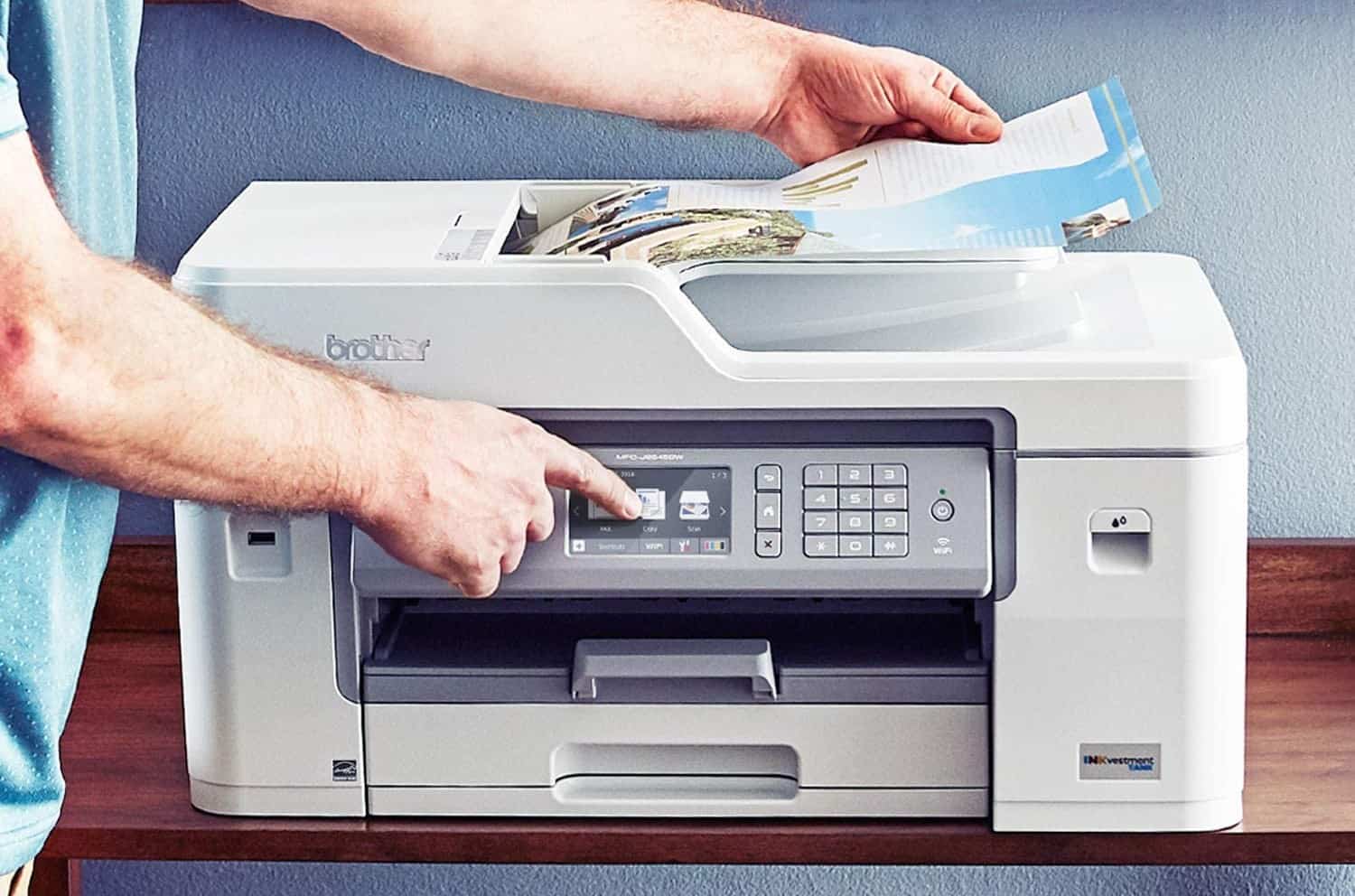
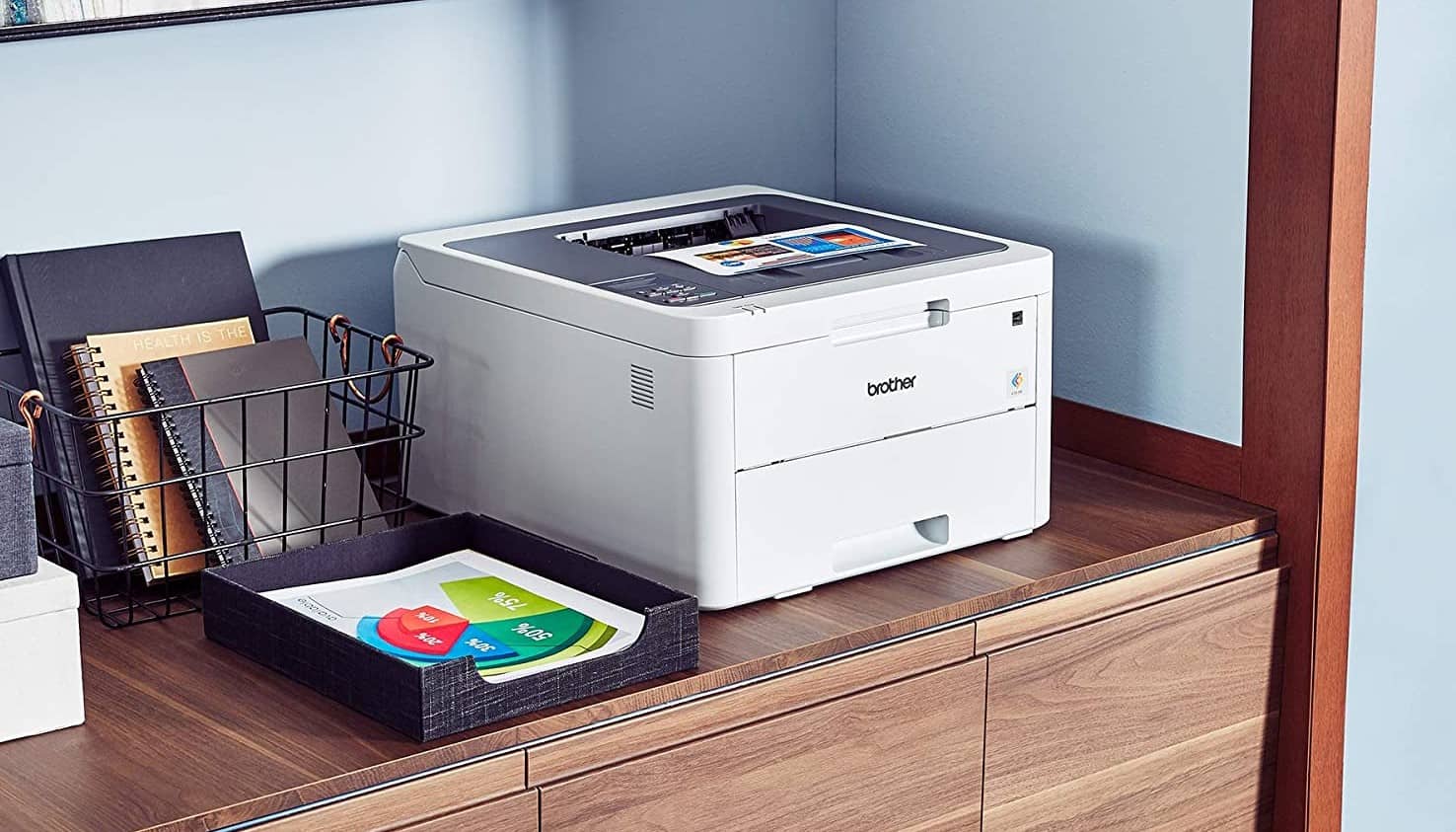
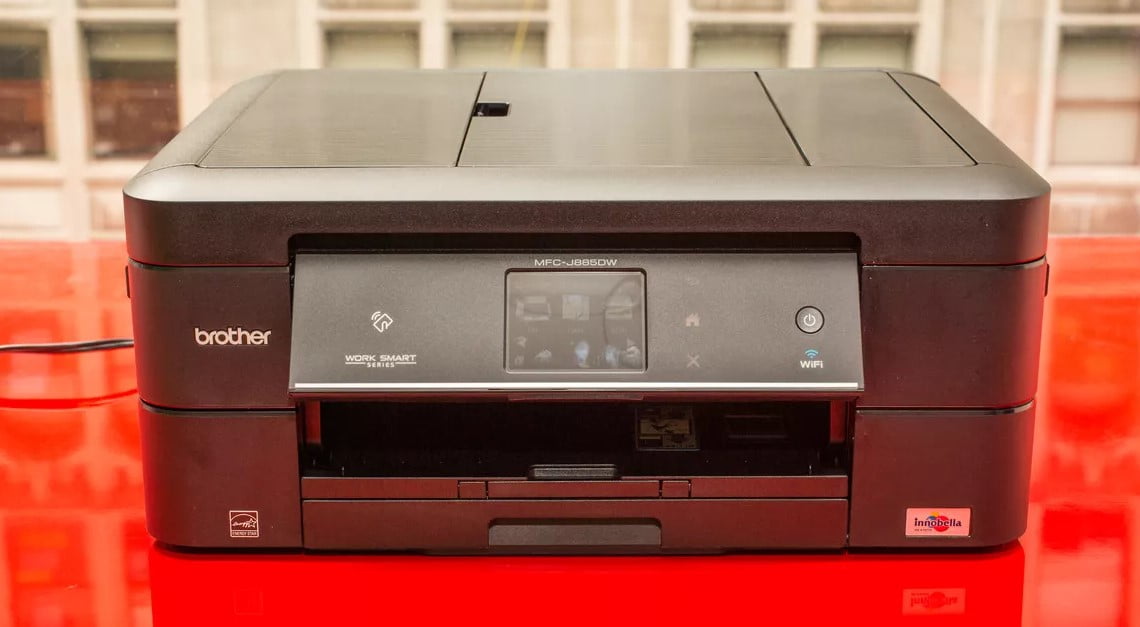
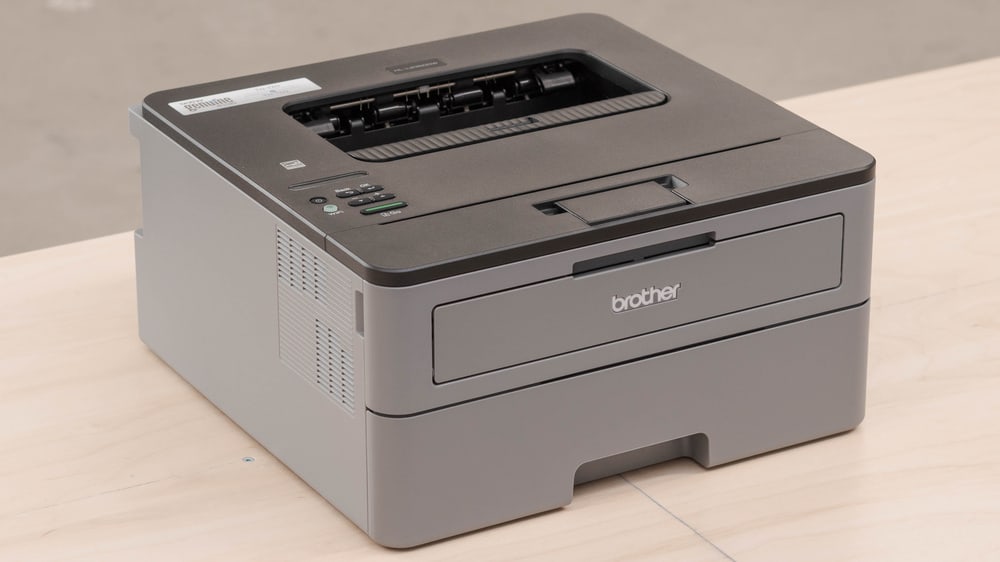
How do I password-protect a brother printer?
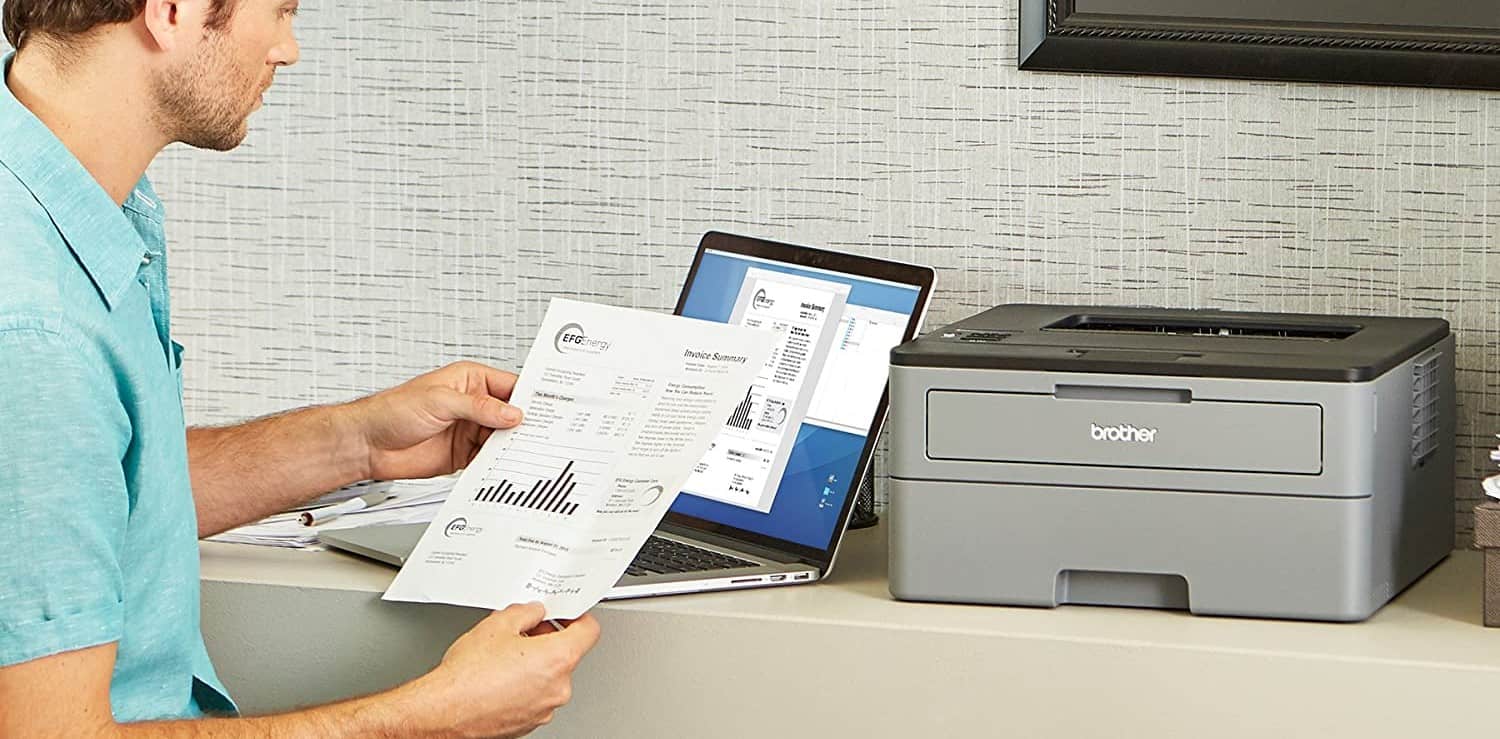
On the “Printers” icon from Devices, choose the brother printer you wish to protect. Select “Properties,” click on the “Security” tab, and grant access to the accounts you want to have printing privileges by selecting “Allow” on all boxes. For those, you wish to restrict, highlight and select “Deny” on all boxes.
Is it possible to offer printing access to a few user accounts?
Yes. Under the securities tab from your selected printer, “Properties,” highlight the user accounts you wish to have printing access to and select “Allow” on all boxes. For those that you want to restrict, ensure you select “Deny” on all boxes.
Does Windows have a password feature for printers?
Unfortunately, Windows does not have a password feature for printers. However, you can use administrator privileges to grant printer access to specific user accounts in your network.
Will password-protecting my printer prevent unauthorized printing from a shared computer?
Yes. Only authorized user accounts will have access to printing.
STAT: Americans lose more than $15 billion annually due to identity theft. It is estimated that the cost of a data breach is expected to reach up to $150 million by 2020, and by 2021 American businesses will fall prey to ransomware every 11 seconds. (source)