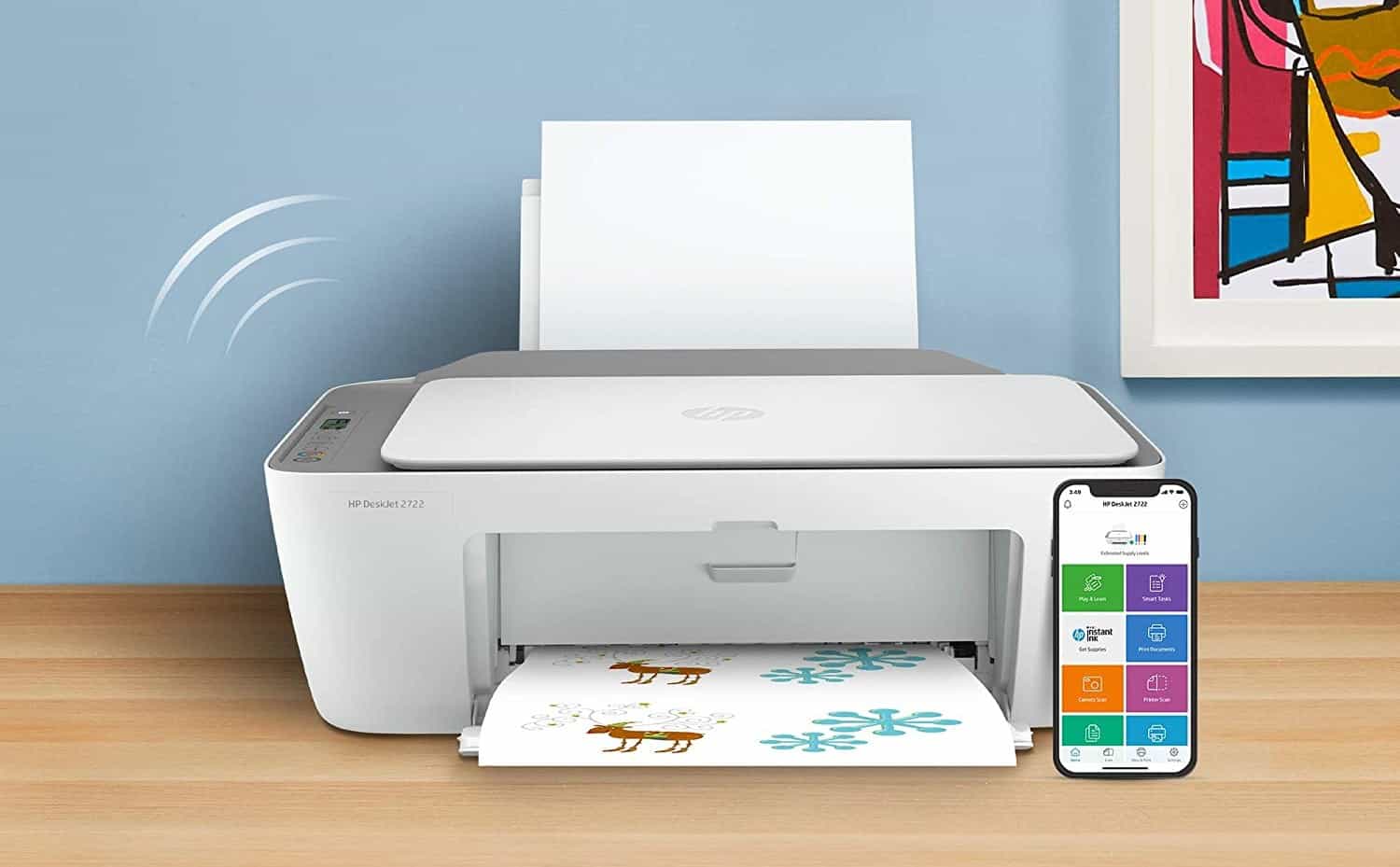

Cut the cord is about more than getting rid of your cable television subscription. In today’s mobile world, no one wants to fight with wires and cables — especially with your devices. Considering the rise of wireless high-performing printers, it’s pretty obvious that people don’t want to be physically tethered to tech anymore. So, if you own an HP printer, you’ll want to pay attention as creating a wireless connection between your devices and your printer requires a few specific steps.
KEY TAKEAWAYS:
- WPS PINs help speed up the connection process between HP printers and your devices
- The WPS PIN is needed for the initial setup process.
- Depending on your device, you may need to use different methods to find the wireless network password.
The WPS PIN
WPS simply stands for a wireless network password. And with HP printers, during the configuration process, you’ll be prompted to enter a WPS PIN, which is a randomly generated code that’s required to connect your printer wirelessly. In most cases, during this process, you’ll only have 90 seconds to enter the PIN before it expires and you’ll need to request a new one. Although you can buy different types of printers, like laser and inkjet, the initial setup process is almost the same. You will need a WPS pin when setting up.
Insider Tip
WPS simply stands for a wireless network password.
How it Works
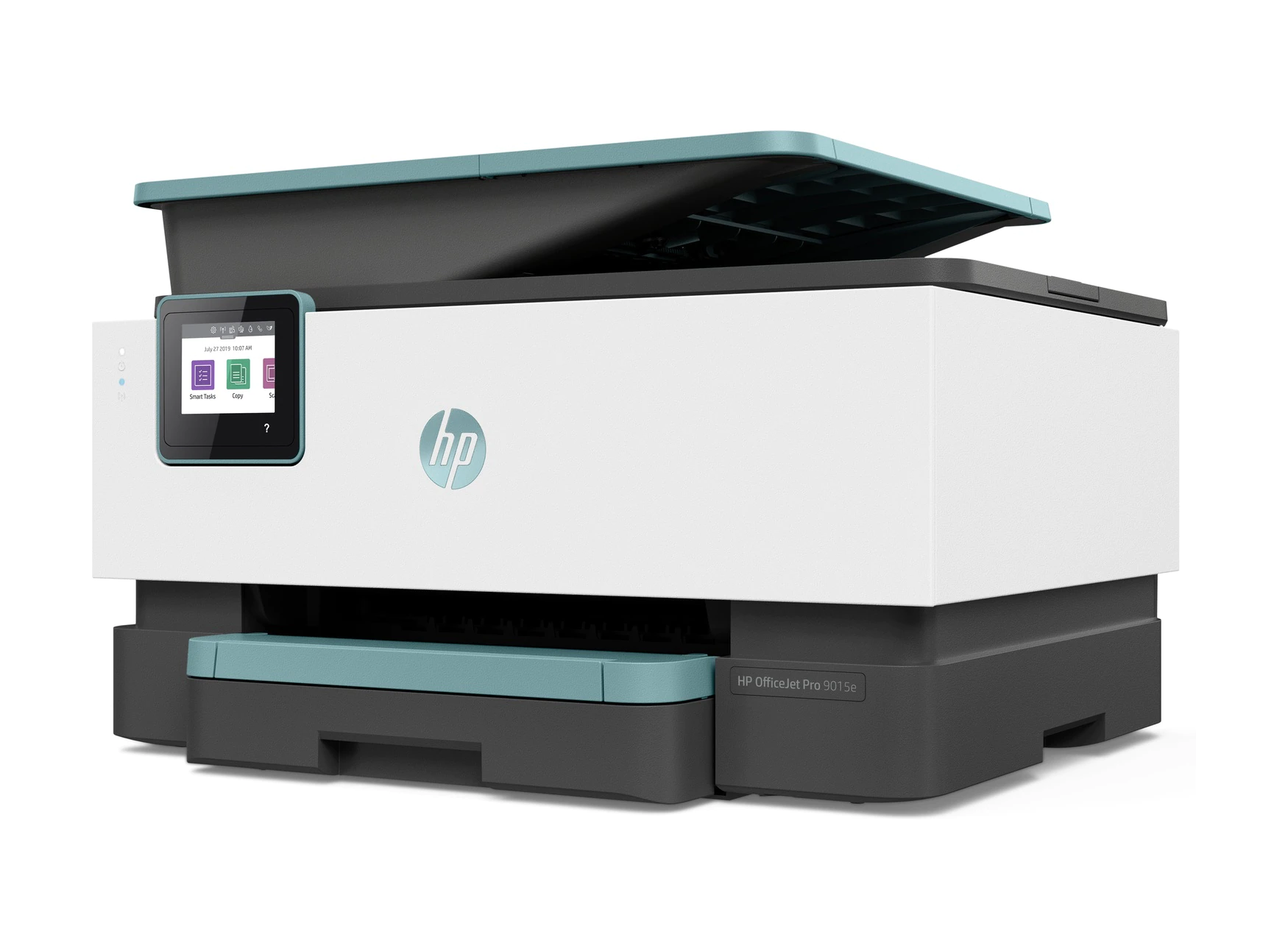
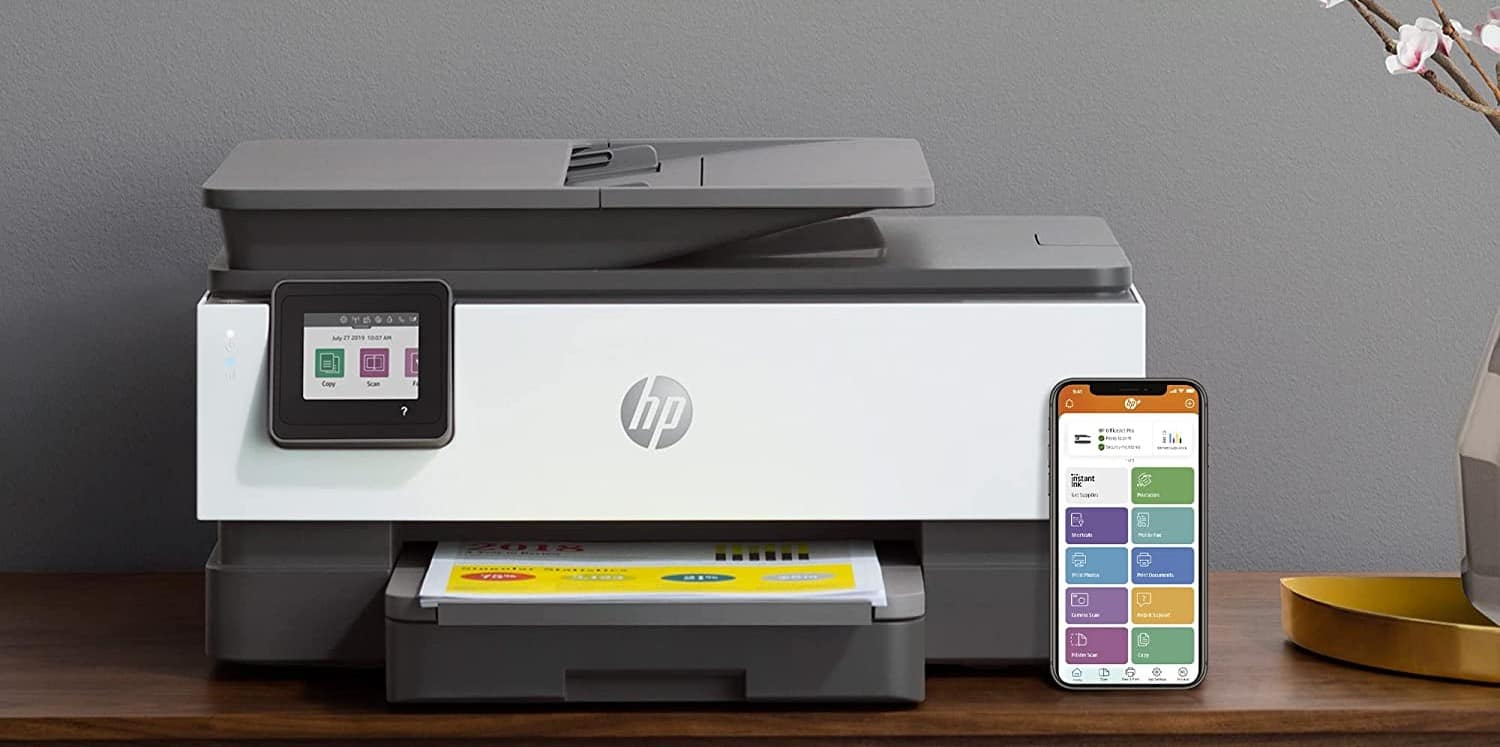
To get to the “enter the WPS pin for your printer” stage, you’ll need to look for a prompt that appears on your device — such as a computer. Once the prompt appears, check your HP printer control panel where the PIN should appear.
But You’ll Also Need the Wireless Network Password
Along with the WPS PIN, you’ll also need the wireless network password to finish connecting your printer. Another way to protect your printer when connecting to a wireless network is using either WEP, WPA, or WPA2.
Consider Your Device
Depending on which device you’re using to connect to your printer, the password can be accessed in a few different ways.
Routers
Usually, the password is printed on the back or underside of the router and is often labeled as Wireless Security Key/Password, Network Password, Wi-Fi Password, or Network Key.
Windows 10 Devices
For Windows, find the Wi-Fi Settings dialogue from the Start menu in Settings. Select Related Settings and click Change Adapter Options. You’ll right-click on your wireless network name and select Status. When Connection appears select Wireless Properties and click on the Security Tab. Choose Show Characters to display the password.
Mac Devices
From Applications select Utilities and then select Keychain Access. Once there, select Passwords from the Category list. Double-click on the wireless network you want and select Show Password. If necessary, enter the administrator password.
Android OS
You’ll need to use the Share Wi-Fi function to find your password for devices running Android 10 or later. Open the Wi-Fi menu and select Saved Networks. Choose the desired network and select Share. When prompted, enter your password PIN and the Wi-Fi password will appear under the displayed QR code.
iOS Devices
iOS devices rely on the iCloud Keychain Sync so you’ll need to ensure that this feature is on in the iCloud sub-menu under Settings. From the main Settings menu, select Cellular and choose Personal Hotspot. Next select Allow Others to Join. Return to the previous screen and the Wi-Fi password will be visible. If you prefer, you can change it to something else.
Warning
iOS devices rely on the iCloud Keychain Sync so you’ll need to ensure that this feature is on in the iCloud sub-menu under Settings.
F.A.Q.
How do I find my HP printer WPS PIN?
Go to the control panel on your printer during the configuration process and follow the prompts to complete the WiFi Protected Setup. Once you see the PIN prompt, tap on the PIN and it will appear on the screen.
What is a WPS PIN on an HP printer?
The WPS PIN is a unique code that usually contains eight digits. It’s used to connect your printer to a device.
Is the WPS PIN the Wi-Fi password?
No, these two codes are not the same. Even once you’ve entered the WPS PIN, you’ll still need to enter the wireless network password to connect to your preferred network.
STAT: Find and enter the WPS PIN to complete printer setup. You have a short time (90 seconds for most models) to enter the PIN before it expires. (source)
WPS pin is a kind of unique code consisting of eight digits and allowing the connection between two or more devices. This unique code is also present on the HP printers for establishing a connection between your computer and your printer. This modern wireless technique enables a person to print his document even if the printer is in any corner of his office. (source)
REFERENCES:
- https://support.hp.com/us-en/document/ish_2380042-1648009-16
- https://www.workaroundtc.com/how-to-find-wps-pin-on-hp-printer/
- https://support.hp.com/us-en/document/c01747962r
- https://printersupport-usa.com/wps-pin-on-hp-printer/
- http://kamilslab.com/2016/08/24/how-to-get-the-psk-or-password-of-a-wifi-network-if-you-have-the-wps-pin/