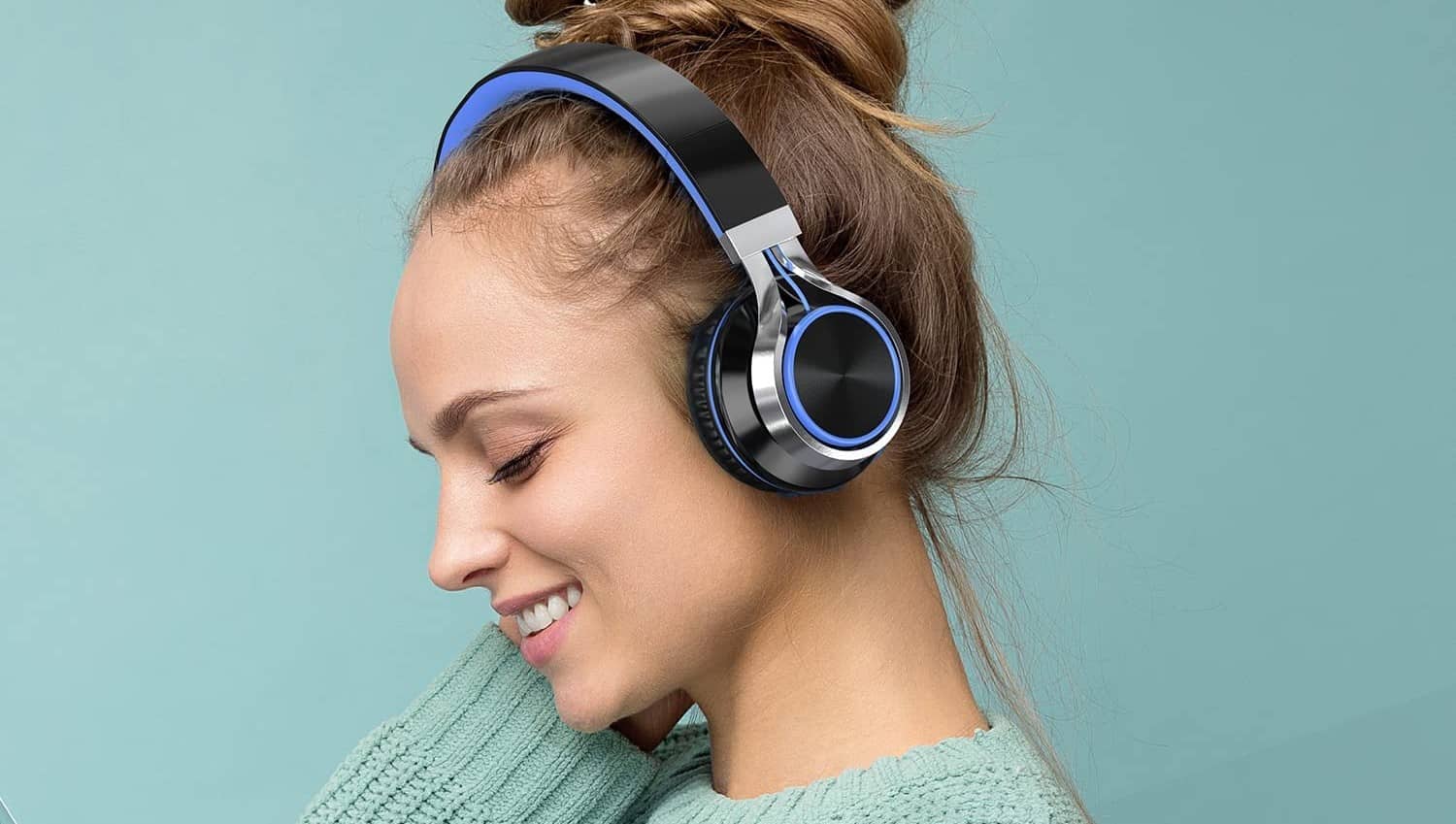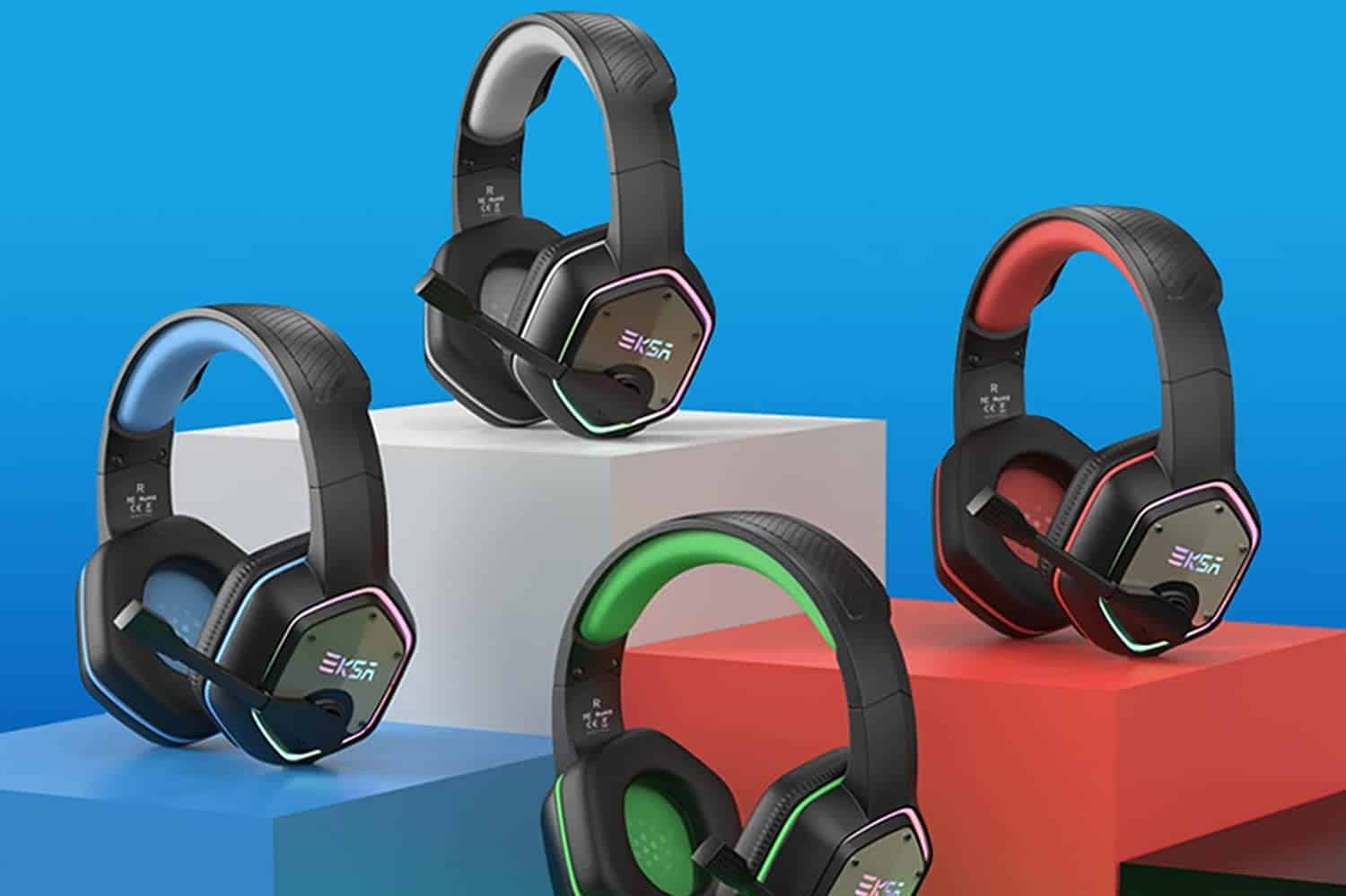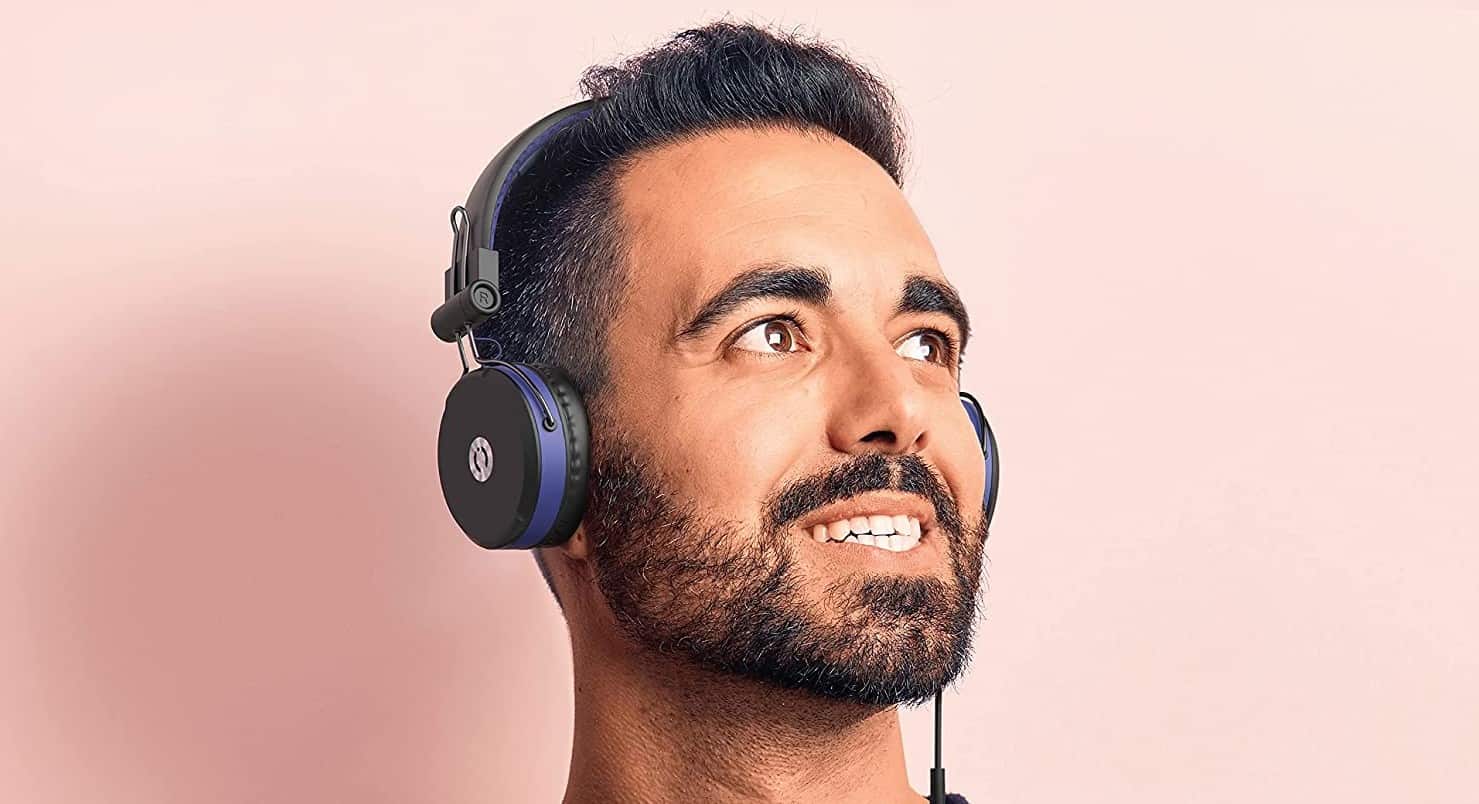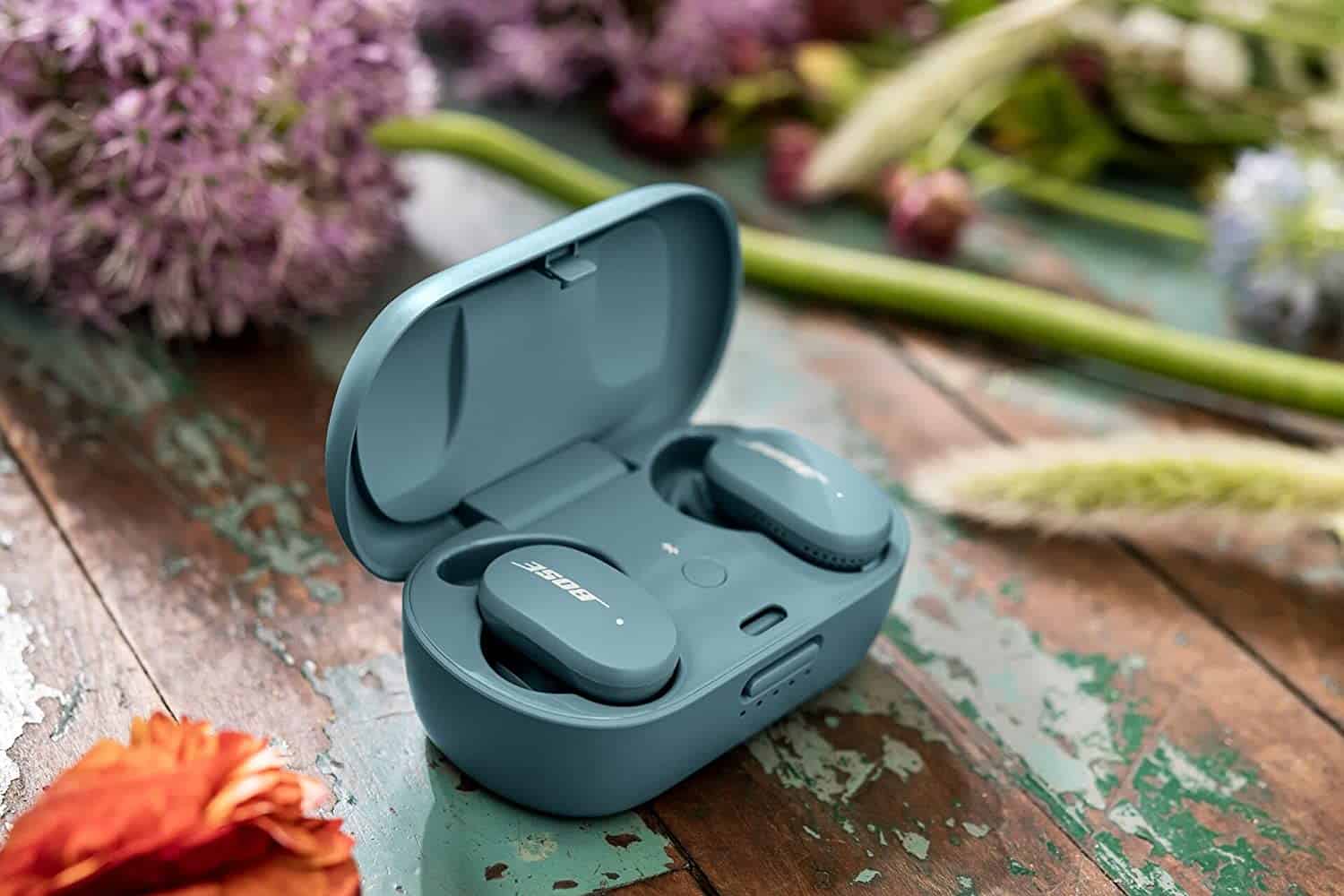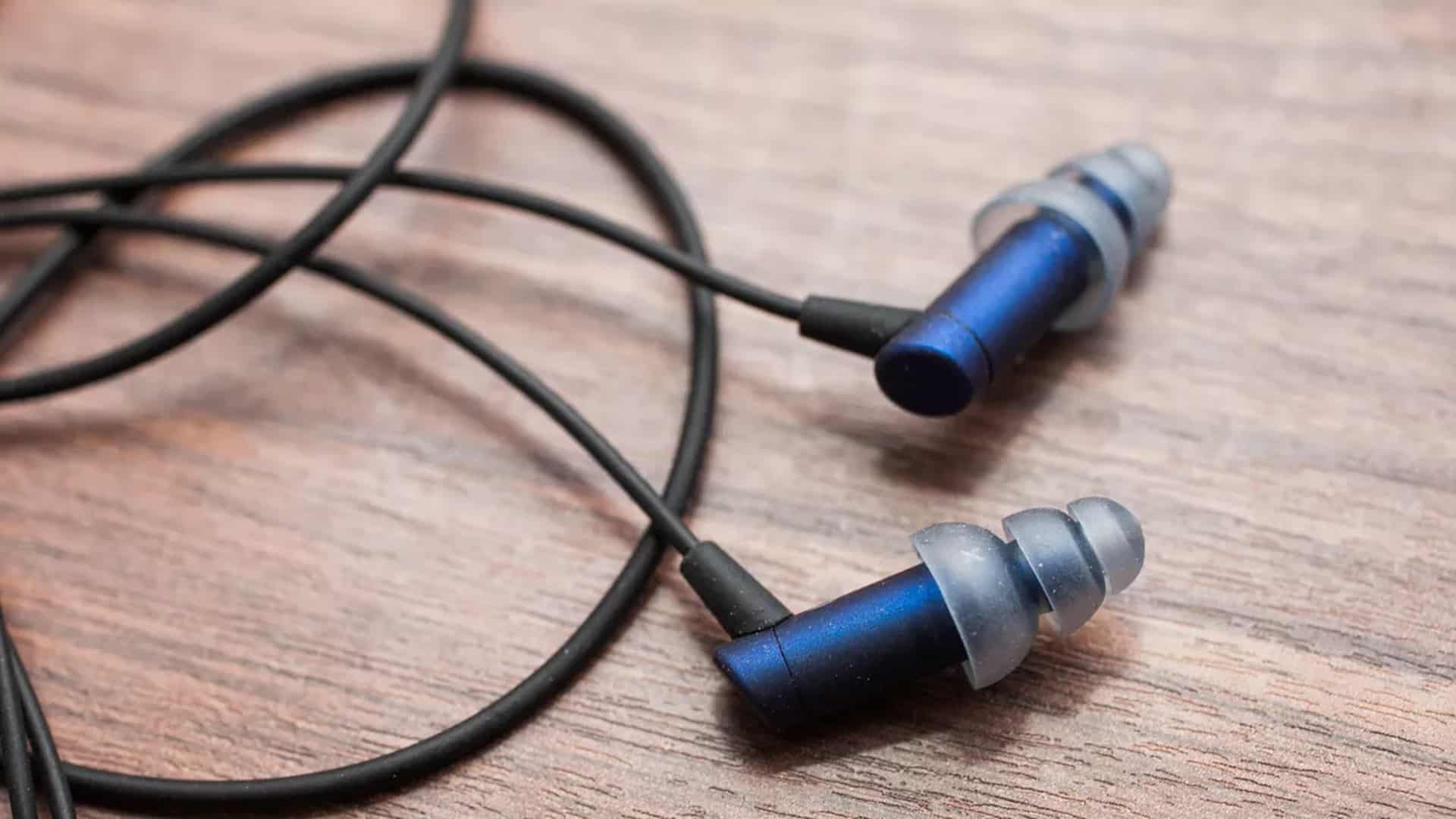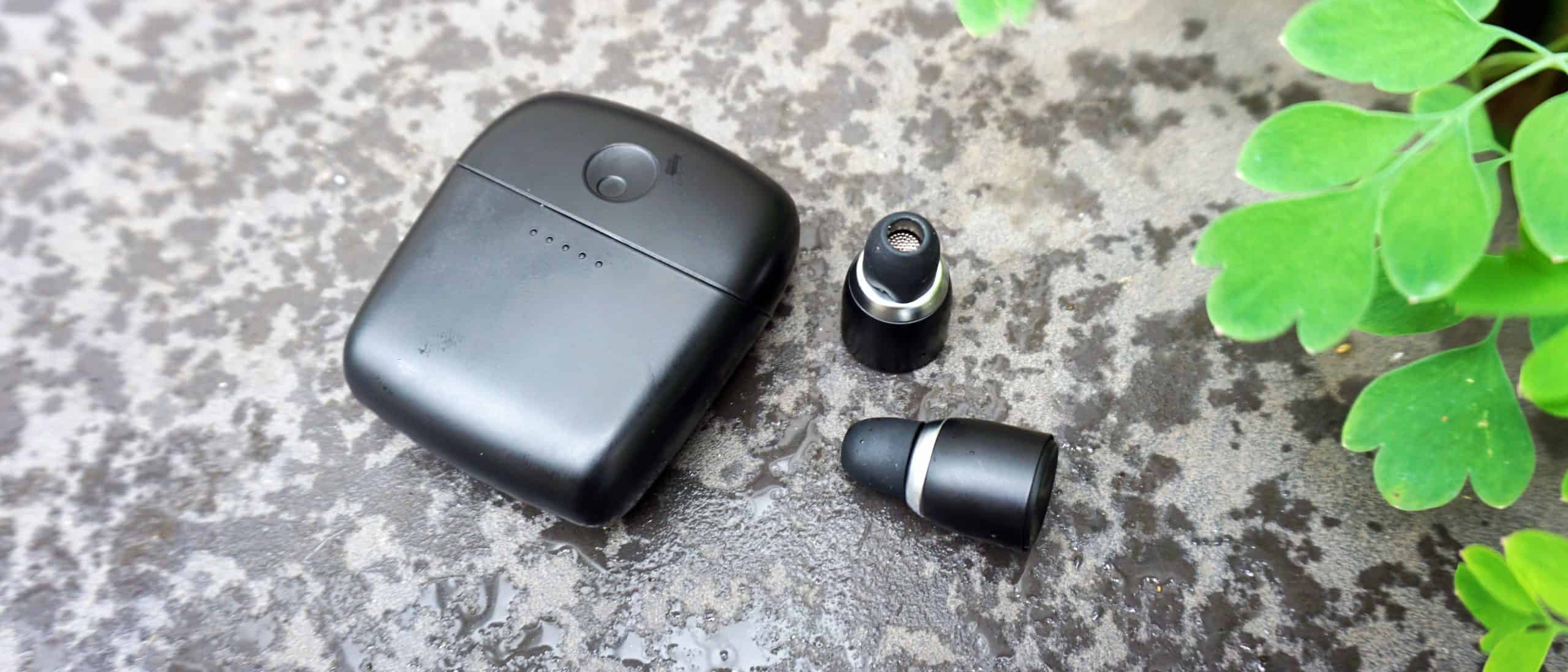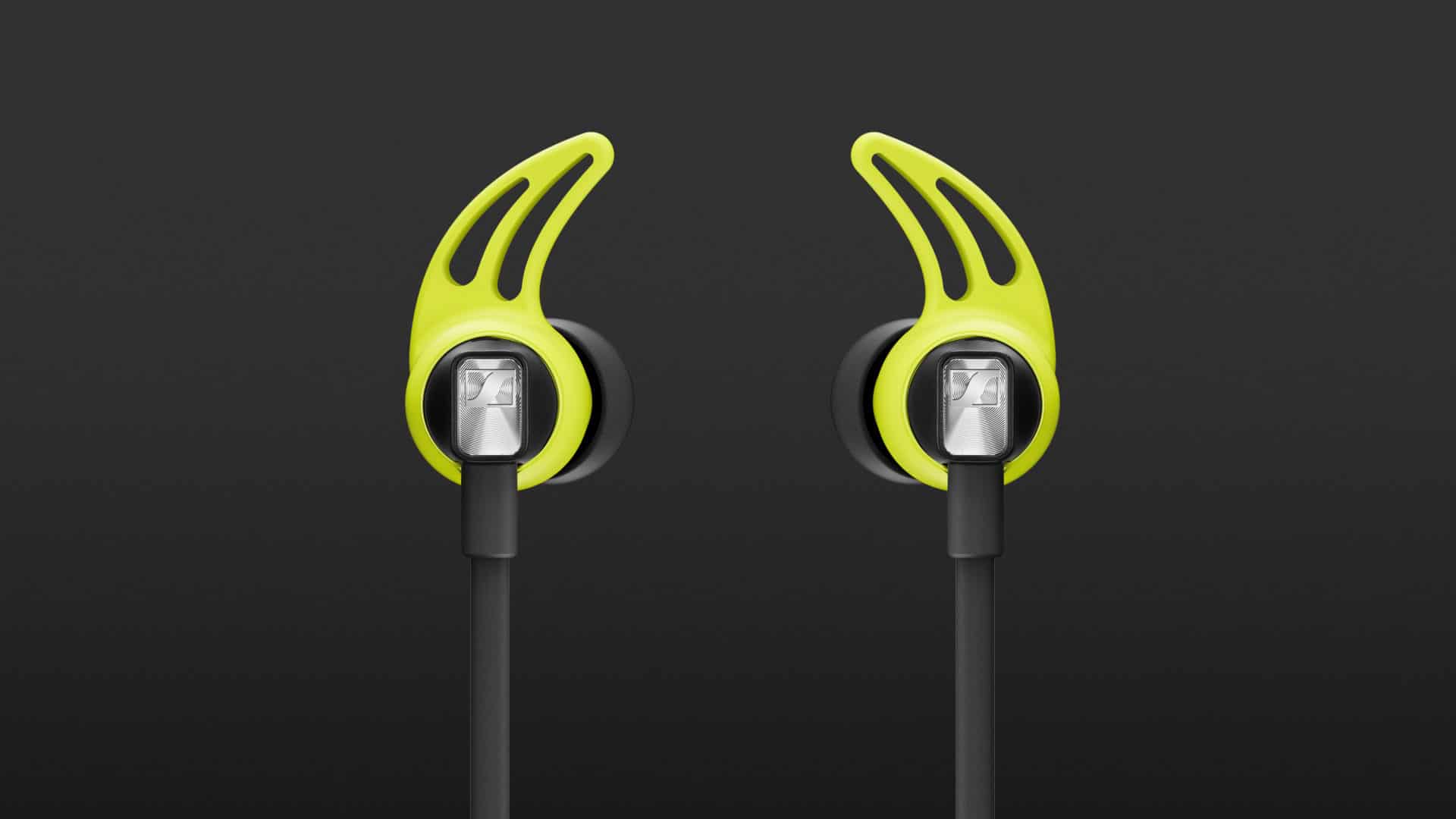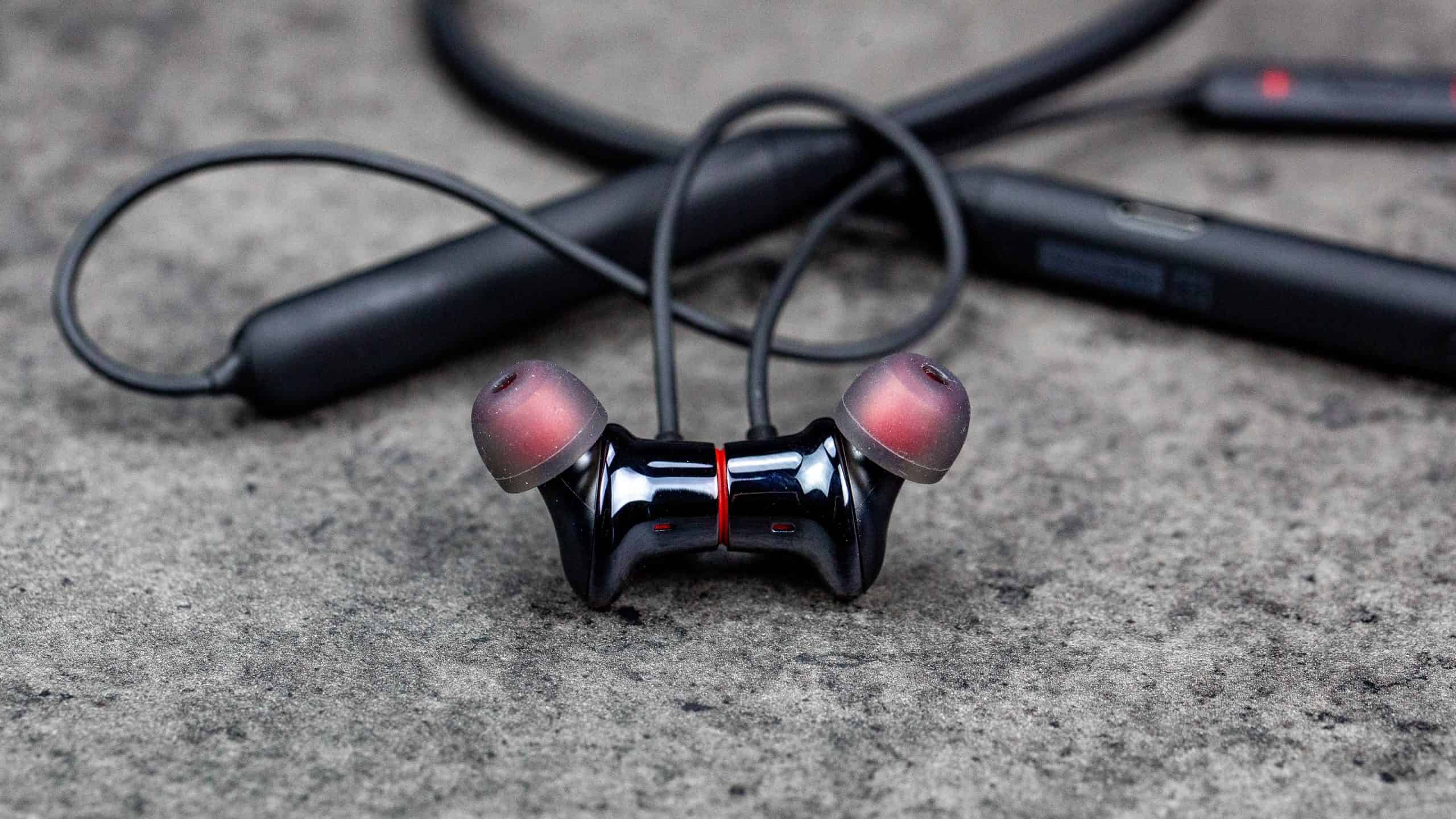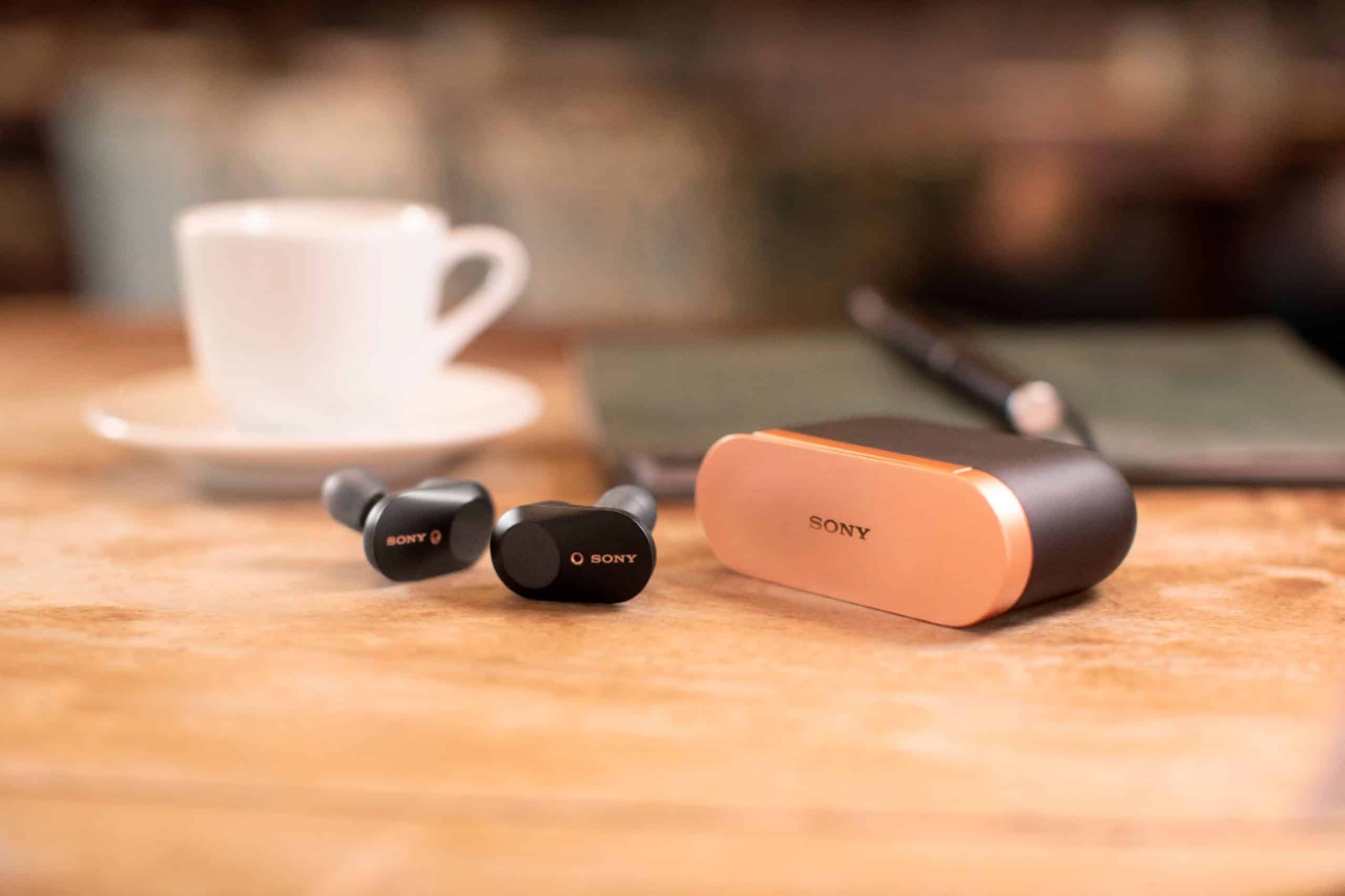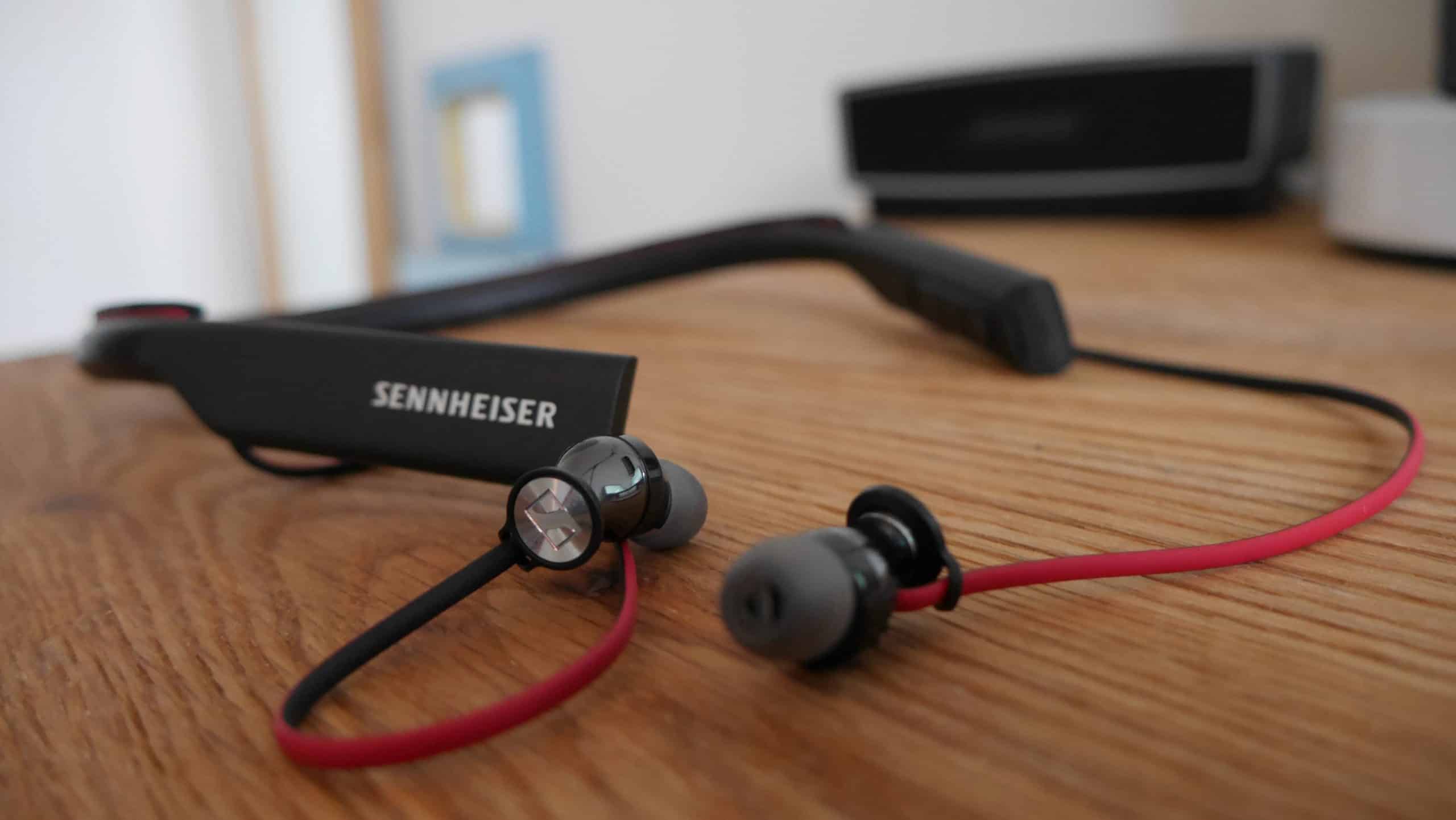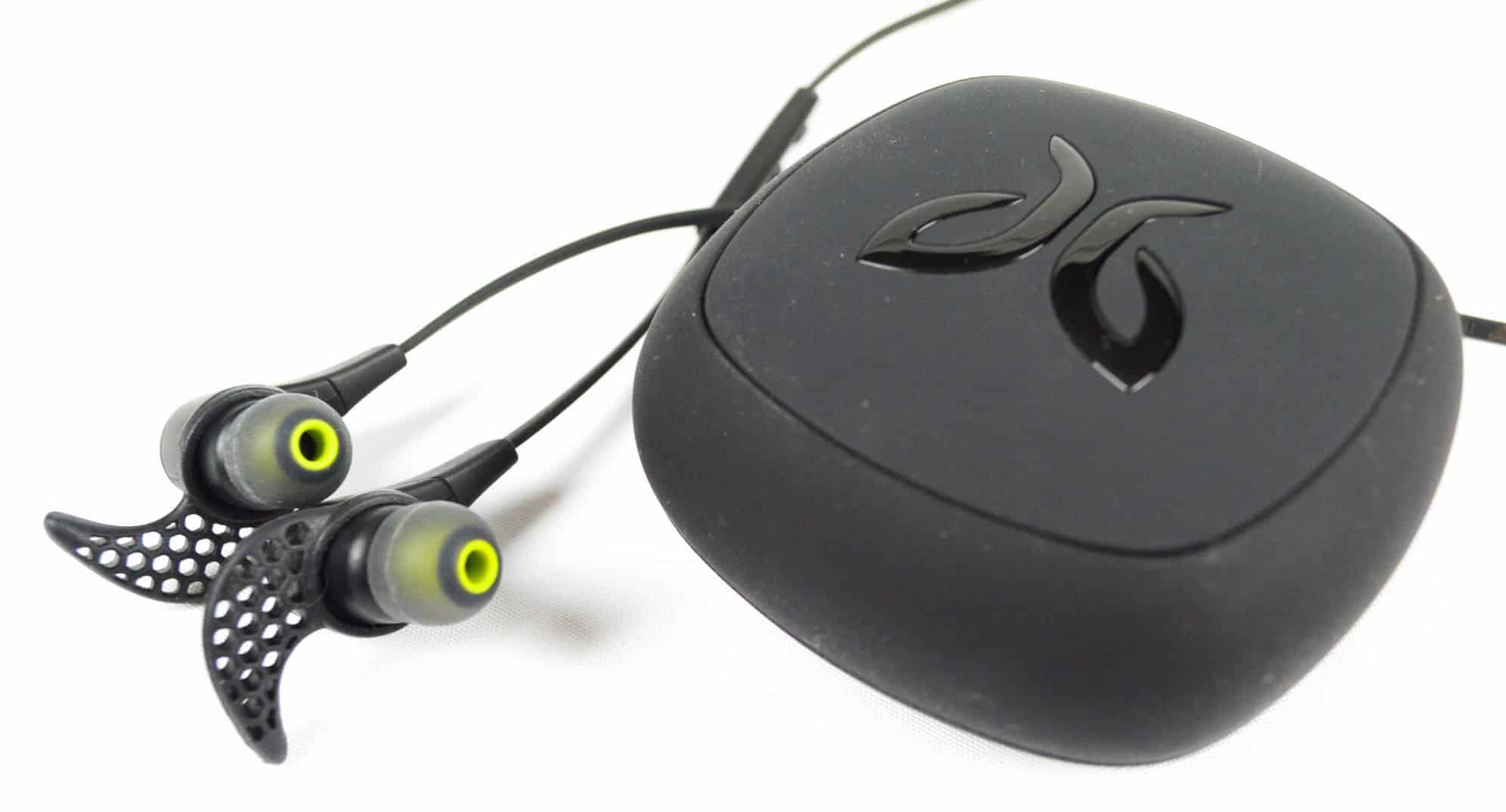

If you are new to the world of wireless audio, you may wonder how to use Bluetooth headphones. Some of the best headphones, after all, use Bluetooth as the primary wireless transmission protocol. So why use Bluetooth headphones and what is the correct way to go about it? Keep reading to find out.
KEY TAKEAWAYS:
- Bluetooth headphones are great for listening to music without all of those annoying wires or the need for a headphone jack.
- Start by powering on your wireless headphones or wireless earbuds via the power button and making them available for pairing with your audio source.
- Turn on your Bluetooth via your audio source on the wireless settings page and then look for your headphones on a list of connected devices.
Why Use Bluetooth Headphones?
Bluetooth headphones allow you to listen to music without any cords, leading to the question of how long you should wear headphones. Other benefits of Bluetooth headphones include wide integration with many devices and the inclusion of modern features like smart assistant functionality.
How to Use Bluetooth Headphones
How do Bluetooth headphones work? It’s a simple matter of pairing your headphones with an audio source. Each pair of headphones, and audio source, is different. With that in mind, here are some universal tips worth considering.
Insider Tip
Keep an eye on that battery life, as using Bluetooth drains both your headphones and the paired audio device.
Power On and Begin Pairing
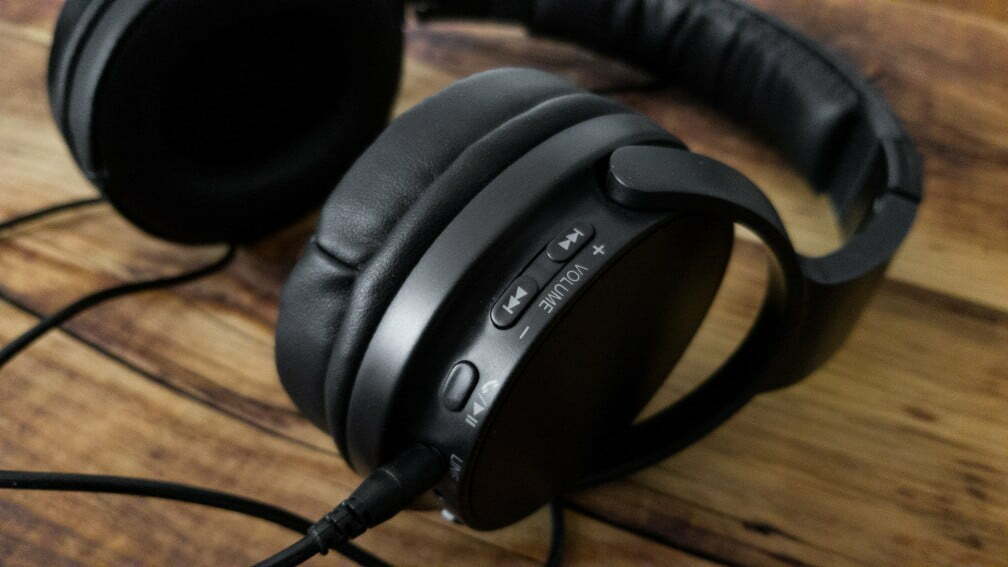
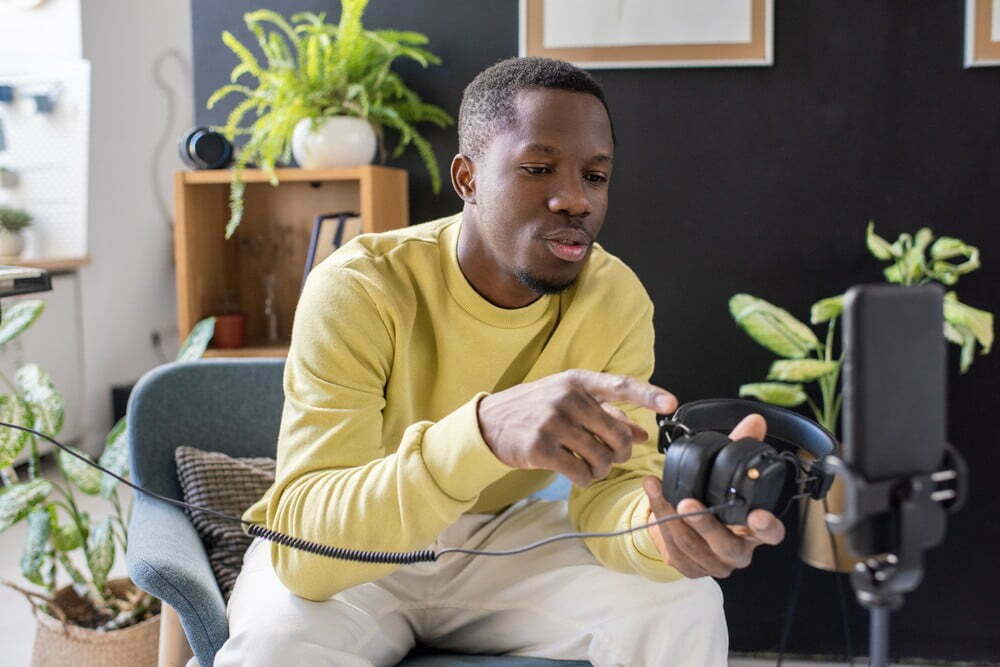
The first thing you need to do is power on your headphones and turn on the Bluetooth receiver within the headphones. Each model necessitates a different method for both of these processes, but there is typically a Bluetooth button on one side of the headphones, so look for the tell-tale Bluetooth logo. Push down on the button for several seconds to power it on and then again to leave the headphones open for pairing.
Pair With a Device
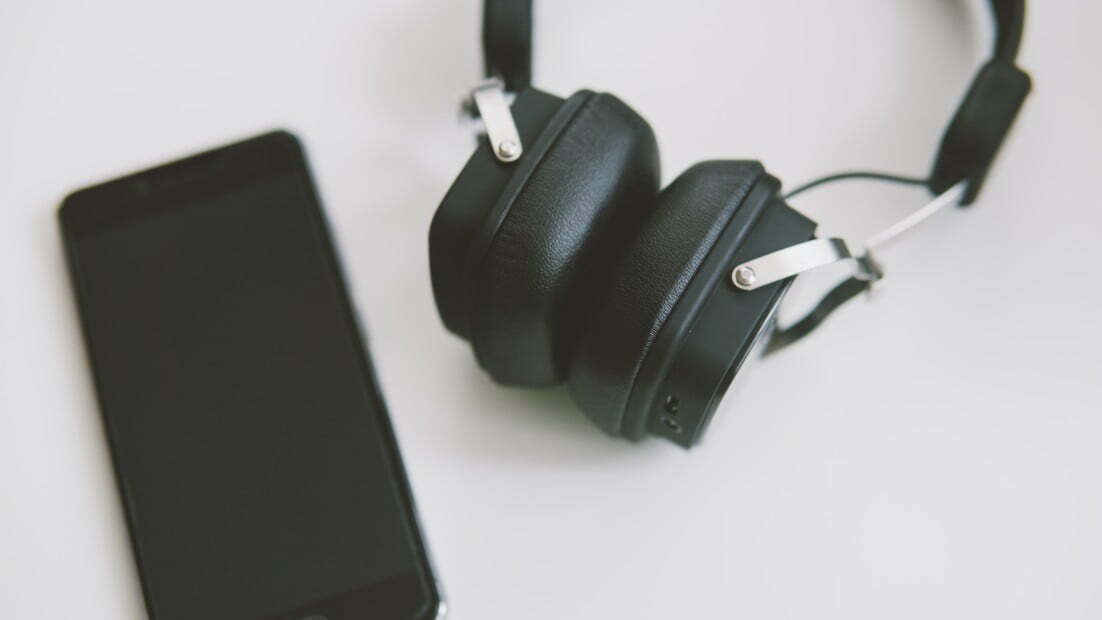
Now it’s time to pair it with a device such as a smartphone, tablet, or speaker. The process differs depending on your specific audio device, but you should typically find Bluetooth information in the wireless settings tab. Make sure your device’s Bluetooth is on and that it is accepting partners. You should see a list of potential pairing candidates. Find your headphones and click to pair. This may take a few seconds so practice some patience. Once finished, you should be able to listen to music wirelessly.
Don’t Forget to Unpair
Don’t forget to learn how to unpair Bluetooth headphones to preserve the battery life of both your headphones and your audio source device. The unpairing process typically works in reverse to the pairing process. Turn off the Bluetooth on your audio device and hold down the power or Bluetooth button on your headphones to stop receiving information. While you are considering worthwhile maintenance information, don’t forget to learn how to clean headphones to make sure they last a long, long time.
F.A.Q.S
How to connect Bluetooth headphones to an Android phone?
To connect your wireless device to an Android device, such as a mobile phone, look in the settings and enable Bluetooth. Now get ready to enjoy great audio quality wirelessly.
How to connect Bluetooth headphones to an iPhone?
Head into the settings of the audio device, and click on Bluetooth or wireless settings. Look for nearby devices and hit that pairing button.
How do I know if my TV supports Bluetooth?
Most televisions do not support Bluetooth or wireless headphones but look in the instructions for information on any possible pairing button or integration with wireless controllers.
STAT: You can pair all kinds of Bluetooth devices with your PC—including keyboards, mice, phones, speakers, and a whole lot more. To do this, your PC needs to have Bluetooth. (source)
REFERENCES:
- https://support.microsoft.com/en-us/windows/pair-a-bluetooth-device-in-windows-2be7b51f-6ae9-b757-a3b9-95ee40c3e242
- https://support.apple.com/en-us/HT204091
- https://www.sony.com/electronics/support/articles/00006995r
- https://support.google.com/chromebook/answer/2587653?hl=en
- https://www.samsung.com/us/support/answer/ANS00085342/