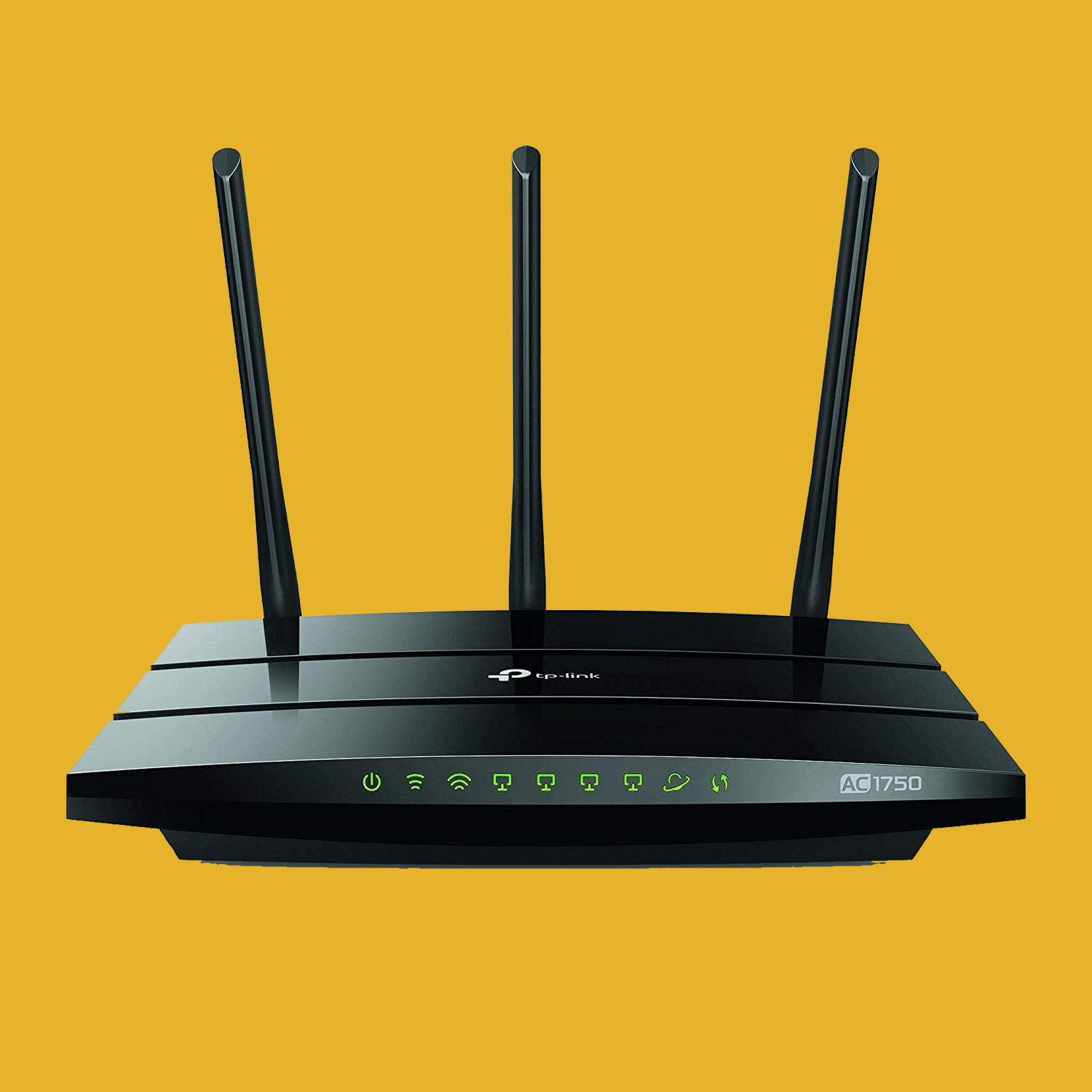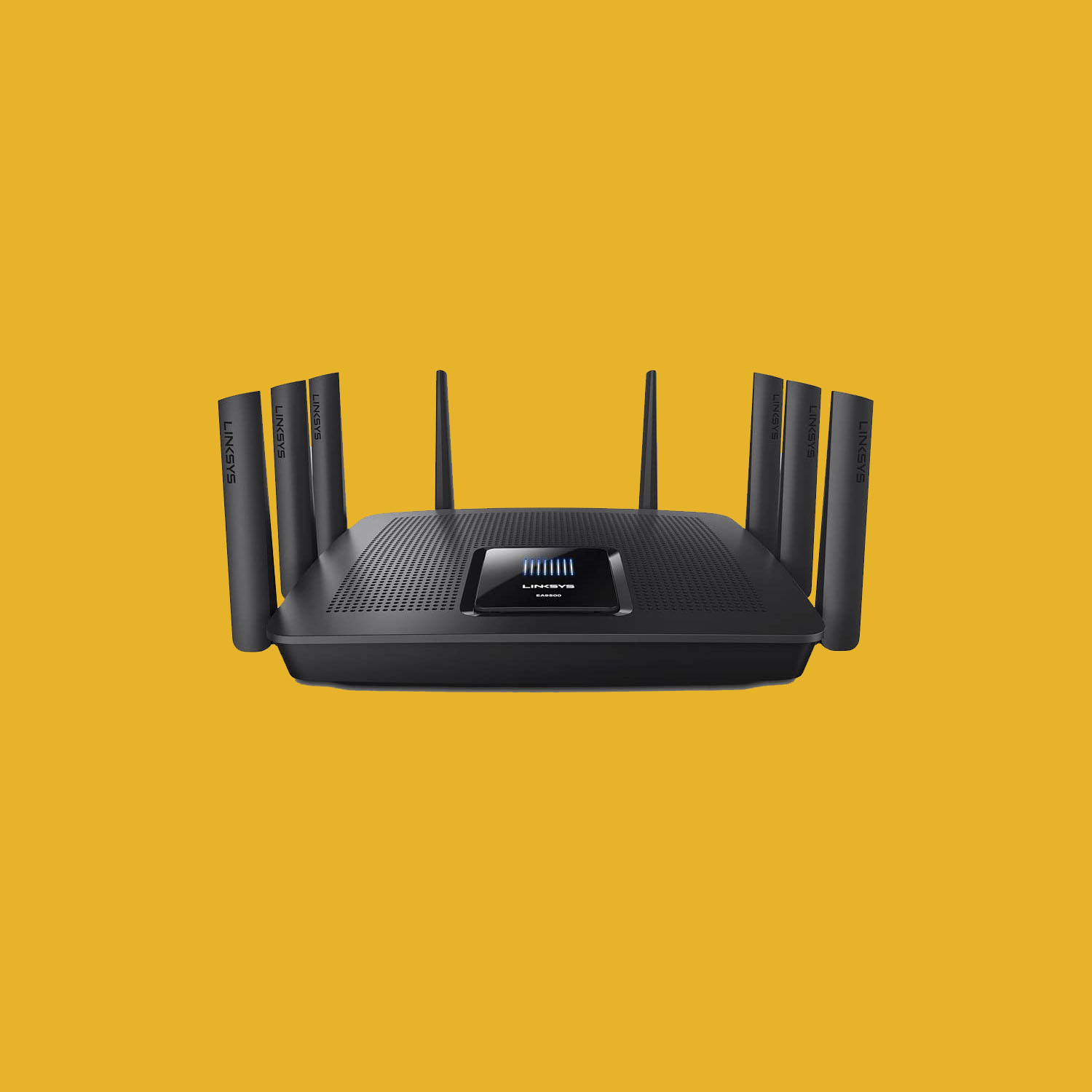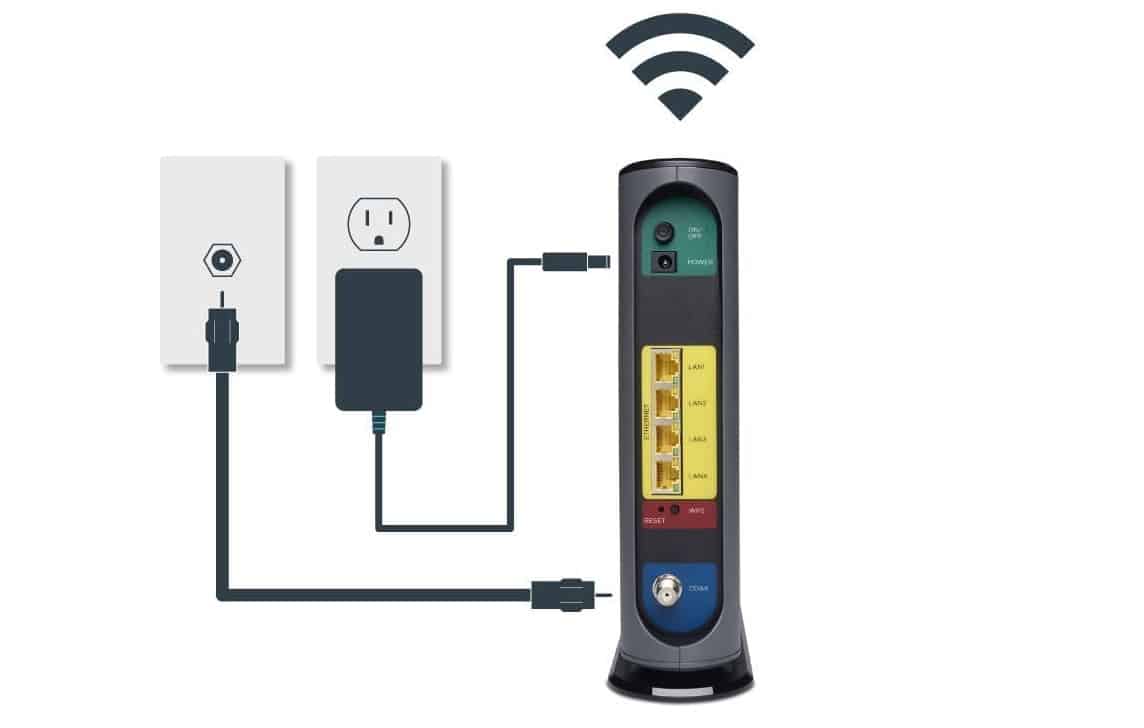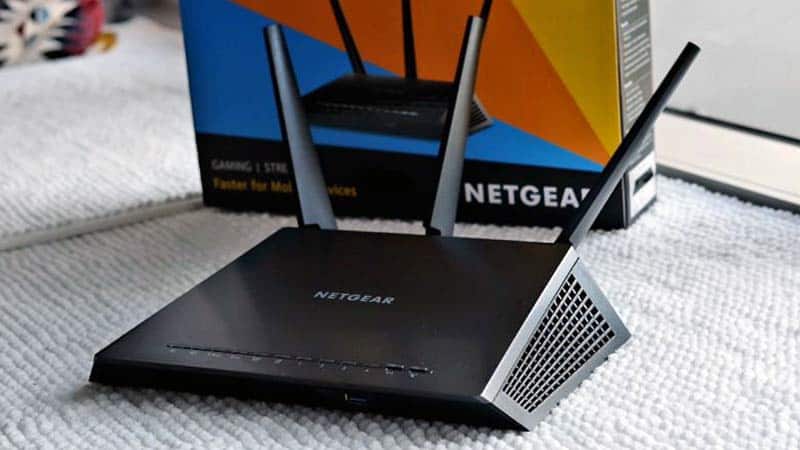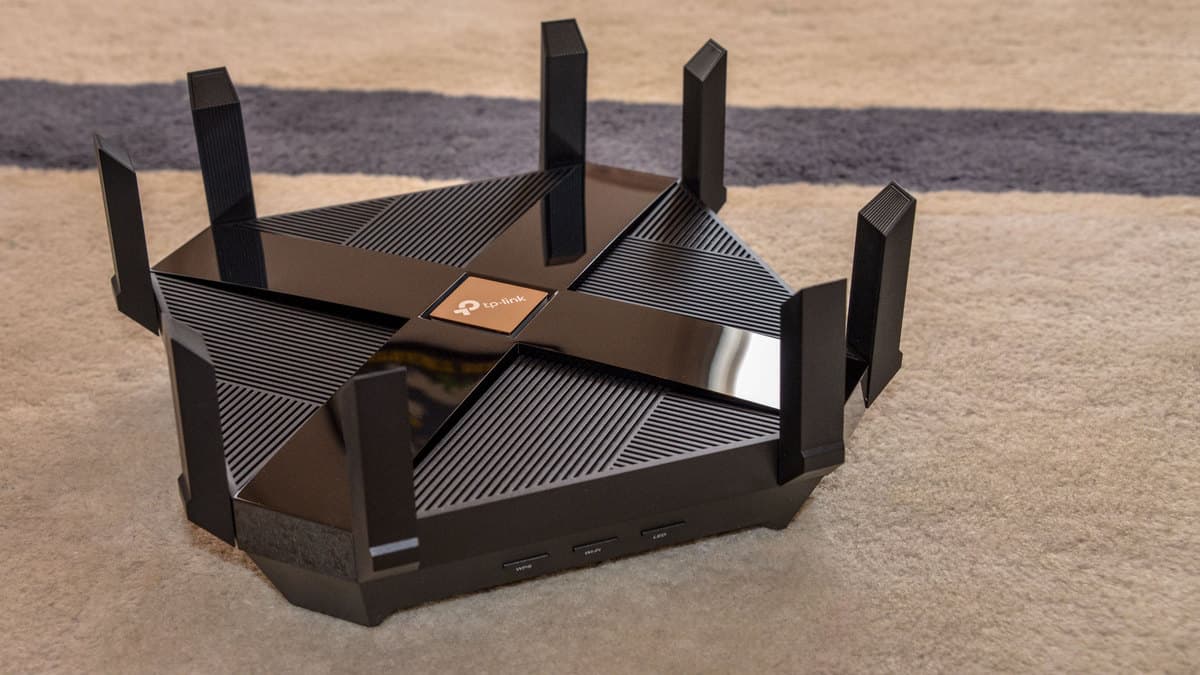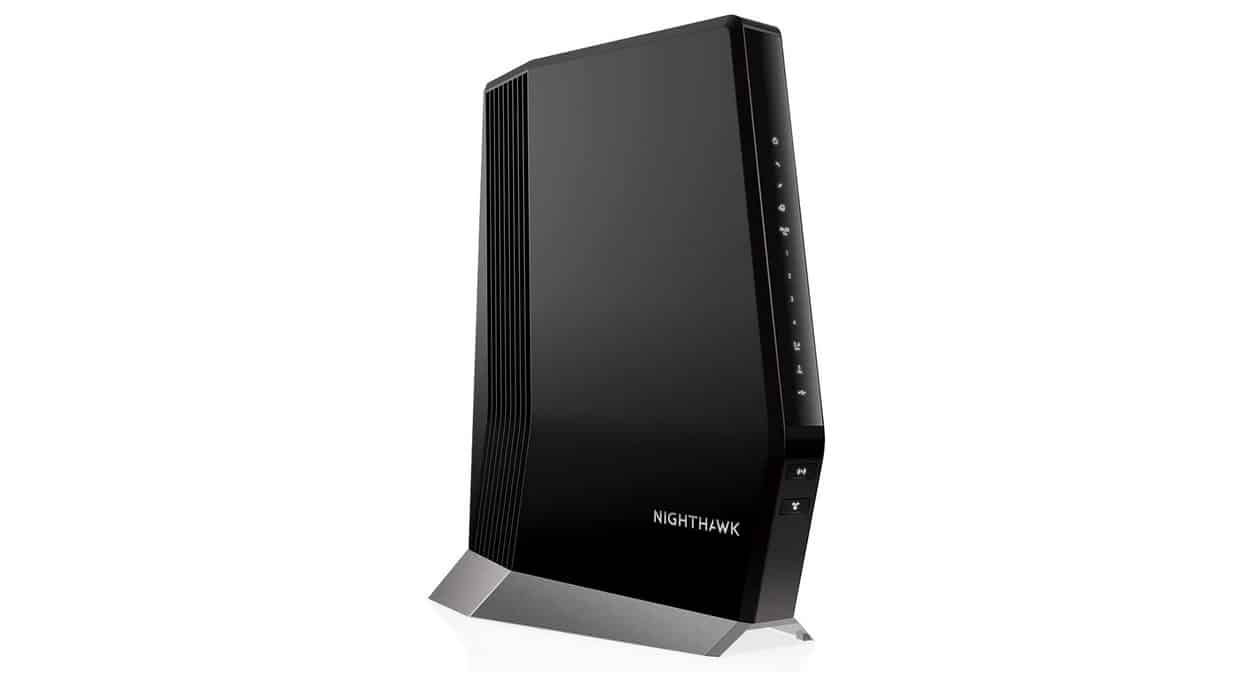

If you are experimenting with the various advanced features of your wireless network, you may wonder what is the bridge mode on a router. The best routers, after all, can successfully integrate this bridge functionality. So what is a bridge mode, what does it do, and why should you use it? Keep reading to find out.
KEY TAKEAWAYS:
- Bridging together two routers means that the secondary WiFi router becomes an extension of the primary WiFi router, for increased router functionality and better Internet connections.
- This is primarily done to increase the range of your wireless network if you notice dead spots throughout your home or office while using connected devices.
- Other advantages to bridging two routers are increased efficiency and increased maximum bandwidth. This also reduces any potential address conflict.
What Does Bridging a Router Do?
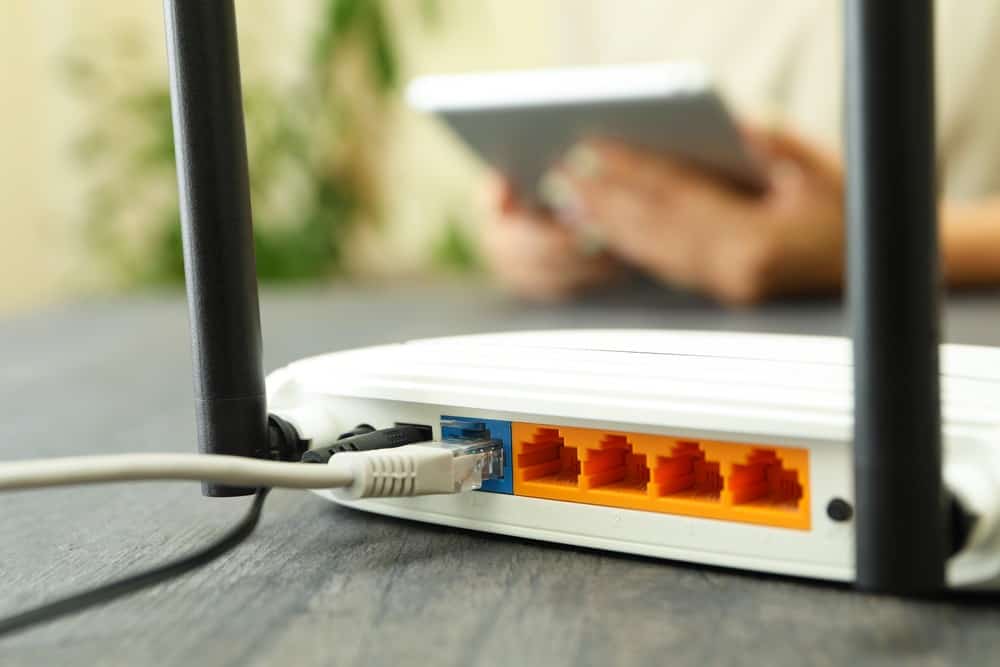
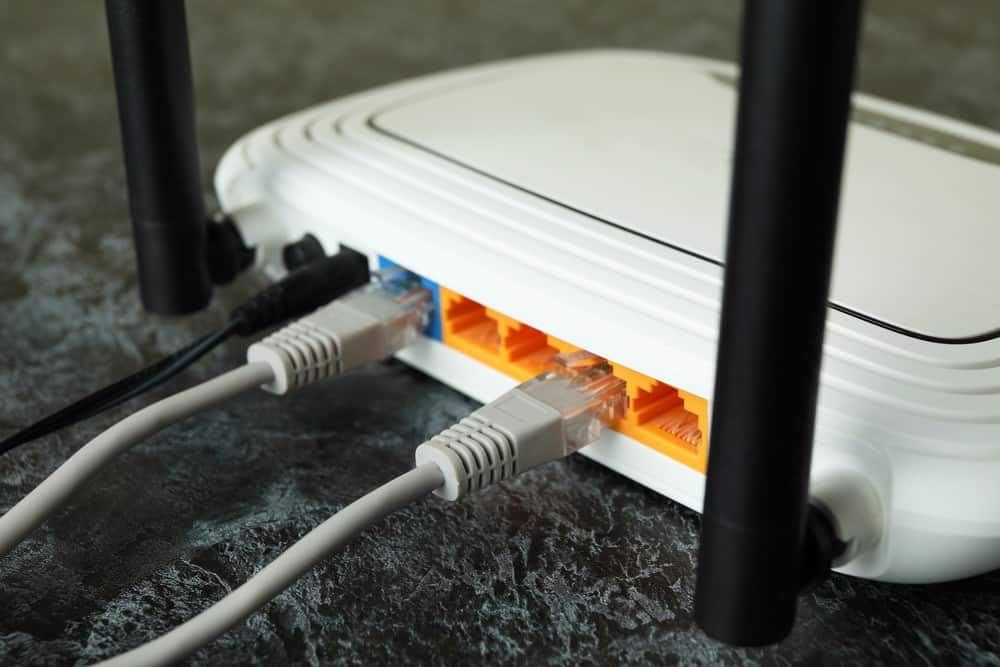
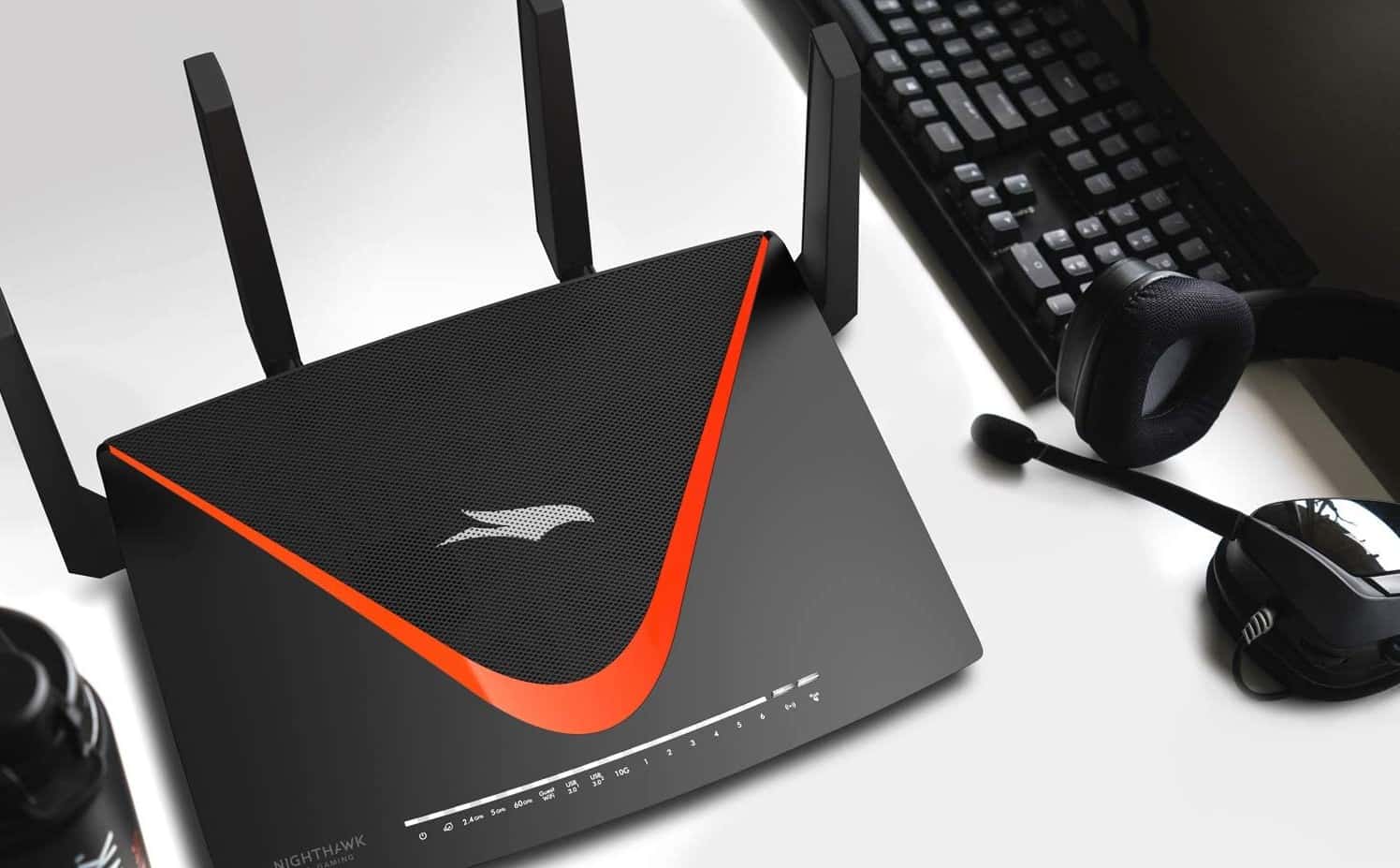
If you are learning how to set up a modem and router combo, or a standalone router, you should also learn about bridging. Simply put, bridge mode is a networking feature that ties two routers together.
Insider Tip
Want to increase your range without bridge mode? Try a wireless range extender or a mesh network.
Benefits of Bridge Mode
There are a couple of key advantages to enabling bridge mode.
Range Extension
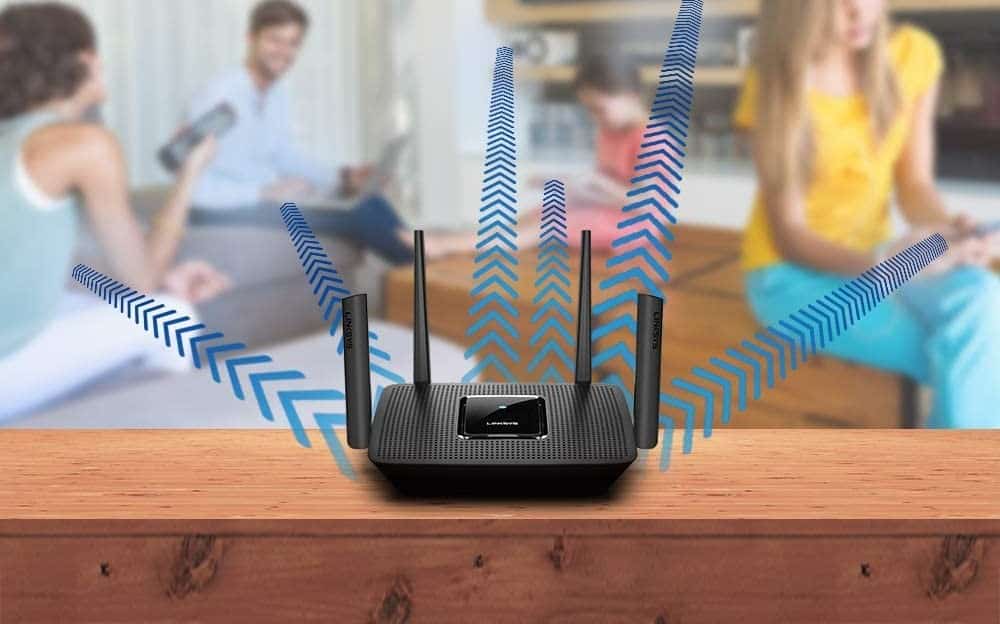
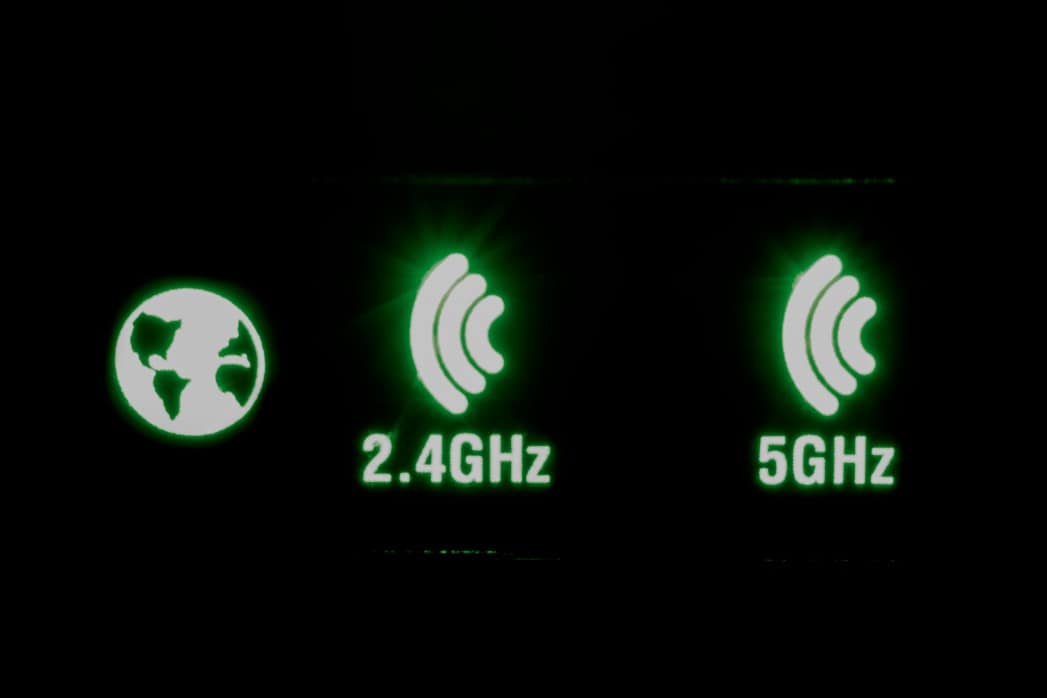
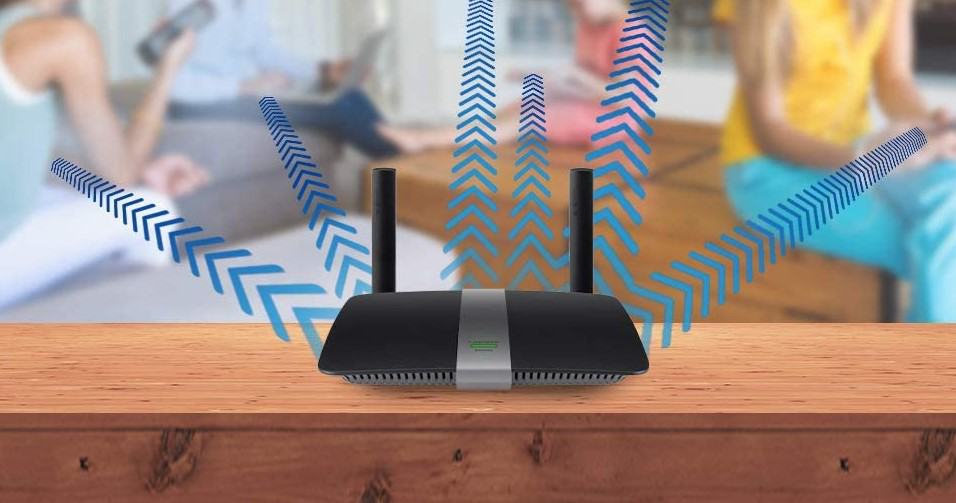
If you recently learned the definition of 5G on a router, you also know that the 5GHz band offers increased speed over the 2.4GHz band but decreased range. To get both speed and range, you can bridge together two routers. Once two routers are bridged, the secondary router acts as a wireless connection point to your overall network. Both routers will share the same IP address, which is handy. Without bridging, this secondary router will just be an access point for a new network.
Increase Maximum Bandwidth
In addition to offering increased range, bridging together two routers will increase the overall bandwidth of your wireless network. Routers have a maximum bandwidth limit and as you approach it, your speed and results will suffer. Bridging two routers effectively double this bandwidth limit, so feel free to connect dozens of mobile devices, computers, and smart appliances.
Increased Efficiency
As previously mentioned, bridging together multiple routers increases your maximum range and your maximum bandwidth. Together, this results in an increase in efficiency throughout your network. There will be no contaminated connections, being as how both routers share the same public IP address, and the uptick in bandwidth means your network will never become clogged due to multiple devices being connected at once.
Shared Settings
Both bridged routers not only share a static IP address, but any other settings you make to the primary router. In other words, you will only have to go in and make necessary changes to this primary router, and not the secondary “bridged” router. This includes security settings, port forwarding adjustments, parental controls, banned devices, and more.
F.A.Q.S
Where to find your model number?
Look on the exterior of your device for the model number or use a mobile device to perform a web search. For ISP-supplied routers, contact your Internet service provider.
What are the disadvantages to bridge mode?
Putting a router in bridge mode will hamper some of the functionalities of the secondary, bridged, router. One router capability that is hampered is the ability to create a private network. The secondary router’s built-in NAT capabilities will also be reduced.
How to enable bridge mode?
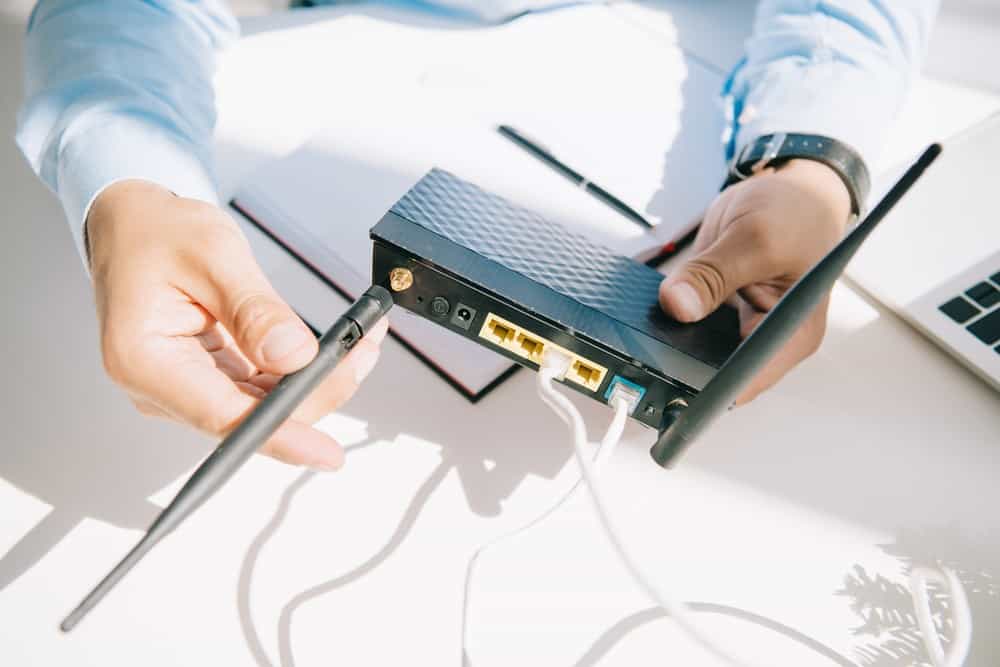
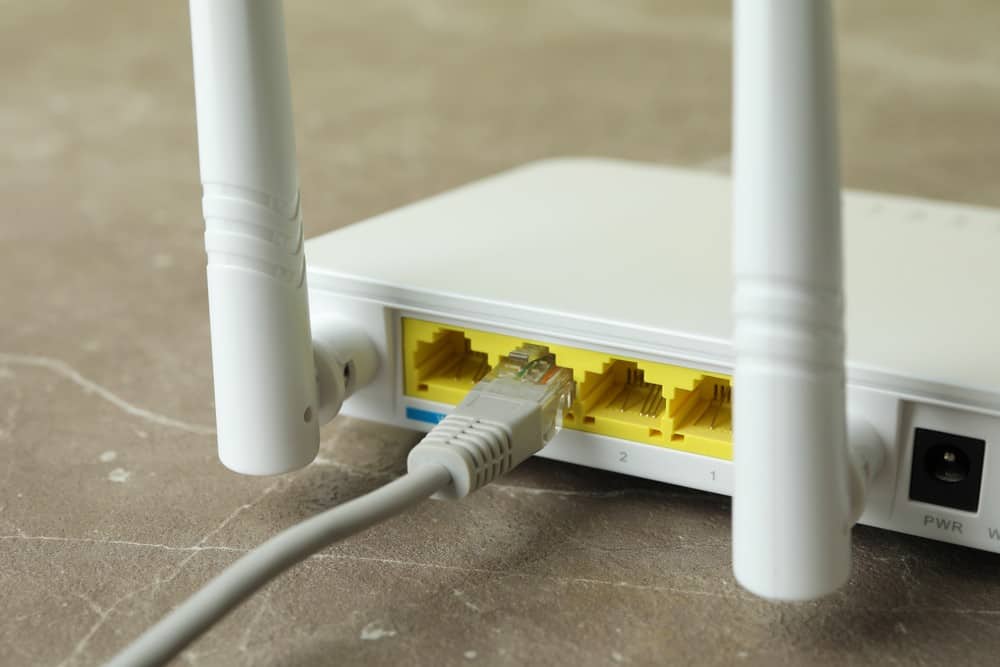
This will vary depending on the makes and models of your routers, but always needs an Ethernet cable, available Ethernet ports, and Internet access for access to the web browser address bar.
STAT: In computer networking, the process of Network Address Translation (NAT) involves re-writing the source and/or destination address of IP packets as they pass through a router. NAT allows multiple hosts on a private network to access the internet using a single public IP address. (source)
REFERENCES:
- https://kb.netgear.com/000028987/When-to-put-modem-into-bridge-mode
- https://www.xfinity.com/support/articles/wireless-gateway-enable-disable-bridge-mode
- https://kb.netgear.com/24105/What-is-bridge-mode-and-how-do-I-set-it-up-on-my-Nighthawk-routerr
- https://www.purevpn.com/blog/what-is-bridge-mode/
- https://support.eero.com/hc/en-us/articles/207613176-How-do-I-bridge-my-modem-router-combo-device-