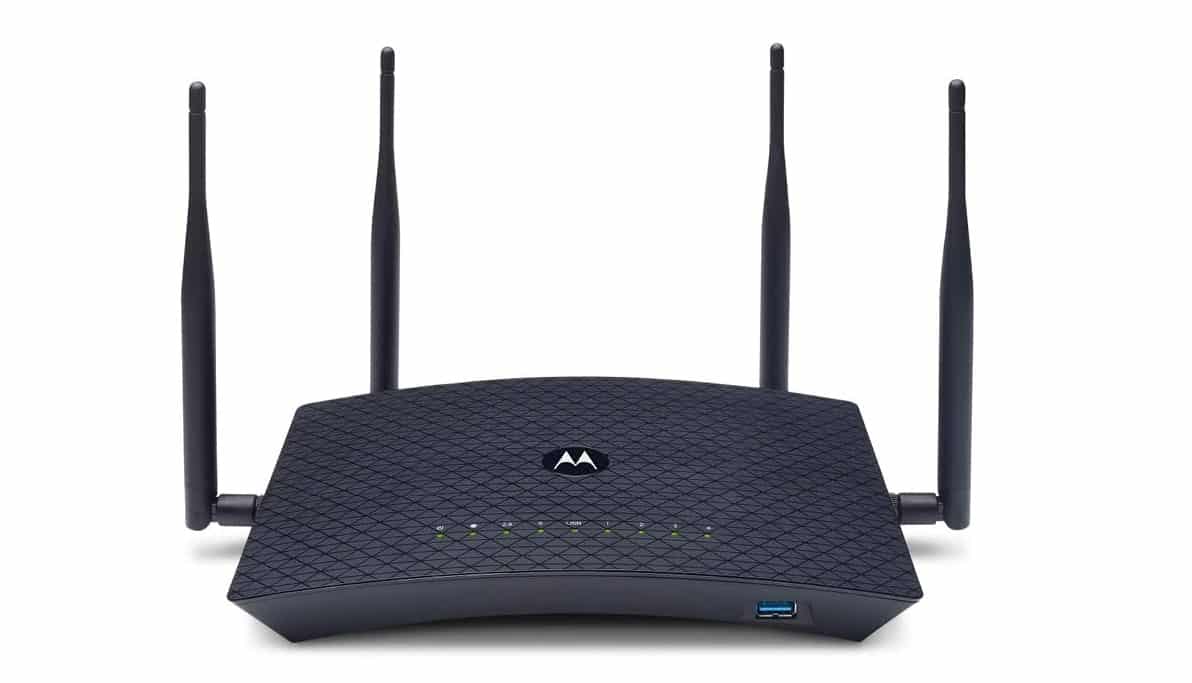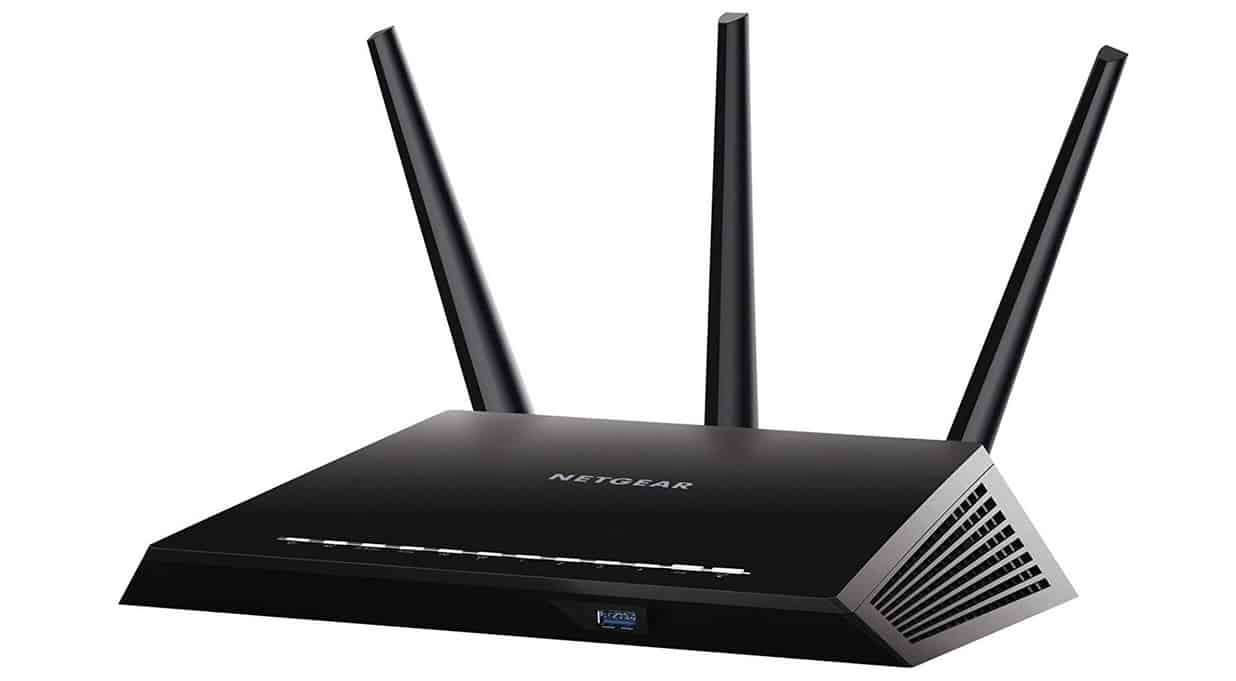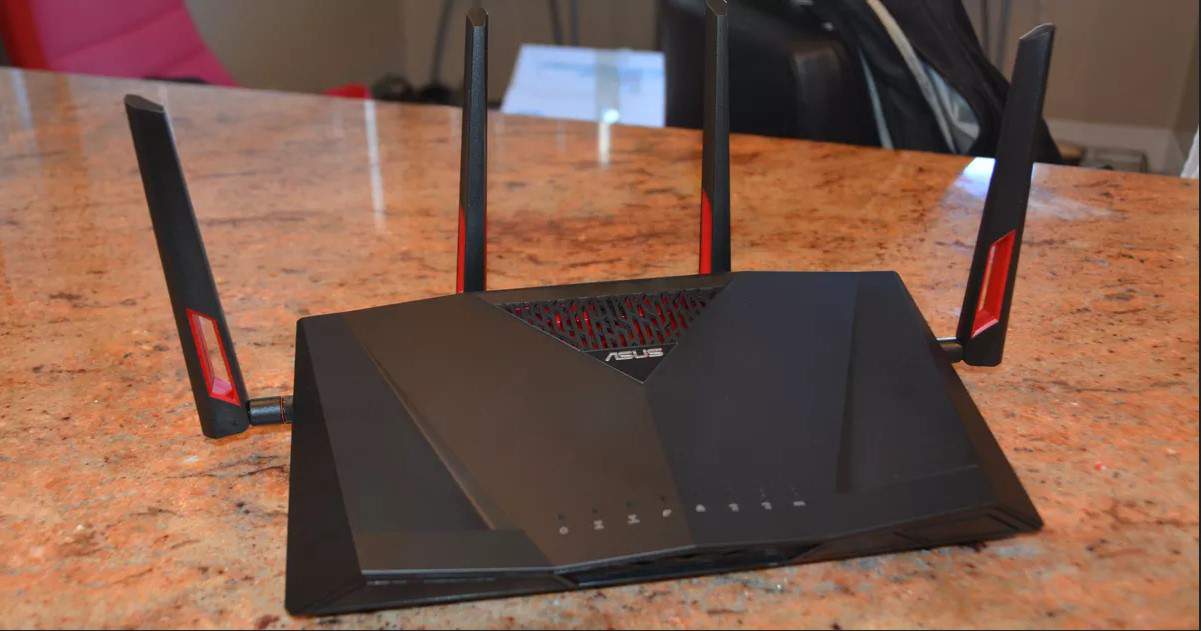

If you’ve begun experimenting with the different settings configurations of your wireless network, you may wonder how to change DNS settings on a router. The best routers, after all, allow for all manner of settings adjustments. But why change DNS settings and how to do it? Keep reading to find out.
KEY TAKEAWAYS:
- Changing a router’s domain name server (DNS) settings can help increase security, speed, and efficiency.
- The process to change up these DNS server settings, or connecting to a third-party secondary DNS server, will differ according to the make and model of your router.
- This DNS server settings process is typically done via your admin panel, accessed on a web browser, or via firmware software, though can sometimes be done on mobile devices or via your operating system’s sharing center.
Why Adjust DNS Settings on a Router?
The main reasons folks adjust DNS (domain name server) settings or switch to a third-party DNS server, are for added security, increased parental controls, increased speed, and even increased network reliability. Changing to a different DNS server can be helpful if, say, you are learning about router latency and when it is a problem.
How to Adjust DNS Settings on a Router
The process here differs significantly depending on the make and model of your router, as each manufacturer necessitates learning different firmware software and admin panel operating procedures. This is typically the case with modern routers, however, even if you are learning how to set up a guest network on a router.
Insider Tip
There are many DNS software suites available, so perform some research to find the best secondary DNS server solution.
Here are some general and universal guidelines for adjusting DNS settings on a wireless router.
STEP 1
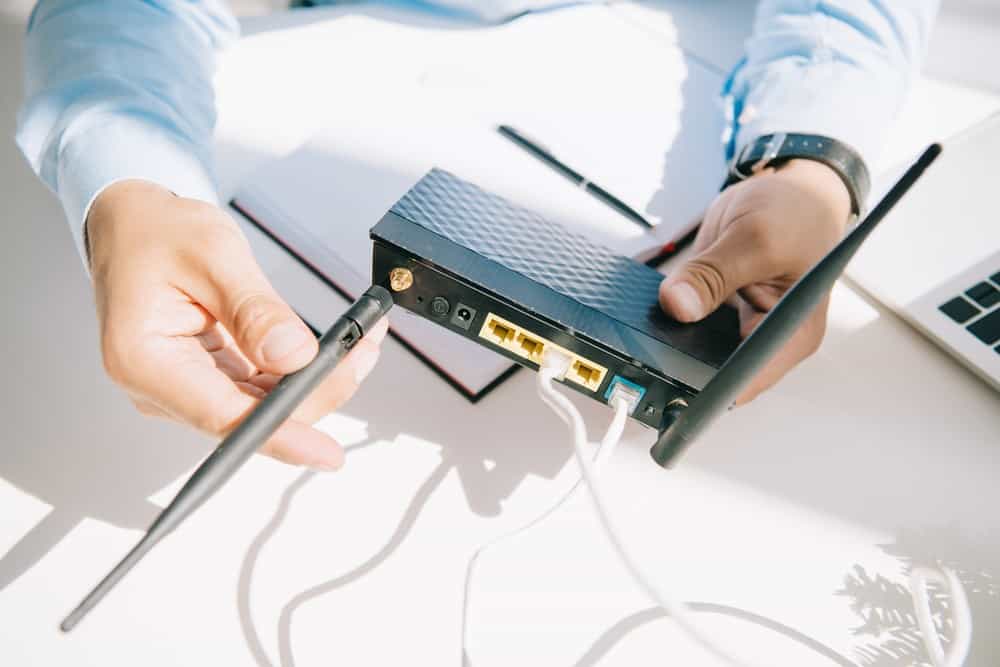
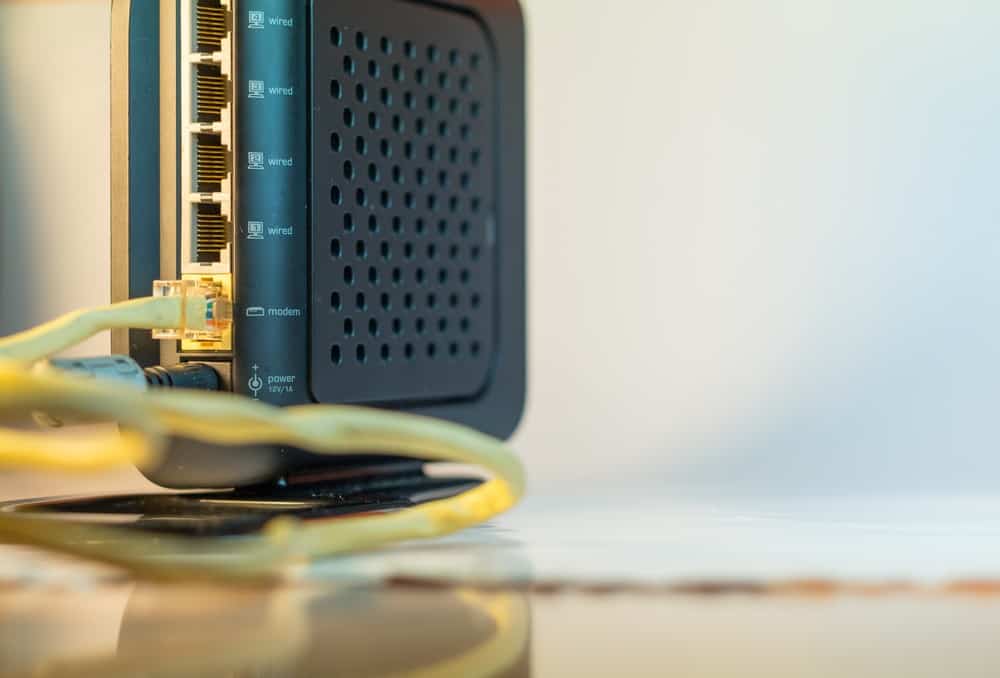
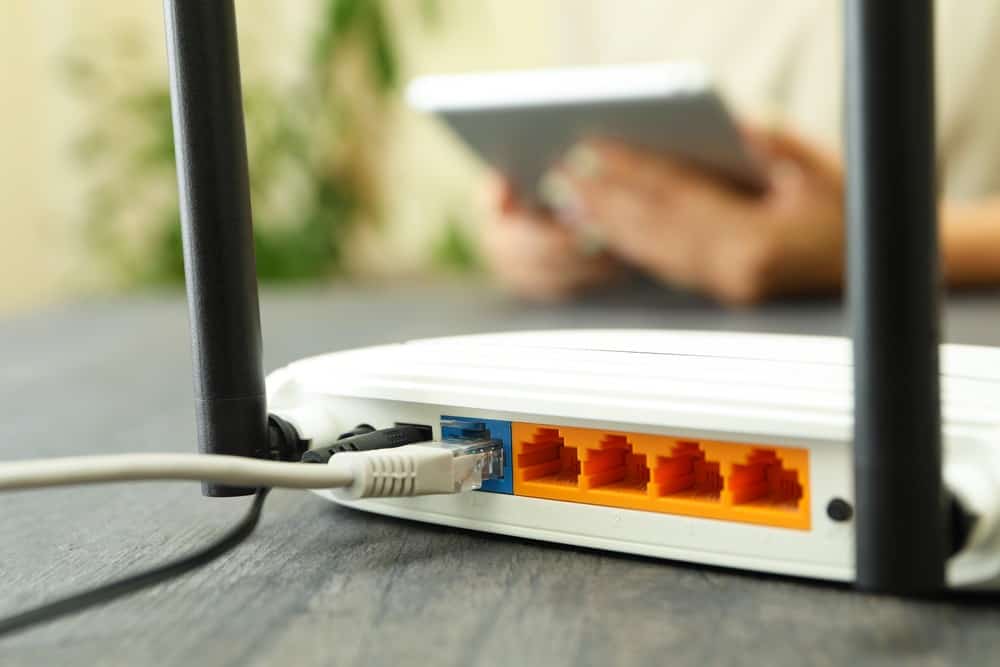
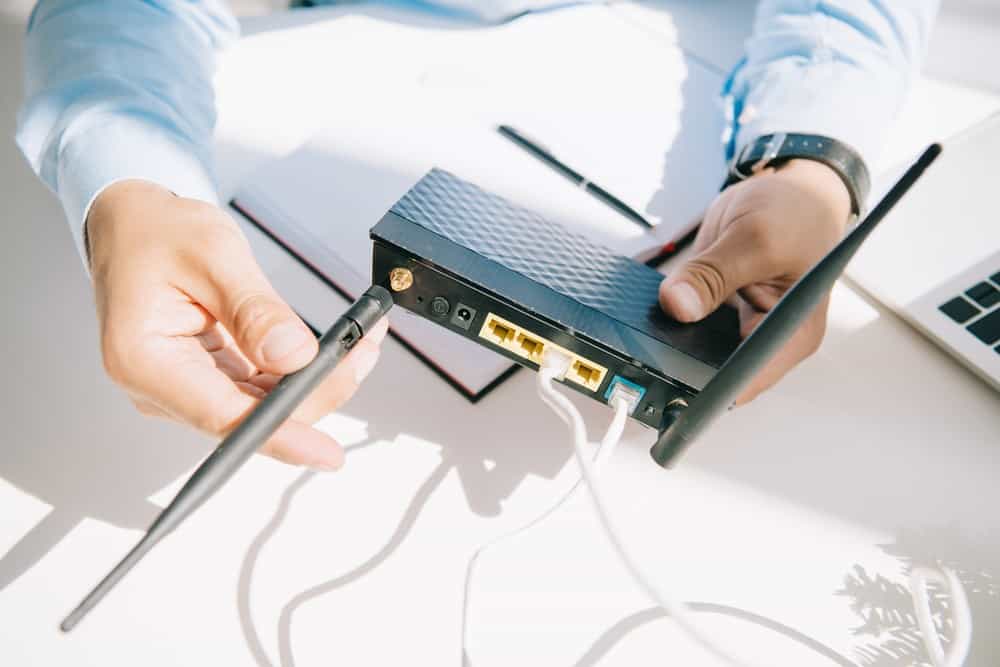
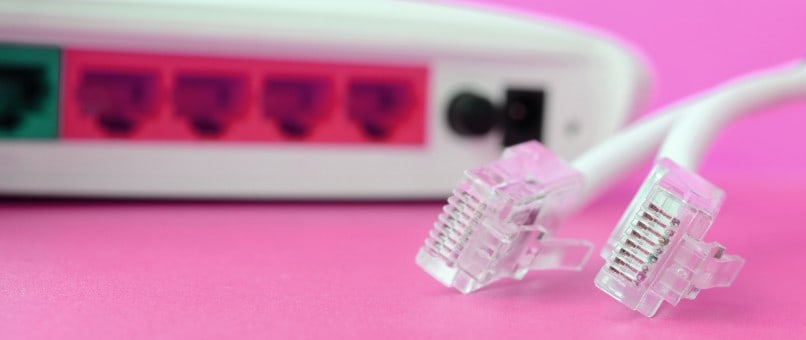
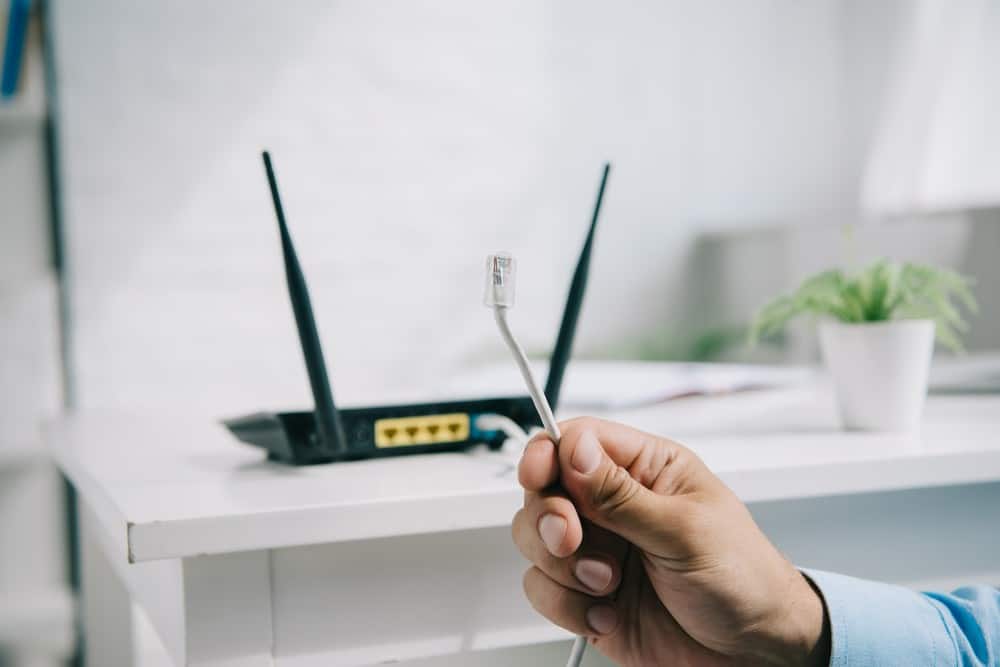
Ensure that your modem and router are both properly connected, with an Ethernet cable extending from the router to the modem. Your modem should be transmitting an Internet connection and your router should be working to wirelessly extend this connection.
STEP 2
Access your admin panel or firmware software via instructions in the manual, as each router is different. This is typically done by entering an IP address in a web browser on a connected computer.
STEP 3
Scour your router’s settings for anything about the DNS server, sometimes called “DNS Server Settings” or simply “DNS settings.” This page can sometimes be listed underneath LAN settings. If you’re having trouble finding this settings page, check your router’s instructions or perform a Google search for your router and “change DNS server”.
STEP 4
Adjust the DNS server settings to your liking, adding any third-party DNS server you have access to.
STEP 5
Restart the router by unplugging it from a power source for around a minute and then plugging it back in. Once restarted, you should be good to go.
F.A.Q.S
How to configure a router or gateway to use Google public DNS servers?
For DNS configuration for a Google Public server, start by accessing your router’s admin panel and following the prompts, looking for an advanced button.
Where to change DNS server settings?
You can change these Wi-Fi network settings via your router’s admin panel or by connecting your computer directly to your router with an Ethernet adapter.
How do I change my laptop’s DNS server?
To change to a secondary DNS server on a laptop, it will depend on your operating system. Typically this is done via network settings, so look for an option listed as DNS server addresses or secondary servers.
STAT: When hackers exploit router vulnerabilities, gain access to it, and modify the DNS servers settings, all your Internet traffic can be forwarded to rogue servers. This is called a man-in-the-middle attack. (source)
REFERENCES:
- https://www.avast.com/c-how-to-change-router-dns-settings
- https://developers.google.com/speed/public-dns/docs/using
- https://www.tp-link.com/us/support/faq/1712/r
- https://ibisupport.sandisk.com/app/answers/detail/a_id/21438/~/how-to-configure-a-router-or-gateway-to-use-google-public-dns-servers
- https://developers.cloudflare.com/1.1.1.1/setup-1.1.1.1/router